Category: Docker

  • Removing Business Central Docker containers with PowerShell

    Removing Business Central Docker containers with PowerShell

    Yesterday I bumped into an intermittent issue on our Jenkins CI server where some Business Central containers where not getting removed after use. This led me to find a way of removing Business Central Docker containers with PowerShell, and a topic for a blog post. The issue seems to be with a process keeping the NavContainerHelper container folder open, which is stopping the script from removing it.. anyway, that’s not what this post is about.

    As a temporary work-around while I get to the root cause of the issue, I decided to build the containers with a unique name and setup a nightly cleanup job to remove any surplus containers on the build server.

    To do this, I first need a list of containers to remove. I used the docker ps command, formatting the result a a table to make it easier to use in PowerShell:

    $containers = docker ps -a --filter "name=bc*" --format "{{.Names}}"

    Filtering

    I was using the prefix “bc” on my container names, so I’ve selected this as my filter “name=bc*”. You could also filter on the image using the ancestor filter. For example:

    $containers = docker ps -a --filter "ancestor=mcr.microsoft.com/businesscentral/sandbox:gb-ltsc2019"

    Unfortunately I couldn’t get the ancestor filter to work with a more generic image name (i.e. mcr.microsoft.com/businesscentral/sandbox) which limited it’s usefulness in my scenario.

    There is also the label filter which is useful. The Business Central images come with a number of labels which we can retrieve by querying our containers. For example:

    PS C:\WINDOWS\system32> docker ps -a --format "{{.Labels}}"
    country=gb,tag=0.0.9.97,nav=,osversion=10.0.17763.914,platform=15.0.37865.39262,created=201912201932,cu=update31,eula=https://go.microsoft.com/fwlink/?linkid=86
    1843,legal=http://go.microsoft.com/fwlink/?LinkId=837447,maintainer=Dynamics SMB,version=15.1.37881.39313
    country=W1,legal=http://go.microsoft.com/fwlink/?LinkId=826604,maintainer=Dynamics SMB,nav=2018,tag=0.0.9.2,version=11.0.19394.0,created=201903101911,cu=rtm,eul
    a=https://go.microsoft.com/fwlink/?linkid=861843,osversion=10.0.17763.316
    cu=rtm,eula=https://go.microsoft.com/fwlink/?linkid=861843,legal=http://go.microsoft.com/fwlink/?LinkId=826604,maintainer=Dynamics SMB,nav=2018,country=gb,creat
    ed=201903102009,osversion=10.0.17763.316,tag=0.0.9.2,version=11.0.19394.0

    The above output shows a list of label key/value pairs being used by containers on my machine (I’ve only got Business Central and NAV containers). One label common to all my containers is “maintainer=Dynamics SMB”, which we could use in our filtering as follows:

    docker ps -a --filter "label=maintainer=Dynamics SMB"

    Formatting the output

    After running the script (with –format “{{.Names}}”), $containers will look something like this:

    bccontainer1
    bccontainer2
    bccontainer3

    I only want the container name so I’m only requesting this one field in the format parameter. If I wanted more information I could simply list out the additional fields required. For example:

    $containers = docker ps -a --format "{{.Names}} {{.ID}} {{.Image}}"

    With my list of container names I can now loop through and invoke the Remove-NavContainer Cmdlet on each name:

    $containers = docker ps -a --filter "name=c*" --format "table {{.Names}}"
    
    foreach ($container in $containers) {
        Write-Host 'Removing ' $container
        try {
          Remove-NavContainer -containerName $container
        }
        catch {
          Write-Host 'Could not remove ' $container -f Red
        }
    }

    As I still had problems with the NavContainerHelper folder being locked, the script was still failing on some containers (Jenkins restart required) so I added a try-catch to make sure the script at least attempts to remove all containers.

    That’s it, dirty hack temporary fix complete!

  • How-to: Run LS Central in a Docker container – Part 2

    Docker containers

    In my previous blog post How-to: Run LS Central in a Docker container I showed how you can run LS Central on Docker with some manual steps to get the client and server components installed.

    For this blog post I’m going to show a more reusable solution where you can install the client components via a script passed into the container.

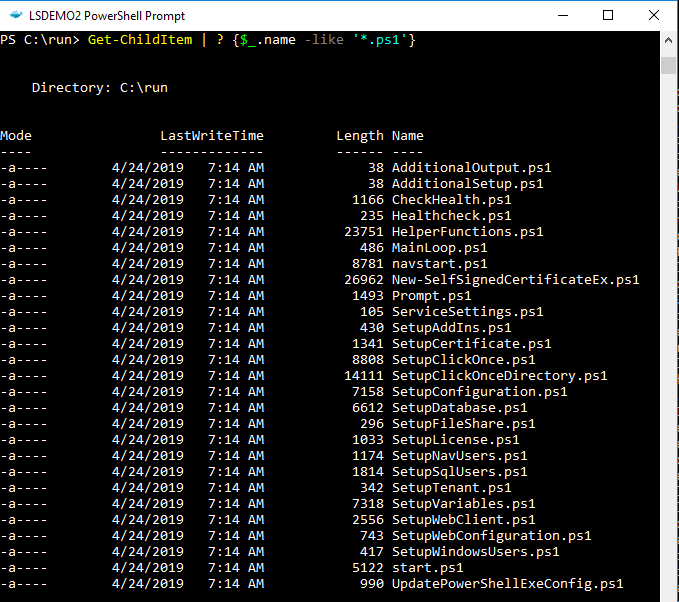
    To make the Business Central Docker images configurable, the designers decided to incorporate a set of Powershell script files which can be substituted at build time to override the standard setup process. The standard scripts are found in the containers C:\Run directory:

    Business Central container run contents
    The AdditionalSetup.ps1 script file, which is empty by default, when overwritten will execute after the main setup has completed. This is where we can provide code to install additional components such as client and service add-ins.

    When you place a script with the same name into the containers C:\Run\my directory, Docker will use this version of the file instead of the standard version. As we saw in my previous blog post the New-NavContainer Cmdlet’s -myScripts parameter is used to copy files from the Docker host into the containers C:\Run\my directory.

    I’ve created an AdditionalSetup.ps1 file with the following content:

    Write-Host "Installing LS Client Components.."
    
    & "C:\Run\my\LS Central 13.04.00.852 Client Components.exe" /silent
    
    Write-Host "Installing LS Service Components.."
    
    & "C:\Run\my\LS Central 13.04.00.852 Service Components.exe" /silent
    
    Write-Host "Remove database backup.."
    
    Remove-Item -Path 'C:\Run\my\*' -Include *.bak

    Note: The reason I’m not cleaning up the installer files is because I was getting an access denied error. If anyone knows why I can delete the database backup but not the .exe files please let me know in the comments!

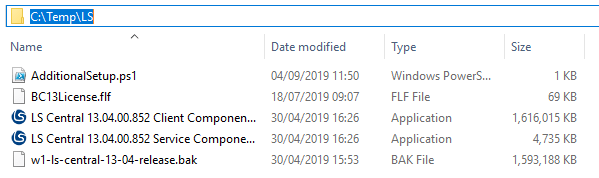
    For this example I’ve created a folder on the Docker host machine with the following content:

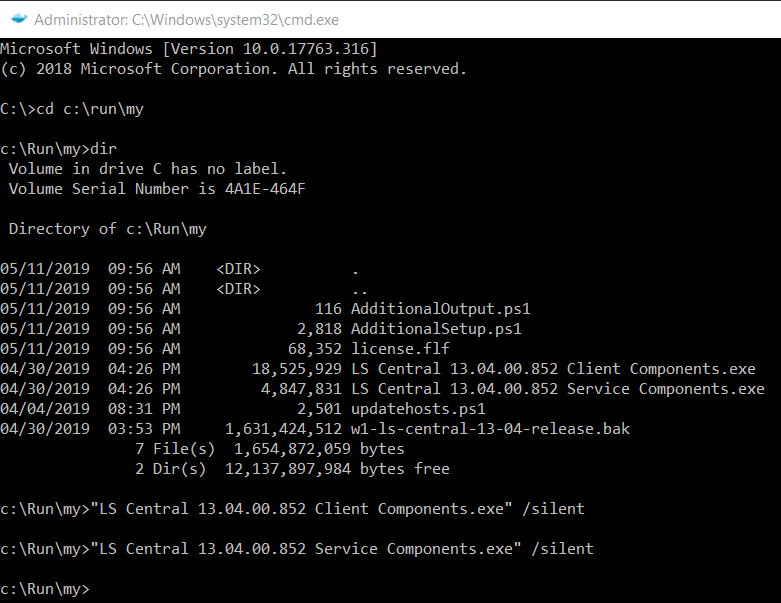
    LS Central install files


    Now I can run a script to build the container, using my setup files and additional setup script:

    $imageName = "mcr.microsoft.com/businesscentral/onprem:1810-cu3"
    $navcredential = New-Object System.Management.Automation.PSCredential -argumentList "admin", (ConvertTo-SecureString -String "admin" -AsPlainText -Force)
    New-NavContainer -accept_eula `
                        -containerName "LSDEMO2" `
                        -Auth NavUserPassword `
                        -imageName $imageName `
                        -Credential $navcredential `
                        -licenseFile "C:\Temp\LS\BC13License.flf" `
                        -updateHosts `
                        -alwaysPull `
                        -additionalParameters @('--env bakfile="c:\run\my\w1-ls-central-13-04-release.bak"') `
                        -myScripts @(`
                                    "C:\Temp\LS\w1-ls-central-13-04-release.bak", `
                                    "C:\Temp\LS\LS Central 13.04.00.852 Client Components.exe", `
                                    "C:\Temp\LS\LS Central 13.04.00.852 Service Components.exe", `
                                    "C:\Temp\LS\AdditionalSetup.ps1"`
                                    ) `
                        -memoryLimit 8GB `
                        -accept_outdated `
                        -doNotExportObjectsToText
  • How-to: Run LS Central in a Docker container

    Microsoft have been releasing Business Central (formerly Dynamics NAV) as Docker images for a few years now. These have been great for testing and learning the new developer tools and trying out new functionality, but in real life many of us don’t use vanilla Business Central. You, like me, probably need an ISV solution and it’s demo data before Docker is useful on customer projects and demos.

    This blog post shows one way you can get LS Central by LS Retail running in a Docker container.

    LS Central releases contain a demo .bak file which we’ll use to replace the default .bak file that comes with Business Central. We’ll also need the client and server add-in files to deploy to the container.

    Note it’s important that any installer packages can run in unattended/silent mode as Windows Server Core based containers do not have a GUI to handle any user interaction. One way to check this is to run the .exe with the /? parameter and see if it prints out any information. LS Central installers use the /silent parameter:

    PS C:\Temp\LS> & '.\LS Central 13.04.00.852 Client Components.exe' /?
    
    ---------------------------
    Setup
    ---------------------------
    The Setup program accepts optional command line parameters.
    
    
    /HELP, /?
    
    Shows this information.
    
    /SP-
    
    Disables the This will install... Do you wish to continue? prompt at the beginning of Setup.
    
    /SILENT, /VERYSILENT
    
    Instructs Setup to be silent or very silent.
    
    /SUPPRESSMSGBOXES
    
    Instructs Setup to suppress message boxes.
    
    /LOG
    
    Causes Setup to create a log file in the user's TEMP directory.
    
    /LOG="filename"
    
    Same as /LOG, except it allows you to specify a fixed path/filename to use for the log file.
    
    /NOCANCEL
    
    Prevents the user from cancelling during the installation process.
    
    /NORESTART
    
    Prevents Setup from restarting the system following a successful installation, or after a Preparing to Install failure that requests a restart.
    
    /RESTARTEXITCODE=exit code
    
    Specifies a custom exit code that Setup is to return when the system needs to be restarted.
    
    /CLOSEAPPLICATIONS
    
    Instructs Setup to close applications using files that need to be updated.
    
    /NOCLOSEAPPLICATIONS
    
    Prevents Setup from closing applications using files that need to be updated.
    
    /RESTARTAPPLICATIONS
    
    Instructs Setup to restart applications.
    
    /NORESTARTAPPLICATIONS
    
    Prevents Setup from restarting applications.
    
    /LOADINF="filename"
    
    Instructs Setup to load the settings from the specified file after having checked the command line.
    
    /SAVEINF="filename"
    
    Instructs Setup to save installation settings to the specified file.
    
    /LANG=language
    
    Specifies the internal name of the language to use.
    
    /DIR="x:\dirname"
    
    Overrides the default directory name.
    
    /GROUP="folder name"
    
    Overrides the default folder name.
    
    /NOICONS
    
    Instructs Setup to initially check the Don't create a Start Menu folder check box.
    
    /TYPE=type name
    
    Overrides the default setup type.
    
    /COMPONENTS="comma separated list of component names"
    
    Overrides the default component settings.
    
    /TASKS="comma separated list of task names"
    
    Specifies a list of tasks that should be initially selected.
    
    /MERGETASKS="comma separated list of task names"
    
    Like the /TASKS parameter, except the specified tasks will be merged with the set of tasks that would have otherwise been selected by default.
    
    /PASSWORD=password
    
    Specifies the password to use.
    
    
    For more detailed information, please visit http://www.jrsoftware.org/ishelp/index.php?topic=setupcmdline
    ---------------------------
    OK   
    ---------------------------


    Of course if the installer is only adding DLLs to the add-ins folder then you could also get these files from another machine and copy them into the container. Have a look at the docker cp command documentation to see how to copy files into a container.

    We’re going to use the Create-NavContainer Cmdlet from the NavContainerHelper PowerShell module to build the container and use the LS demo database. We can use the -myScripts parameter to copy the LS components into the container, and then install them individually using the shell desktop shortcut the NavContainerHelper module creates.

    I used a script from Freddy’s Blog and adapted to suit. The steps look like this, adjust as required:

    $imageName = "mcr.microsoft.com/businesscentral/onprem:cu3"
    $navcredential = New-Object System.Management.Automation.PSCredential -argumentList "admin", (ConvertTo-SecureString -String "admin" -AsPlainText -Force)
    New-NavContainer -accept_eula `
    -containerName "LSDEMO" `
    -Auth NavUserPassword `
    -imageName $imageName `
    -Credential $navcredential `
    -licenseFile "https://www.dropbox.com/<blanked out>/Licence.flf?dl=1" `
    -myScripts @("C:\Temp\LS\w1-ls-central-13-04-release.bak", "C:\Temp\LS\LS Central 13.04.00.852 Client Components.exe", "C:\Temp\LS\LS Central 13.04.00.852 Service Components.exe") `
    -additionalParameters @('--env bakfile="c:\run\my\w1-ls-central-13-04-release.bak"') `
    -useBestContainerOS `
    -includeCSide `
    -updateHosts `
    -enableSymbolLoading
    

    In the above PowerShell script which I ran from PowerShell ISE, I copy the demo database and LS component installers into the containers C:\run\my directory using the -myScripts parameter, and then replace the database used during installation using the -additionalParameters parameter.

    Note: you must match the correct Business Central image for your demo database. LS Central 13.04 is based on Business Central On-prem CU3, check the release notes for the version you need and adjust he image name in the script above.

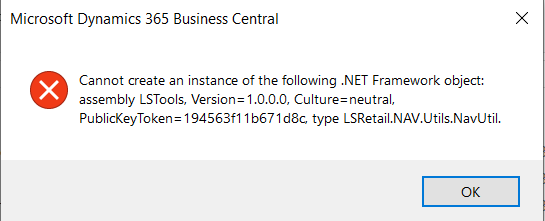
    So far so good, we have a running container but if we try and use the system we’ll quickly bump into a missing component error. Next we’ll need to install the LS components.

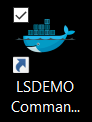
    The NavContainerHelper Module has conveniently left a command line shortcut on my desktop:

    We can use this to install our LS components which we loaded into the container c:\Run\my directory earlier:

    We now have LS Central running in our Docker container.

    If you want to use the LS Windows Client POS you’ll also need to copy the LS client components into local RTC add-ins folder created by NavContainerHelper. Assuming the container name is LSDEMO, the local add-in folder can be found on the Docker host machine here:

    C:\ProgramData\NavContainerHelper\Extensions\LSDEMO\Program Files\130\RoleTailored Client\Add-ins

    Enjoy!

    See Part 2 to automate creation further:

    How-to: Run LS Central in a Docker container – Part 2


  • Remove Docker Images with PowerShell

    Update: Since Docker 1.13 (API version 1.25) the prune command has been available. You can remove all unused images with > docker image prune –all

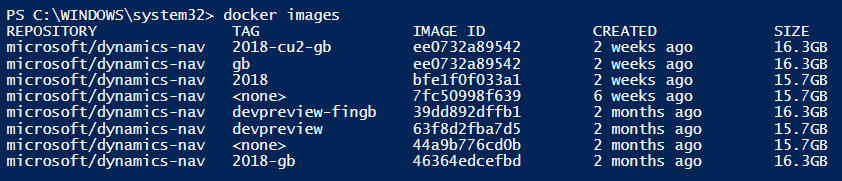
    If like me, you’ve been experimenting with Docker since Microsoft made the Dynamics NAV images available, you’ll probably notice you’re using up a fair bit of hard drive space. So how do we remove Docker Images?

    Dynamics NAV Docker Images
    Dynamics NAV Docker Images

    The image above is a tad misleading however, as Docker shares images saving space. The microsoft/windowsservercore image for example is around 10GB, and is reused by all the other Dynamics NAV images. The size you see in the screenshot above is the total size of the image if you were to save an archive using the docker save command. Still, my Docker folder was somewhere around 40-50GB in size.

    So today I decided to have a clean up and remove all the images from my machine. I could have removed each image one by one using docker rmi:

    > docker rmi ee0
    > docker rmi bfe
    > docker rmi 7fc

    Docker tip: When referencing Docker Image or Containers in Docker commands, for brevity, you can use the first x number of characters of the Image or Container ID. Where x is the minimum number needed to identify a unique ID on your system. The first three characters will be fine in most cases.

    But.. repetition is a computers job right?

    To automate this we’ll need to get a list of our Docker Image IDs and pass them to the docker rmi command.

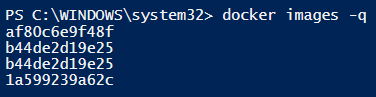
    To get a list of Image IDs on our system, we can use the docker images command with the -q option:

    Get Docker Image IDs
    Get Docker Image IDs

    We can then take the list of image IDs and iterate through them using a PowerShell foreach statement:

    $images = docker images -q
    
    foreach ($image in $images) {
     docker rmi $image -f
    }

    What about filtering?

    So far so good.. we can remove Docker images with a PowerShell script. But what if we want to keep the base image? It’s around 12GB, so we probably don’t want to download it again next time we pull a NAV image.

    The docker images command takes the repository name as an optional parameter. We can use this to filter on our NAV images:

    > docker images microsoft/dynamcis-nav
    List NAV Docker Images
    List NAV Docker Images

    Keeping the base image

    The problem is, unless we’ve explicitly requested the base image it doesn’t show up in our image list. This means it will get removed with the last NAV image referencing it. To get around this we just need to do a pull request for the base image.

    To understand this concept, it’s important to know that Docker images are built in layers. Instead of building an entire image from scratch every time, when creating an image you can base it on an existing image. All Dynamics NAV images are built on an image called microsoft/nav-docker. Docker images can be built from a Dockerfile. We can view the Dockerfile for microsoft/nav-docker and see that this image is currently based on the microsoft/dotnet-framework:4.7-windowsservercore image.

    So back to the pull request:

    > docker pull microsoft/nav-docker
    Cant Pull nav-docker image
    Cant Pull nav-docker Image

    Microsoft has restricted access, or just not published this image. We can use the image that microsoft/nav-docker is based on instead:

    > docker pull microsoft/dotnet-framework:4.7-windowsservercore
    Pull microsoft/dotnet-framework:4.7-windowsservercore
    Pull microsoft/dotnet-framework:4.7-windowsservercore

    Running this command didn’t download the image again as Docker found it locally. However, it will now list the microsoft/dotnet-framework:4.7-windowsservercore image alongside our NAV images:

    Docker Images with a base image available
    Docker Images with a base image available

    As we can see from the size attributes, the 4.7-windowsservercore image makes up the bulk of the NAV image size.

    To remove all the microsoft/dynamics-nav images but leave the microsoft/dotnet-framework image for later use, we can run the following PowerShell script:

    $images = docker images -q microsoft/dynamics-nav
    
    foreach ($image in $images) {
     docker rmi $image -f
    }

    Remove Docker Images.. except the most recent

    To have a look at another filtering option lets explore another scenario. What if we want to keep the most recently pulled NAV image, but remove Docker images previous to this?

    The docker images command has a –filter option. We can use this to filter on the image created date. It’s important to note that this is based on the time the images were created on your system (when it was pulled), not when the vendor created or published the image.

    Using a before filter we can get a list of all image IDs that where pulled before microsoft/dynamics-nav:latest:

    > docker images microsoft/dynamics-nav --filter "before=microsoft/dynamics-nav:latest"
    $images = docker images -q microsoft/dynamics-nav --filter "before=microsoft/dynamics-nav:latest"
    
    foreach ($image in $images) {
     docker rmi $image -f
    }

    Putting the two commands together

    So far we’ve used a foreach loop to iterate through the list of image IDs we get back from the docker images command. I think this approach makes the script easier to read, but we can also use this list directly with the docker rmi command on the same line:

    > docker rmi (docker images -q microsoft/dynamics-nav --filter "since=microsoft/dynamics-nav:latest")

    In the example above I’ve used the since filter to remove all NAV images after the “latest” image.

    Now I’m left with just the latest Dynamics NAV image and the dotnet-framework image it’s based on.

    Dynamics NAV latest Docker image
    Dynamics NAV latest

    OK, well thanks for reading. If you want to look at more of the filtering options available check out this link: https://docs.docker.com/engine/reference/commandline/images/#filtering”