Category: AL Development

  • Using an Azure Function as an OAuth 2.0 redirect url

    Using an Azure Function as an OAuth 2.0 redirect url

    We’ve got some great development tools these days in Business Central but it’s still not possible to solve every problem with AL. This week I hit such a problem while developing a Javascript Control Addin to embed a third-party web application in Business Central SaaS. The problem was OAuth 2.0 authentication, or more specifically how to get an access token from a redirect URL.

    The third party web application required OAuth 2.0 implicit flow, for my use this was going to look something like this:
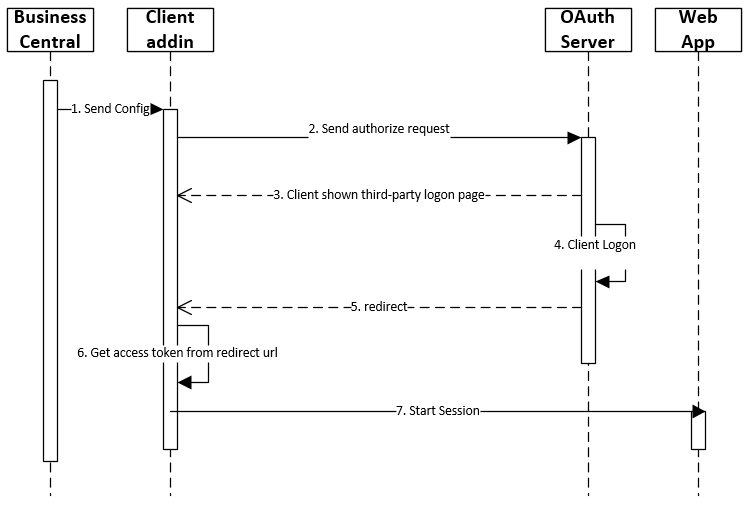
    OAuth 2.0 Implicit flow

    This is a slight simplification as we only need to authorize if our previously obtained token has expired, but this is not really the point of this blog post.. My problem was 5. redirect; this is a url the authentication server will redirect our users’ browser to (in this case the src of the iFrame used by the Control Addin). The data we need is in the url generated by the authentication server which will need to be stripped off (6) and used in following interactions with the third-party web app.:

    GET $base_url/api/oauth2/authorize?client_id=$client_id&response_type=token&redirect_uri=$redirect_uri
    
    ==>
    
    Location: $redirect_uri#expires_in=3600&token_type=Bearer&scope=$scope&access_token=$token

    So how do we handle this requirement in Business Central? The authentication server needs a URL ($redirect_uri) from us which it will use to send the access data after the user has logged in. This redirect service will then need to redirect the user back to our application. Well the answer is we can’t. There is no way for us to create a web service in Business Central that will handle such a request. We need to build a service to accept an HTTP GET request and extract the query parameters to use in our application (technically the parameters after the redirect url are not query parameters; note the use of # rather than ?.. more on this later), and then load the web app we want to authenticate with into our Control Addin iFrame.

    Using an Azure Function as an OAuth 2.0 redirect url

    The great news is Microsoft has an offering (which I’ve been trying to find an excuse to use for some time!) called Azure Functions. Azure Functions allow you to quickly (and cheaply) deploy functions as web services to be used by other applications.

    I needed an Azure Function, that when called would send the data (hash property) in the url to my Control Addin:
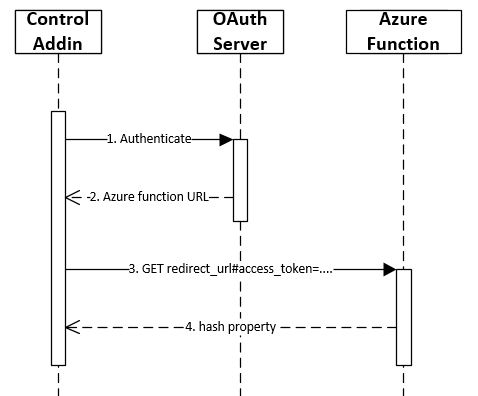
    Azure Function as redirect url

    1. The iFrame src is set to the OAuth authentication url, and the user logs in with their credentials.
    2. On success, the authentication server will redirect to our Azure Function url with the access details in the url hash property.
    3. The Azure function will load in the Control Addin iFrame.
    4. The Azure Function sends the hash property back to our application
    5. Decode the hash property to extract the access token

    Hash Property vs. Query Parameters

    I made the distinction earlier, that what we’re trying to extract from the redirect url is not query parameters, but the location hash property. This distinction is important because it affects how the data is retrieved by our Azure Function.

    $redirect_uri#expires_in=3600&token_type=Bearer&scope=$scope&access_token=$token

    A hash property in a url starts with a # character, whilst query parameters follow a ? character. The fundamental difference is that the hash property is only available to the browser and is not sent to the web server. This means that we’ll need to use client side scripting to retrieve the data.

    Note: OAuth 2.0 does not always send data using a hash property, it depends on the flow you’re implementing.

    Implementing the Azure Function

    The Azure function is incredibly simple, all we are doing is receiving a request and sending the hash property to the Control Addin. I used a node.js based function, simply because I was already using Javascript and AL for this project and didn’t feel the need to add a third language 🙂

    Step 1 – get the hash property:

    let hashString = window.location.hash;

    Step 2 – send the hash property to the Control Addin for processing:

    This takes a little more thought. You may be tempted down the lines of sending the hash value back to Business Central via a web service. Definitely do-able.. but as our Azure function is running inside the iFrame in our Control Addin we can simply use client-side window messaging to post the value back to our main window for processing:

    window.parent.postMessage(msg, "*");

    The above Javascript code is posting a message to the parent window, which will be our Control Addin. 

    The receiving window will need to know what the message is in order to process it. I create the msg variable as a Javascript object, so I can pass through some additional information:

    let msg = {
    type: "xp.authentication",
    hash: hashString
    };

    My message now has a type value and a hash value which I’ll be able to pick up in my Control Addin code. 

    Of course this is client-side Javascript (remember the hash property is only available to the browser), and will need to run inside the iFrame when the Azure Function is invoked. This means our Azure Function will need to return this code for the browser to execute. I did this by creating a simple HTML document as a string and passing it back as the response body. The full Azure Function code looks like this:

    module.exports = async function (context, req) {
    const responseMessage = '<html><script>' +
    'let hashString = window.location.hash;' +
    'let msg = {' +
    'type : "xp.authentication", ' +
    'hash : hashString ' +
    '}; ' +
    'window.parent.postMessage(msg, "*"); ' +
    '</script>' +
    '<h1>Getting access token...</h1></html>';
    context.res = {
    headers: { 'Content-Type': 'text/html' },
    body: responseMessage
    };
    }

    Retrieving the hash in the Control Addin

    The final part of the jigsaw is to pick up the message sent by the Azure Function. This is done using browser events.

    Within our Control Addin code we can add an event listener to a message event as follows:

    window.addEventListener("message", function (pEvent) {
       if (pEvent.source !== iFrame.contentWindow)
           return;

       handleMessage(pEvent.data);
    });

    The above code will use an anonymous function as an event listener to the message event. I’m using message events to communicate with the third-party web app as well so the above code send all message event data that has come from our Control Addin iFrame to my handleMessage function:

    function handleMessage(pMessage) {
       //redirect token received?
       if (pMessage.type === "xp.authentication") {
           decodeAuthHash(pMessage.hash);
           iFrame.src = 'https://the-url-of-third-party-app.com';
       }
    // ... more event "types" picked up here
    }

    Now you can see why it was important to give the msg variable a type in my Azure Function. If I find the message is of type xp.authentication then I will try and process the accompanying hash property using the decodeAuthHash() function. I’m then switching the iFrame src to the third-party application url specific to my solution.

    From here we can extract the required fields out of the hash string for use in our application. I like to create a JSON object to hold the data as it’s convenient format to use:

    function decodeAuthHash(authHash) {
       if (authHash === '' || authHash === undefined) {
           return;
       }

       authHash = authHash.replace('#', '');
       let hashPairs = authHash.split('&');
       const hashJson = JSON.parse('{}');
       hashPairs.forEach(function (hashPair) {
           let splitPair = hashPair.split('=');
           hashJson[splitPair[0]] = splitPair[1];
       });
       tAccessToken = hashJson;
    }

    I’m assigning the JSON variable to a global variable tAccessToken to use in further functions. I can then retrieve the access_token as follows:

    let accessToken = tAccessToken.access_token;

    See what I mean about JSON being a convenient format in Javascript? You can use it like any other object with properties, no need to find the key and get the value as a JsonToken like we do in AL.. the code is much cleaner. That said, I’m no Javascript expert so please let me know if you have a more elegant solution! 

    That’s it, thanks for reading.

  • Uninstall all dependant apps in Business Central On-premise

    Uninstall all dependent apps

    Ever tried to uninstall a Business Central app in PowerShell, and failed due to dependencies on that app? I hit that problem and decided to share a script to detect and uninstall all dependant apps.

    I was looking to publish an app from VS Code on a copy of a customers database so I could debug and develop locally and needed to uninstall the app first before I could deploy. The problem was, this app was a dependency for several other apps created for the customer.

    What I found is we can get a full list of apps installed with the Get-NavAppInfo cmdlet, then for each app iterate through the dependencies until we find our app:

    https://gist.github.com/DanKinsella/b3b4a534fe23204c35affc56b296d3c2.js

    The script prints out a list of app names and versions which can be used for reinstalling them after. 

    Hope this is useful for someone else.

  • Developing with the new enhanced email feature

    Enhanced Email Feature

    Yesterday, I had an email notification about a new blog post from my colleague Josh Anglesea. A great post on the new enhanced email feature coming with Business Central v17. Out of pure coincidence, I happened to be looking into the same functionality, but from a development perspective… So inspired by Josh here’s a blog post about developing with the new enhanced email feature.

    Josh already did a great job explaining how to setup the new functionality, so I highly recommend you read his post before continuing as I won’t go into this.

    The major change this new enhanced email functionality offers is the ability to configure multiple email accounts and have Business Central select the correct account based on the scenario. This is in contrast to the single account you can configure per Business Central company using the old SMTP Setup page.

    This brings us to the first new concept: Email Scenario

    When you create a new email account, you can choose which scenarios this account will be used in. The scenarios offered by the base application are defined in an enumextension object, which extends the systems app’s Email Scenario Enum:

    enumextension 8891 "Base Email Scenario" extends "Email Scenario"
    {
       value(1; "Invite External Accountant")
       {
           Caption = 'Invite External Accountant';
       }
       value(2; "Notification")
       {
           Caption = 'Notification';
       }
       value(3; "Job Planning Line Calendar")
       {
           Caption = 'Job Planning Line Calendar';
        }

        // Document usage

        // ------------------------------------------------------------------------------------------------

       value(100; "Sales Quote")
       {
           Caption = 'Sales Quote';
       }
       value(101; "Sales Order")
       {
           Caption = 'Sales Order';
       }
       value(102; "Sales Invoice")
       {
           Caption = 'Sales Invoice';
       }
       value(103; "Sales Credit Memo")
       {
           Caption = 'Sales Credit Memo';
       }
       value(105; "Purchase Quote")
       {
           Caption = 'Purchase Quote';
       }
       value(106; "Purchase Order")
       {
           Caption = 'Purchase Order';
       }
       value(115; "Reminder")
       {
           Caption = 'Reminder';
       }
       value(116; "Finance Charge")
       {
           Caption = 'Finance Charge';
       }
       value(129; "Service Quote")
       {
           Caption = 'Service Quote';
       }
       value(130; "Service Order")
       {
           Caption = 'Service Order';
       }
       value(131; "Service Invoice")
       {
           Caption = 'Service Invoice';
       }
       value(132; "Service Credit Memo")
       {
           Caption = 'Service Credit Memo';
       }
       value(184; "Posted Vendor Remittance")
       {
           Caption = 'Posted Vendor Remittance';
       }
       value(185; "Customer Statement")
       {
           Caption = 'Customer Statement';
       }
       value(186; "Vendor Remittance")
       {
           Caption = 'Vendor Remittance';
       }
    }


    Building your own functionality on top of this, you’ll probably want to add to the list of scenarios. Good news! This is as simple as extending the Email Scenario Enum in our own apps:

    enumextension 50100 "Dan Test Email Scenario DDK" extends "Email Scenario"
    {
       value(50100; "Dan Test 1 DDK")
       {
           Caption = 'Dan Test 1';
       }
       value(50101; "Dan Test 2 DDK")
       {
           Caption = 'Dan Test 2';
       }
    }


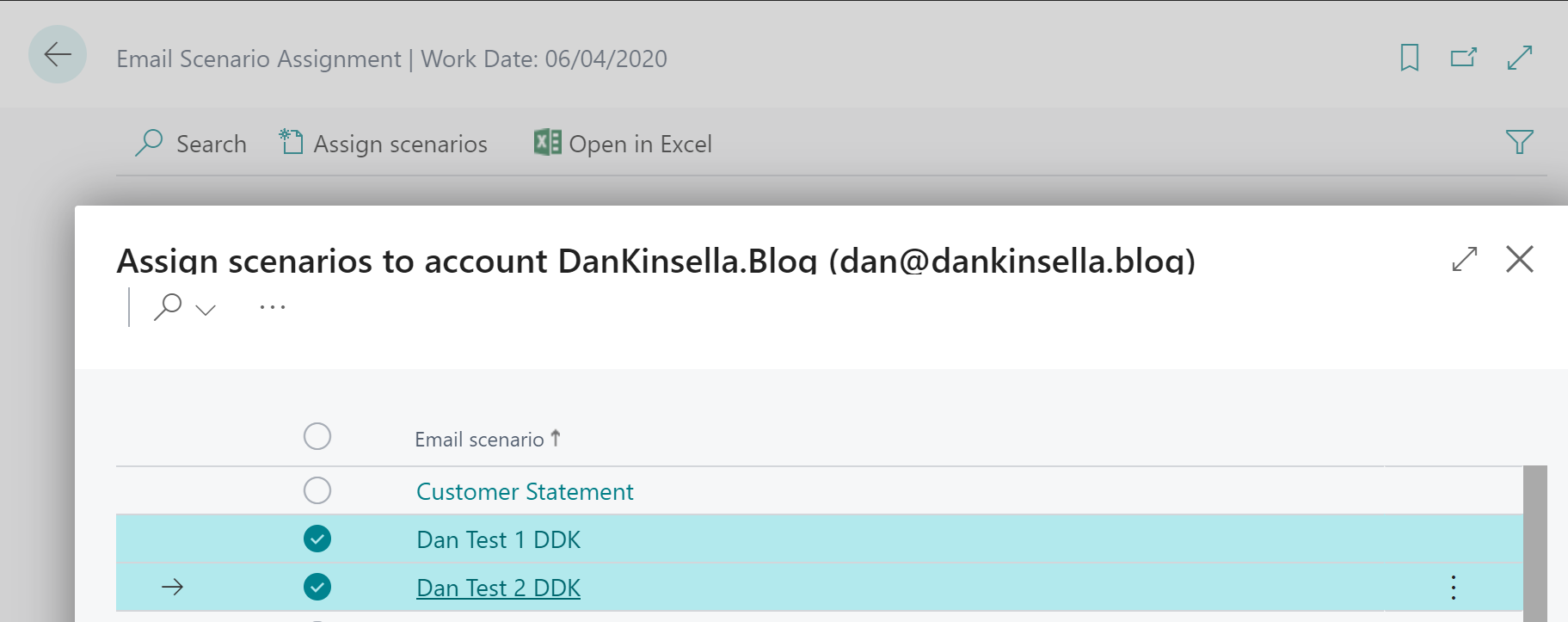
    Once you’ve created your enumextension, the new options are automatically included in the Email Scenario list:

    Email Scenario

    Next up, we need to create an email message and send. This is done using the Email Message and Email Codeunits.

    Note: The enhanced email app is part of the system app, so you won’t be able to see the source code from VS Code, or by extracting the base application app file. The system application apps are open source and available on GitHub to view and submit your own changes, the email app can be found here: https://github.com/microsoft/ALAppExtensions/tree/master/Modules/System/Email


    The following example show how you can create an email message and send using the email scenario functionality:

        procedure SendEmail()
       var
           Email: Codeunit Email;
           EmailMessage: Codeunit "Email Message";
       begin
           EmailMessage.Create('dan@dankinsella.blog', 'My Subject', 'My message body text');
           Email.Send(EmailMessage, Enum::"Email Scenario"::"Dan Test 1 DDK");
        end;

    As you can see, we can pass the email scenario into the send procedure. If an account is associated with this scenario it will be selected for use. If no account is assigned to this scenario the default account will be used.

    Note the Email.Send() procedure is overloaded, meaning it can take different sets of parameters, so have a look at the object here for all the available options.

    Some other cool stuff to check out:

    You can open the new email editor using Email.OpenInEditor() to allow your users to edit the email before sending:

     /// <summary>
    /// Opens an email message in "Email Editor" page.
    /// </summary>
    /// <param name="EmailMessage">The email message to use as payload.</param>
    /// <param name="EmailScenario">The scenario to use in order to determine the email account to use on the page.</param>
    procedure OpenInEditor(EmailMessage: Codeunit "Email Message"; EmailScenario: Enum "Email Scenario")
    begin
    EmailImpl.OpenInEditor(EmailMessage, EmailScenario, false);
    end;

    We can also send the email in the background by putting it on the scheduler using Enqueue procedure:

     /// <summary>
    /// Enqueues an email to be sent in the background.
    /// </summary>
    /// <param name="EmailMessage">The email message to use as payload.</param>
    /// <param name="EmailScenario">The scenario to use in order to determine the email account to use for sending the email.</param>
    procedure Enqueue(EmailMessage: Codeunit "Email Message"; EmailScenario: Enum "Email Scenario")
    begin
    EmailImpl.Enqueue(EmailMessage, EmailScenario);
    end;

    Attachments can be added to the email message using an InStream, something like this:

        procedure SendEmailWithAttachment(AttachmentTempBlob: Codeunit "Temp Blob")
       var
           Email: Codeunit Email;
           EmailMessage: Codeunit "Email Message";
           AttachmentInStream: InStream;
       begin
           EmailMessage.Create('dan@dankinsella.blog', 'My Subject', 'My message body text');
           AttachmentTempBlob.CreateInStream(AttachmentInStream);
           EmailMessage.AddAttachment('My Attachment name', 'PDF', AttachmentInStream);
           Email.Send(EmailMessage, Enum::"Email Scenario"::"Dan Test 2 DDK");
       end;
  • AL Page: show integer or decimal as mandatory


    A quick tip, as it’s been a while since my last post..

    The ShowMandatory property for fields on a page object is helpful for drawing the user’s attention to required fields on a page.

    If a field is not populated on a page and the ShowMandatory property for that field is set to true, then a red asterisk (*) will appear:

    Mandatory Decimal

    The problem is, for number based fields which default to 0, this field is actually populated so the asterisk will not show up.

    Luckily there is an easy solution; to show integer or decimal fields as mandatory we can also set the field’s BlankZero field to true:

    pageextension 50000 "Item Card DK" extends "Item Card"
    {
        layout
        {
            modify("Net Weight")
            {
                BlankZero = true;
                ShowMandatory = true;
            }
    }
    If you have more complex (or fringe) requirements, such as numbers must be positive, there is also the BlankNumbers page field property. BlankNumbers can be set to the following values:
    Value Description
    DontBlank (default) Not clear any numbers
    BlankNeg Clear negative numbers
    BlankNegAndZero Clear negative numbers and zero
    BlankZero Clear numbers equal to zero
    BlankZeroAndPos Clear positive numbers and zero
    BlankPos Clear positive numbers

    Note: BlankNumbers is not available when modifying fields from a pageextension object, you can only use this property on a  field declaration.

  • Managing AL Language extensions per workspace

    When working on multiple different versions of Business Central, you may have got in the habit of managing AL Language extensions by installing and uninstalling / disabling different versions of the AL language extension as you move between projects.

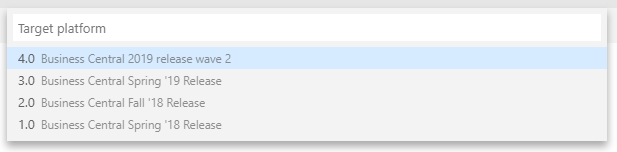
    Microsoft have made this management easier in recent versions of the AL language extension found on the Visual Studio Code marketplace place by providing multi-version support. This allows the developer to select the target platform version when creating a project workspace:

    Select Business Central platform


    But, what if you want to develop for a specific on-premise build of Business Central / Dynamics NAV 2018 or a currently unsupported version such as an insider build from the Collaborate programme? You’ll still need to import the VSIX file that ships with this version.

    Managing AL Language extensions

    Visual Studio Code provides functionality to enable / disable extensions on a per workspace basis.

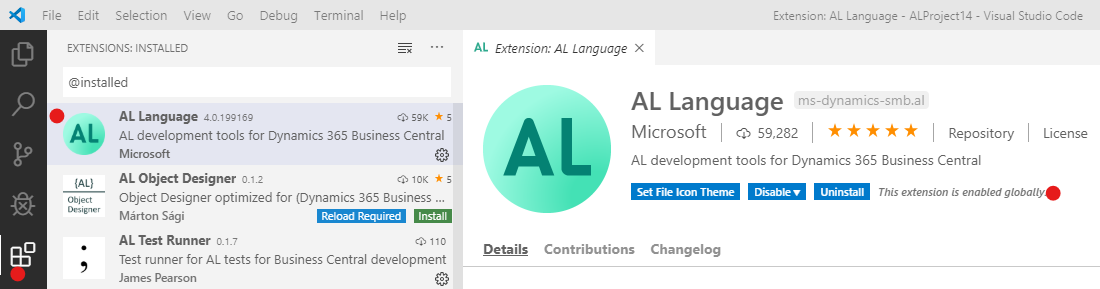
    So to use this in practise lets say you want your default AL language extension in Visual studio code to be the version that comes from the Visual Studio Code Marketplace. If we leave this version alone after install, it will be enabled globally (i.e. available for all projects):

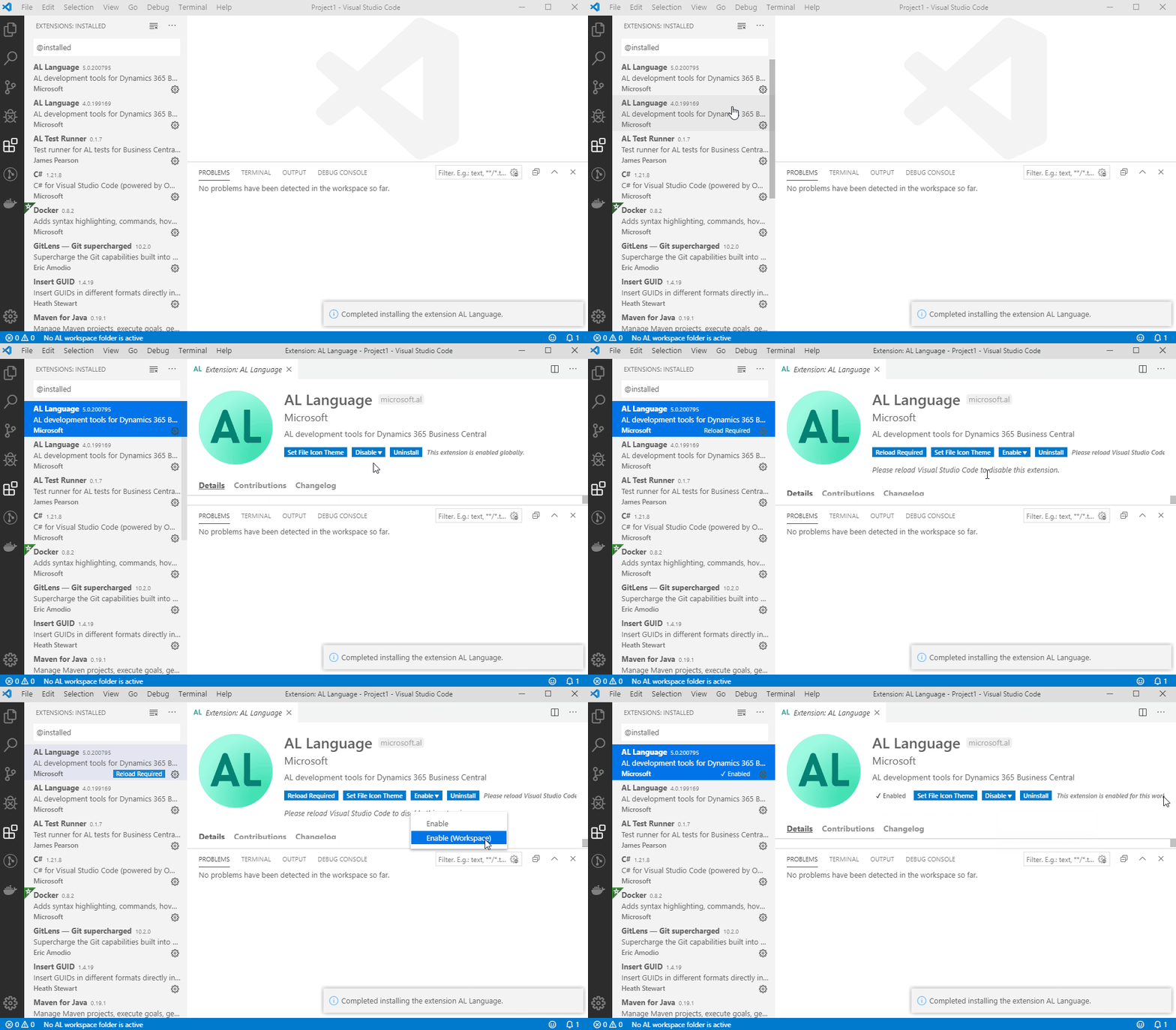
    Gloabbly available VS Code extension


    Now lets create a new project where we want to use a specific AL language extension shipped with the Business Central version we’re developing for.

    There are a few steps we’ll need to complete as follows:

    1. Obtain the VSIX file for the target AL language extension (found on the product DVD, or output in the terminal if using containers).
    2. Create a new workspace in Visual Studio Code by opening a folder.
    3. Import the VSIX file.
    4. Disable the new AL language extension. Then select Enable (Workspace)
    5. Identify the global AL Language extension and select Disable (Workspace)
    Obtain target VSIX file

    VSIX is the file format for Visual Studio Code extension packages. Each version of Business Central on-premise (and Dynamics NAV 2018) ships with a VSIX file in the product DVD.

    In the Business Central 2019 Wave 2 “DVD” the VSIX package is in the following location (assuming you’ve unzipped to C:\Temp):

    C:\Temp\Dynamics 365 Business Central 2019 Release Wave 2.GB.36649\ModernDev\program files\Microsoft Dynamics NAV\150\AL Development Environment\ALLanguage.vsix

    When using NAV/BC Docker containers a link to download the VSIX package is printed to the console when creating the container. If you’ve closed your console since creating the container you can use the docker logs command to display this information for any given container:

    PS C:\WINDOWS\system32> docker logs ALDEMO
    Initializing...
    Starting Container
    Hostname is ALDEMO
    PublicDnsName is ALDEMO
    Using NavUserPassword Authentication
    Starting Local SQL Server
    Starting Internet Information Server
    Creating Self Signed Certificate
    Self Signed Certificate Thumbprint B4342A2900B851600763A08FD1C8B03CC8B28622
    Modifying Service Tier Config File with Instance Specific Settings
    Starting Service Tier
    Registering event sources
    Creating DotNetCore Web Server Instance
    Enabling Financials User Experience
    Creating http download site
    Setting SA Password and enabling SA
    Creating dank as SQL User and add to sysadmin
    Creating SUPER user
    WARNING: The password that you entered does not meet the minimum requirements. 
    It should be at least 8 characters long and contain at least one uppercase 
    letter, one lowercase letter, and one number.
    Container IP Address: 172.30.134.252
    Container Hostname : ALDEMO
    Container Dns Name : ALDEMO
    Web Client : http://ALDEMO/BC/
    Dev. Server : http://ALDEMO
    Dev. ServerInstance : BC
    
    Files:
    http://ALDEMO:8080/al-4.0.192371.vsix

    Just copy the VSIX file URL into your browser to download.

    Create a new workspace in Visual Studio Code

    So you could change the target AL Language extension on an existing project, but you may need to change some of the parameters in the launch.json and/or app.json files that get generated by the AL language extension due to differences between versions.

    To keep things simple I’m going to create a new project to use by creating a new folder and opening that in VS Code. Once I’ve activated the AL Language version I require, I’ll use that to generate the app.json and launch.json files.

    1. Hit F1 to open the command palette.
    2. Search for and execute Open Folder.
    3. In Open Folder Dialog create new folder and open.
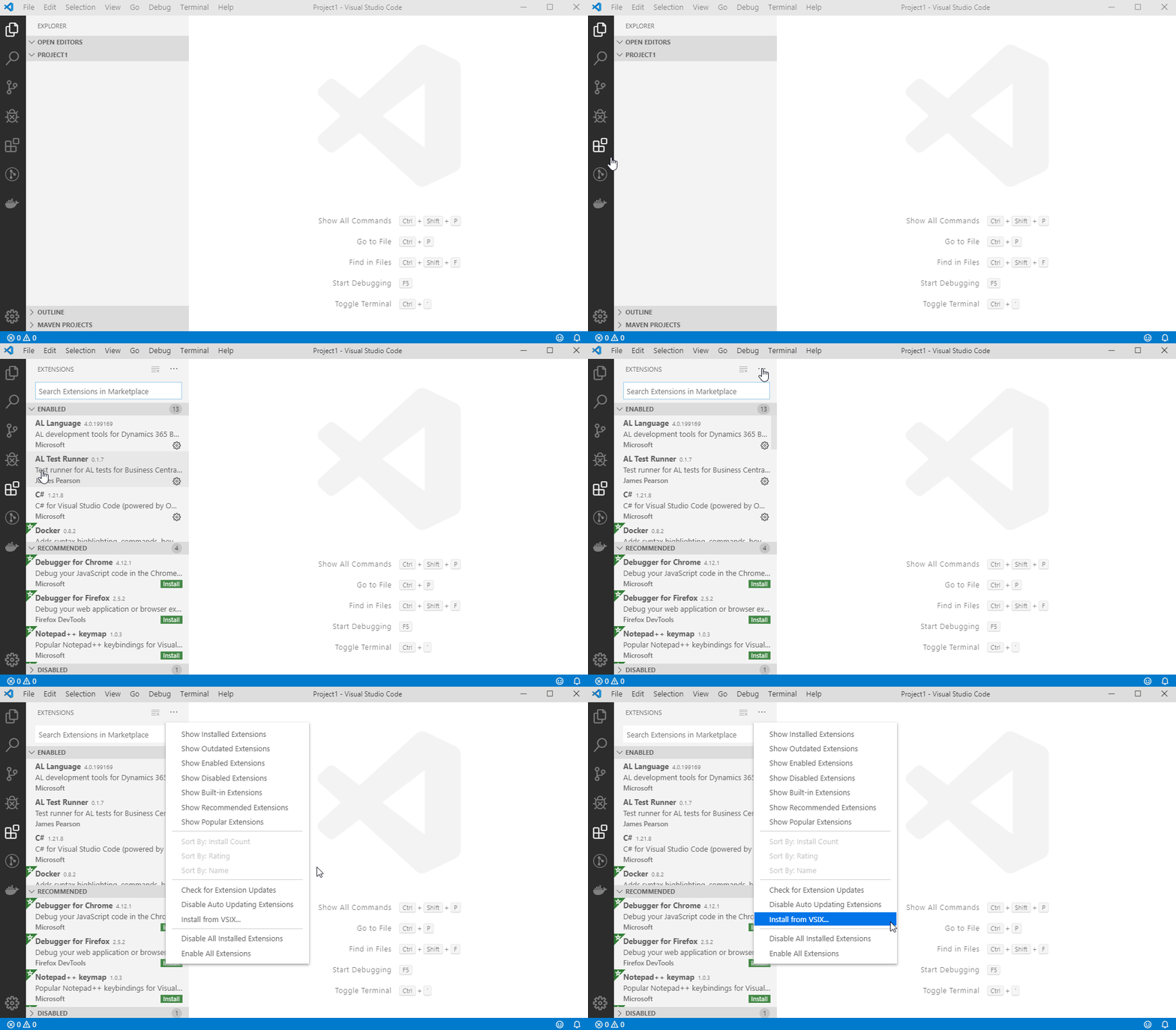
    Import the VSIX file into Visual Studio Code

    The AL language VSIX file can now be imported into Visual Studio Code:

    Import VSIX - VS Code

    Enable new AL Language extension version for current workspace only

    With our new extension installed, we’ll first need identify it based on the version number, disable it, and then enable it for the current workspace only:

    Enable Visual Studio Code extension for workspace

    Disable the global AL Language extension for the current workspace

    Next we need to disable our default AL Language extension for the currently opened workspace.

    Disable VS Code extension for current workspace


    Now we can complete the project setup by creating a new .al file in the workspace which will prompt us to generate a manifest file (app.json). The launch.json file will get created automatically if one doesn’t already exist in the workspace when you try to download symbols.

  • Business Central AL Interface type

    The AL Interface Type

    Unfortunately I’m not able to attend NAVTech Days this year, but I am paying attention from a far and saw some very interesting posts on Twitter about a new type available in the forthcoming Business Central 16.x release. The AL interface type.

    The concept of interfaces won’t be new to any one from the object orientated world of programming languages. I first used them with Java and it’s great to see Microsoft expanding the AL language to give us more features that open up a whole new world of software design.

    The AL interface type give us the ability to use the techniques of abstraction and loose coupling in AL. To explain this lets look at an interface declaration:

    interface IErrorHandler
    {
        procedure HandleError(ErrorCode : Code[10]; ErrorMessage : Text[1024]);
    }

    As we can see, the interface IErrorHandler declares a procedure but does not have a procedure body. The procedure is not implemented in the interface.

    A codeunit must be created to implement the interface and provide the behaviour. Implementing codeunits must implement every procedure declared by any interface it implements. An important point to remember when designing interfaces.

    To implement an interface, we use the implements keyword followed by the interface name after the codeunit declaration:

    codeunit 50104 "Throw Error" implements IErrorHandler
    {
        procedure HandleError(ErrorCode: Code[10]; ErrorMessage: Text[1024])
        var
            Errortext: Label 'Error Code: %1\Error Message: %2';
        begin
            Error(ErrorText, ErrorCode, ErrorMessage);
        end;
    }

    An interface can be implemented by many different codeunits, all providing their own behaviour. Lets create another implementation of IErrorHandler:

    codeunit 50105 "Log Errors in Database" implements IErrorHandler
    {
        procedure HandleError(ErrorCode: Code[10]; ErrorMessage: Text[1024])
        var
            ErrorLog : Record "Error Log";
        begin
            ErrorLog.Validate(Code, ErrorCode);
            ErrorLog.Validate(Description, ErrorMessage);
            ErrorLog.Validate("Logged On", CurrentDateTime);
            ErrorLog.Insert();
        end;
    }

    So now we have two codeunits which both implement IErrorHandler in their own way. The compiler knows that any codeunit that implements IErrorHandler must implement the HandleError function, which means we can write generic, loosely coupled code to handle the processing of errors and pass in the implementing codeunit as required:

    codeunit 50103 "Error Creator"
    {
        procedure ProcessError(ErrorHandler : Interface IErrorHandler)
        begin
            ErrorHandler.HandleError('Error1', 'This is an error message!');
        end;
    
        procedure CallErrorHandler(PersistErrors : Boolean)
        var
            ErrorLogCU : Codeunit "Log Errors in Database";
            ThrowErrorCU : Codeunit "Throw Error";
        begin
            If PersistErrors then
                ProcessError(ErrorLogCU)
            else
                ProcessError(ThrowErrorCU);
        end;
    }

    The ProcessError() method above takes a parameter of type Interface IErrorHandler, this means we can pass in any codeunit that implements IErrorHandler as seen in the CallErrorHandler() method.

    A codeunit can implement multiple interfaces using comma separation:

    codeunit 50105 "Log Errors in Database" implements IErrorHandler, ISomeOther, ISomeOther2
    {
       // implementation here...
    }

    Note: The I prefix on the interface name is not mandatory but is a common convention used in C#.

    The interface type was revealed during the NAVTechDays 2019 opening keynote, which is now available on YouTube here (1:17:30).

  • HTTP Basic Authentication with the AL HttpClient

    Business Central and the AL language have made web service code much easier with the HttpClient and Json types available. Handling the HTTP Authorization header is easier too with the TempBlob table, which can now encode the basic authentication string using base64.

    See below for an example of how to add a basic authorisation header to the AL HttpClient:

    procedure AddHttpBasicAuthHeader(UserName: Text[50]; Password: Text[50], var HttpClient : HttpClient);
    var
      AuthString: Text;
      TempBlob: Record TempBlob temporary;
    begin
      AuthString := STRSUBSTNO('%1:%2, UserName, Password);
      TempBlob.WriteTextLine(AuthString);
      AuthString := TempBlob.ToBase64String();
      AuthString := STRSUBSTNO('Basic %1', AuthString);
      HttpClient.DefaultRequestHeaders().Add('Authorization', AuthString);
    end;

    Update 2019-07-04: Thanks to Arend-Jan Kauffmann commenting on LinkedIn to point out there is an even easier way to get the Base64 encoding done using Codeunit 10 “Type Helper”:

    procedure AddHttpBasicAuthHeader(UserName: Text[50]; Password: Text[50], var HttpClient : HttpClient);
    var
      AuthString: Text;
      TypeHelper: "Type Helper";
    begin
      AuthString := STRSUBSTNO('%1:%2, UserName, Password);
      AuthString := TypeHelper.ConvertValueToBase64(AuthString);
      AuthString := STRSUBSTNO('Basic %1', AuthString);
      HttpClient.DefaultRequestHeaders().Add('Authorization', AuthString);
    end;
  • Business Central: AL Compiler

    AL Compiler

    The Business Central AL Compiler

    When you start looking into build automation, one of the first things you’ll need to figure out is how to build an AL project without Visual Studio Code. This blog post serves as a brief introduction to finding the AL compiler and how to run it from the command line.

    Where to find the AL compiler

    The Business Central AL compiler is shipped inside the AL Language extension (vsix) file. The easiest way I find to get the correct compiler version is to create a docker container using the Business Central image version required and extract the VSIX file. The container will provide a HTTP download link to the AL Language extension, but I prefer to copy the VSIX file to the local file system from the containers C:\Run directory using the docker cp command.

    The VSIX file is essentially a zip archive, so with 7zip installed I can extract the contents of the AL Language vsix file as-is, but you can also change the file extension to zip so the built in Windows zip tool can recognise the file. Of course we’ll want to script all this for automation, so as an example the following PowerShell can be used:

    Copy-Item C:\Temp\*.vsix -Destination C:\Temp\alc.zip
    
    Expand-Archive C:\Temp\alc.zip -DesintationPath C:\Temp\alc -Force
    
    $CompilerPath = 'C:\Temp\alc\extension\bin\alc.exe'

    The Expand-Archive Cmdlet requires the zip extension, so I first copy the vsix file and give the new file the zip extension.

    Once the archive has been extracted you can find the AL compiler (alc.exe) in the \extension\bin directory:

    alc.exe
    AL compiler (alc.exe)

    Run the AL compiler from the command line

    If we run the alc.exe application with the /? parameter,  the parameters supported by the AL compiler are printed to the screen:

    Microsoft (R) AL Compiler version 2.1.1.13845
    Copyright (C) Microsoft Corporation. All rights reserved
    
    AL Compiler Options
    
    - PROJECT DIRECTORY -
    /project: Specify the project directory.
    
    - OUTPUT FILE -
    /out: Specify the output package file name (default: the name is generated from the project manifest as __.app).
    
    - ERRORS AND WARNINGS -
    /warnaserror[+|-] Report all warnings as errors.
    /nowarn: Turn off specific warning messages.
    /errorlog: Specify a file to log all compiler and analyzer diagnostics.
    /ruleset: Specify a ruleset file that alters severity of specific diagnostics.
    
    - SETTINGS -
    /packagecachepath: Specify the cache location for the symbols.
    /target: Specify the compilation target.
    /features: List of feature flags.
    
    - MISCELLANEOUS -
    /parallel[+|-] Concurrent build. (Short form /p[+|-])

    The minimum required parameters are:

    • /project – to specify the AL project workspace root.
    • /packagecachepath – to specify the location of the symbol files and any dependent app files.

    So for example we could run the following:

    > alc.exe /project:C:\Temp\AL\TestProject /packagecachepath:C:\Temp\AL\TestProject\symbols

    If successful the built app file will be placed in the workspace root folder. Error and warning messages will be displayed in the console output.

    How-to get the symbol app files?

    So far so good, but if you you want to introduce build automation you’ll need a way of getting the latest symbol files for the compiler to reference.

    When using Visual Studio Code to build projects, you’ve probably noticed that the symbol files are downloaded from the Business Central service’s developer end-point. We can achieve the same result programmatically using the PowerShell Cmdlet Invoke-WebRequest.

    The following script serves as an example (the credential code came from here):

    $user = 'admin'
    $password = 'admin'
    $containerName = 'BCLATEST'
    $versionText = '13.0.0.0'
    $symbolPath = 'C:\Temp\AL\TestApp\symbols'
    
    $pair = "$($user):$($password)"
    
    $encodedCreds = [System.Convert]::ToBase64String([System.Text.Encoding]::ASCII.GetBytes($pair))
    
    $basicAuthValue = "Basic $encodedCreds"
    
    $Headers = @{
    Authorization = $basicAuthValue
    }
    
    $SystemSymURL = 'http://{0}:7049/NAV/dev/packages?publisher=Microsoft&appName=System&versionText={1}' -f $containerName, $versionText
    $AppSymURL = 'http://{0}:7049/NAV/dev/packages?publisher=Microsoft&appName=Application&versionText={1}' -f $containerName, $versionText
    
    Invoke-WebRequest $SystemSymURL -OutFile "$symbolPath\system.app" -Headers $Headers
    
    Invoke-WebRequest $AppSymURL -OutFile "$symbolPath\application.app" -Headers $Headers

    As an aside, the version I’ve used above for the versionText parameter (13.0.0.0) is now outdated as the Business Central April release is versioned 14, however, using version 13.0.0.0 still currently appears to download the correct symbols even on the April ’19 release.

    Thanks for reading,

    Dan