Category: Dynamics 365 Business Central

  • How-to: Run LS Central in a Docker container – Part 2

    Docker containers

    In my previous blog post How-to: Run LS Central in a Docker container I showed how you can run LS Central on Docker with some manual steps to get the client and server components installed.

    For this blog post I’m going to show a more reusable solution where you can install the client components via a script passed into the container.

    To make the Business Central Docker images configurable, the designers decided to incorporate a set of Powershell script files which can be substituted at build time to override the standard setup process. The standard scripts are found in the containers C:\Run directory:
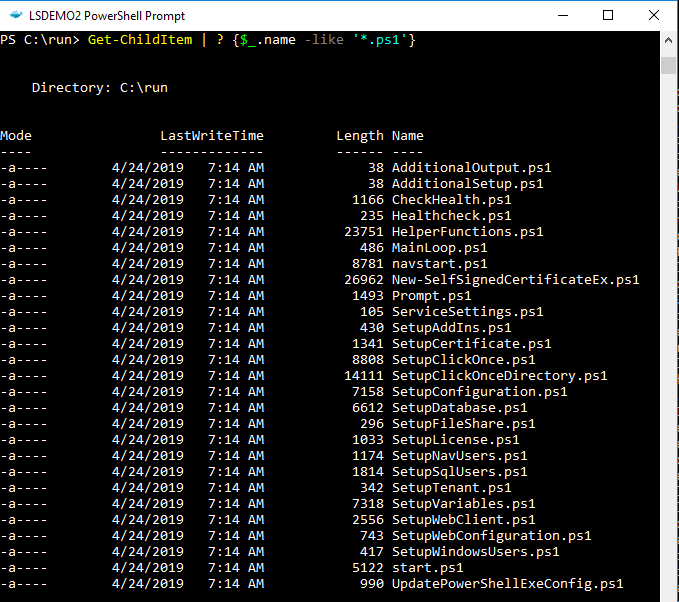
    Business Central container run contents
    The AdditionalSetup.ps1 script file, which is empty by default, when overwritten will execute after the main setup has completed. This is where we can provide code to install additional components such as client and service add-ins.

    When you place a script with the same name into the containers C:\Run\my directory, Docker will use this version of the file instead of the standard version. As we saw in my previous blog post the New-NavContainer Cmdlet’s -myScripts parameter is used to copy files from the Docker host into the containers C:\Run\my directory.

    I’ve created an AdditionalSetup.ps1 file with the following content:

    Write-Host "Installing LS Client Components.."
    
    & "C:\Run\my\LS Central 13.04.00.852 Client Components.exe" /silent
    
    Write-Host "Installing LS Service Components.."
    
    & "C:\Run\my\LS Central 13.04.00.852 Service Components.exe" /silent
    
    Write-Host "Remove database backup.."
    
    Remove-Item -Path 'C:\Run\my\*' -Include *.bak

    Note: The reason I’m not cleaning up the installer files is because I was getting an access denied error. If anyone knows why I can delete the database backup but not the .exe files please let me know in the comments!

    For this example I’ve created a folder on the Docker host machine with the following content:
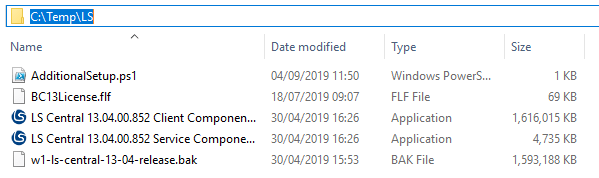
    LS Central install files


    Now I can run a script to build the container, using my setup files and additional setup script:

    $imageName = "mcr.microsoft.com/businesscentral/onprem:1810-cu3"
    $navcredential = New-Object System.Management.Automation.PSCredential -argumentList "admin", (ConvertTo-SecureString -String "admin" -AsPlainText -Force)
    New-NavContainer -accept_eula `
                        -containerName "LSDEMO2" `
                        -Auth NavUserPassword `
                        -imageName $imageName `
                        -Credential $navcredential `
                        -licenseFile "C:\Temp\LS\BC13License.flf" `
                        -updateHosts `
                        -alwaysPull `
                        -additionalParameters @('--env bakfile="c:\run\my\w1-ls-central-13-04-release.bak"') `
                        -myScripts @(`
                                    "C:\Temp\LS\w1-ls-central-13-04-release.bak", `
                                    "C:\Temp\LS\LS Central 13.04.00.852 Client Components.exe", `
                                    "C:\Temp\LS\LS Central 13.04.00.852 Service Components.exe", `
                                    "C:\Temp\LS\AdditionalSetup.ps1"`
                                    ) `
                        -memoryLimit 8GB `
                        -accept_outdated `
                        -doNotExportObjectsToText

  • How-to: Run LS Central in a Docker container

    Microsoft have been releasing Business Central (formerly Dynamics NAV) as Docker images for a few years now. These have been great for testing and learning the new developer tools and trying out new functionality, but in real life many of us don’t use vanilla Business Central. You, like me, probably need an ISV solution and it’s demo data before Docker is useful on customer projects and demos.

    This blog post shows one way you can get LS Central by LS Retail running in a Docker container.

    LS Central releases contain a demo .bak file which we’ll use to replace the default .bak file that comes with Business Central. We’ll also need the client and server add-in files to deploy to the container.

    Note it’s important that any installer packages can run in unattended/silent mode as Windows Server Core based containers do not have a GUI to handle any user interaction. One way to check this is to run the .exe with the /? parameter and see if it prints out any information. LS Central installers use the /silent parameter:

    PS C:\Temp\LS> & '.\LS Central 13.04.00.852 Client Components.exe' /?
    
    ---------------------------
    Setup
    ---------------------------
    The Setup program accepts optional command line parameters.
    
    
    /HELP, /?
    
    Shows this information.
    
    /SP-
    
    Disables the This will install... Do you wish to continue? prompt at the beginning of Setup.
    
    /SILENT, /VERYSILENT
    
    Instructs Setup to be silent or very silent.
    
    /SUPPRESSMSGBOXES
    
    Instructs Setup to suppress message boxes.
    
    /LOG
    
    Causes Setup to create a log file in the user's TEMP directory.
    
    /LOG="filename"
    
    Same as /LOG, except it allows you to specify a fixed path/filename to use for the log file.
    
    /NOCANCEL
    
    Prevents the user from cancelling during the installation process.
    
    /NORESTART
    
    Prevents Setup from restarting the system following a successful installation, or after a Preparing to Install failure that requests a restart.
    
    /RESTARTEXITCODE=exit code
    
    Specifies a custom exit code that Setup is to return when the system needs to be restarted.
    
    /CLOSEAPPLICATIONS
    
    Instructs Setup to close applications using files that need to be updated.
    
    /NOCLOSEAPPLICATIONS
    
    Prevents Setup from closing applications using files that need to be updated.
    
    /RESTARTAPPLICATIONS
    
    Instructs Setup to restart applications.
    
    /NORESTARTAPPLICATIONS
    
    Prevents Setup from restarting applications.
    
    /LOADINF="filename"
    
    Instructs Setup to load the settings from the specified file after having checked the command line.
    
    /SAVEINF="filename"
    
    Instructs Setup to save installation settings to the specified file.
    
    /LANG=language
    
    Specifies the internal name of the language to use.
    
    /DIR="x:\dirname"
    
    Overrides the default directory name.
    
    /GROUP="folder name"
    
    Overrides the default folder name.
    
    /NOICONS
    
    Instructs Setup to initially check the Don't create a Start Menu folder check box.
    
    /TYPE=type name
    
    Overrides the default setup type.
    
    /COMPONENTS="comma separated list of component names"
    
    Overrides the default component settings.
    
    /TASKS="comma separated list of task names"
    
    Specifies a list of tasks that should be initially selected.
    
    /MERGETASKS="comma separated list of task names"
    
    Like the /TASKS parameter, except the specified tasks will be merged with the set of tasks that would have otherwise been selected by default.
    
    /PASSWORD=password
    
    Specifies the password to use.
    
    
    For more detailed information, please visit http://www.jrsoftware.org/ishelp/index.php?topic=setupcmdline
    ---------------------------
    OK   
    ---------------------------


    Of course if the installer is only adding DLLs to the add-ins folder then you could also get these files from another machine and copy them into the container. Have a look at the docker cp command documentation to see how to copy files into a container.

    We’re going to use the Create-NavContainer Cmdlet from the NavContainerHelper PowerShell module to build the container and use the LS demo database. We can use the -myScripts parameter to copy the LS components into the container, and then install them individually using the shell desktop shortcut the NavContainerHelper module creates.

    I used a script from Freddy’s Blog and adapted to suit. The steps look like this, adjust as required:

    $imageName = "mcr.microsoft.com/businesscentral/onprem:cu3"
    $navcredential = New-Object System.Management.Automation.PSCredential -argumentList "admin", (ConvertTo-SecureString -String "admin" -AsPlainText -Force)
    New-NavContainer -accept_eula `
    -containerName "LSDEMO" `
    -Auth NavUserPassword `
    -imageName $imageName `
    -Credential $navcredential `
    -licenseFile "https://www.dropbox.com/<blanked out>/Licence.flf?dl=1" `
    -myScripts @("C:\Temp\LS\w1-ls-central-13-04-release.bak", "C:\Temp\LS\LS Central 13.04.00.852 Client Components.exe", "C:\Temp\LS\LS Central 13.04.00.852 Service Components.exe") `
    -additionalParameters @('--env bakfile="c:\run\my\w1-ls-central-13-04-release.bak"') `
    -useBestContainerOS `
    -includeCSide `
    -updateHosts `
    -enableSymbolLoading
    

    In the above PowerShell script which I ran from PowerShell ISE, I copy the demo database and LS component installers into the containers C:\run\my directory using the -myScripts parameter, and then replace the database used during installation using the -additionalParameters parameter.

    Note: you must match the correct Business Central image for your demo database. LS Central 13.04 is based on Business Central On-prem CU3, check the release notes for the version you need and adjust he image name in the script above.

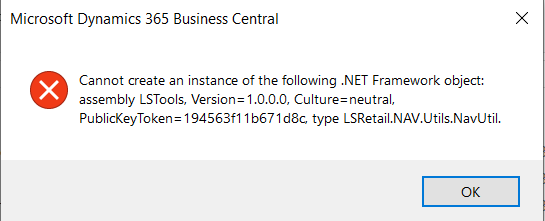
    So far so good, we have a running container but if we try and use the system we’ll quickly bump into a missing component error. Next we’ll need to install the LS components.

    The NavContainerHelper Module has conveniently left a command line shortcut on my desktop:

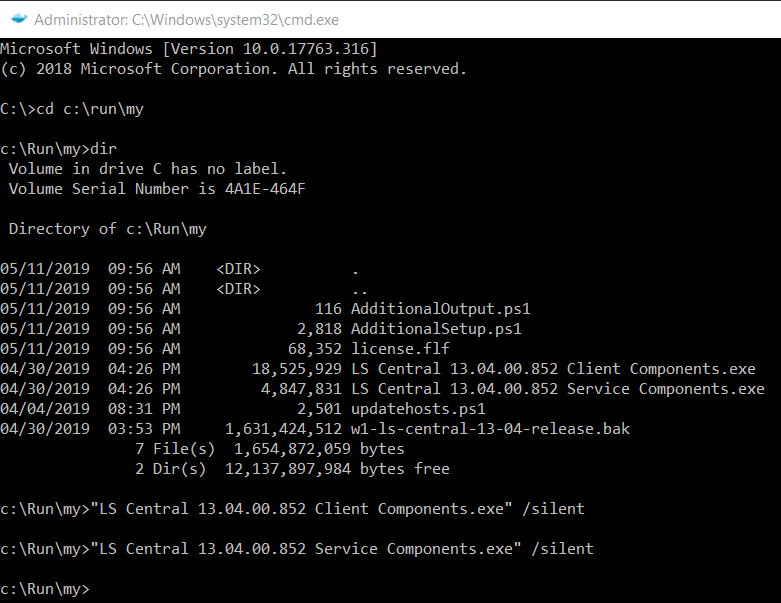
    We can use this to install our LS components which we loaded into the container c:\Run\my directory earlier:

    We now have LS Central running in our Docker container.

    If you want to use the LS Windows Client POS you’ll also need to copy the LS client components into local RTC add-ins folder created by NavContainerHelper. Assuming the container name is LSDEMO, the local add-in folder can be found on the Docker host machine here:

    C:\ProgramData\NavContainerHelper\Extensions\LSDEMO\Program Files\130\RoleTailored Client\Add-ins

    Enjoy!

    See Part 2 to automate creation further:

    How-to: Run LS Central in a Docker container – Part 2


  • HTTP Basic Authentication with the AL HttpClient

    Business Central and the AL language have made web service code much easier with the HttpClient and Json types available. Handling the HTTP Authorization header is easier too with the TempBlob table, which can now encode the basic authentication string using base64.

    See below for an example of how to add a basic authorisation header to the AL HttpClient:

    procedure AddHttpBasicAuthHeader(UserName: Text[50]; Password: Text[50], var HttpClient : HttpClient);
    var
      AuthString: Text;
      TempBlob: Record TempBlob temporary;
    begin
      AuthString := STRSUBSTNO('%1:%2, UserName, Password);
      TempBlob.WriteTextLine(AuthString);
      AuthString := TempBlob.ToBase64String();
      AuthString := STRSUBSTNO('Basic %1', AuthString);
      HttpClient.DefaultRequestHeaders().Add('Authorization', AuthString);
    end;

    Update 2019-07-04: Thanks to Arend-Jan Kauffmann commenting on LinkedIn to point out there is an even easier way to get the Base64 encoding done using Codeunit 10 “Type Helper”:

    procedure AddHttpBasicAuthHeader(UserName: Text[50]; Password: Text[50], var HttpClient : HttpClient);
    var
      AuthString: Text;
      TypeHelper: "Type Helper";
    begin
      AuthString := STRSUBSTNO('%1:%2, UserName, Password);
      AuthString := TypeHelper.ConvertValueToBase64(AuthString);
      AuthString := STRSUBSTNO('Basic %1', AuthString);
      HttpClient.DefaultRequestHeaders().Add('Authorization', AuthString);
    end;
  • Business Central: AL Compiler

    AL Compiler

    The Business Central AL Compiler

    When you start looking into build automation, one of the first things you’ll need to figure out is how to build an AL project without Visual Studio Code. This blog post serves as a brief introduction to finding the AL compiler and how to run it from the command line.

    Where to find the AL compiler

    The Business Central AL compiler is shipped inside the AL Language extension (vsix) file. The easiest way I find to get the correct compiler version is to create a docker container using the Business Central image version required and extract the VSIX file. The container will provide a HTTP download link to the AL Language extension, but I prefer to copy the VSIX file to the local file system from the containers C:\Run directory using the docker cp command.

    The VSIX file is essentially a zip archive, so with 7zip installed I can extract the contents of the AL Language vsix file as-is, but you can also change the file extension to zip so the built in Windows zip tool can recognise the file. Of course we’ll want to script all this for automation, so as an example the following PowerShell can be used:

    Copy-Item C:\Temp\*.vsix -Destination C:\Temp\alc.zip
    
    Expand-Archive C:\Temp\alc.zip -DesintationPath C:\Temp\alc -Force
    
    $CompilerPath = 'C:\Temp\alc\extension\bin\alc.exe'

    The Expand-Archive Cmdlet requires the zip extension, so I first copy the vsix file and give the new file the zip extension.

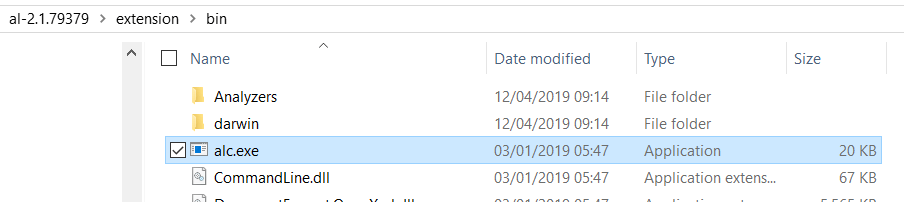
    Once the archive has been extracted you can find the AL compiler (alc.exe) in the \extension\bin directory:

    alc.exe
    AL compiler (alc.exe)

    Run the AL compiler from the command line

    If we run the alc.exe application with the /? parameter,  the parameters supported by the AL compiler are printed to the screen:

    Microsoft (R) AL Compiler version 2.1.1.13845
    Copyright (C) Microsoft Corporation. All rights reserved
    
    AL Compiler Options
    
    - PROJECT DIRECTORY -
    /project: Specify the project directory.
    
    - OUTPUT FILE -
    /out: Specify the output package file name (default: the name is generated from the project manifest as __.app).
    
    - ERRORS AND WARNINGS -
    /warnaserror[+|-] Report all warnings as errors.
    /nowarn: Turn off specific warning messages.
    /errorlog: Specify a file to log all compiler and analyzer diagnostics.
    /ruleset: Specify a ruleset file that alters severity of specific diagnostics.
    
    - SETTINGS -
    /packagecachepath: Specify the cache location for the symbols.
    /target: Specify the compilation target.
    /features: List of feature flags.
    
    - MISCELLANEOUS -
    /parallel[+|-] Concurrent build. (Short form /p[+|-])

    The minimum required parameters are:

    • /project – to specify the AL project workspace root.
    • /packagecachepath – to specify the location of the symbol files and any dependent app files.

    So for example we could run the following:

    > alc.exe /project:C:\Temp\AL\TestProject /packagecachepath:C:\Temp\AL\TestProject\symbols

    If successful the built app file will be placed in the workspace root folder. Error and warning messages will be displayed in the console output.

    How-to get the symbol app files?

    So far so good, but if you you want to introduce build automation you’ll need a way of getting the latest symbol files for the compiler to reference.

    When using Visual Studio Code to build projects, you’ve probably noticed that the symbol files are downloaded from the Business Central service’s developer end-point. We can achieve the same result programmatically using the PowerShell Cmdlet Invoke-WebRequest.

    The following script serves as an example (the credential code came from here):

    $user = 'admin'
    $password = 'admin'
    $containerName = 'BCLATEST'
    $versionText = '13.0.0.0'
    $symbolPath = 'C:\Temp\AL\TestApp\symbols'
    
    $pair = "$($user):$($password)"
    
    $encodedCreds = [System.Convert]::ToBase64String([System.Text.Encoding]::ASCII.GetBytes($pair))
    
    $basicAuthValue = "Basic $encodedCreds"
    
    $Headers = @{
    Authorization = $basicAuthValue
    }
    
    $SystemSymURL = 'http://{0}:7049/NAV/dev/packages?publisher=Microsoft&appName=System&versionText={1}' -f $containerName, $versionText
    $AppSymURL = 'http://{0}:7049/NAV/dev/packages?publisher=Microsoft&appName=Application&versionText={1}' -f $containerName, $versionText
    
    Invoke-WebRequest $SystemSymURL -OutFile "$symbolPath\system.app" -Headers $Headers
    
    Invoke-WebRequest $AppSymURL -OutFile "$symbolPath\application.app" -Headers $Headers

    As an aside, the version I’ve used above for the versionText parameter (13.0.0.0) is now outdated as the Business Central April release is versioned 14, however, using version 13.0.0.0 still currently appears to download the correct symbols even on the April ’19 release.

    Thanks for reading,

    Dan

  • Add User in Dynamics NAV and Business Central On-premise with Powershell

    If you have access to an account with local administrator privileges to a Windows box hosting the Dynamics NAV or Business Central service, you can add your own user very easily with Powershell.

    Note: This post is about the on-premise version of Business Central (formerly Dynamics NAV), to add a user to Business Central Cloud/SaaS see here: Add User in Business Central Cloud / SaaS

    This functionality has been available for quite sometime in Dynamics NAV and continues to be applicable to Business Central On-premise… so it surprises me how often I get asked for a NAV user by technical staff. I’ll now be forwarding this blog post when asked!

    Another use for this of course (amongst other things) is when you need to restore a database which doesn’t contain a login you have access to. In the past we had to clear out the User related tables in SQL so NAV would give us access on first log on.

    There are two Cmdlets we need:

    New-NAVServerUser – Used to create the NAV user

    New-NAVServerUserPermissionSet – Used to assign a Permission Set to the user.

    As of Business Central CU03, the Cmdlets still have “NAV” in their name.

    So for example, using the Business Central or Dynamics NAV Administration Shell (run as administrator) we can add a new Windows user to NAV/BC and assign the SUPER Permission Set as follows:

    
    > New-NAVServerUser ServiceInstanceName -WindowsAccount DOMAIN\User.Name
    > New-NAVServerUserPermissionSet 
    ServiceInstanceName -WindowsAccount DOMAIN\User.Name -PermissionSetId SUPER

    If you want to add your currently logged on Windows user you can use the whoami command:

    
    > New-NAVServerUser ServiceInstanceName -WindowsAccount $(whoami)
    > New-NAVServerUserPermissionSet 
    ServiceInstanceName -WindowsAccount $(whoami) -PermissionSetId SUPER
  • Dynamics 365 “Tenerife” becomes Dynamics 365 Business Central

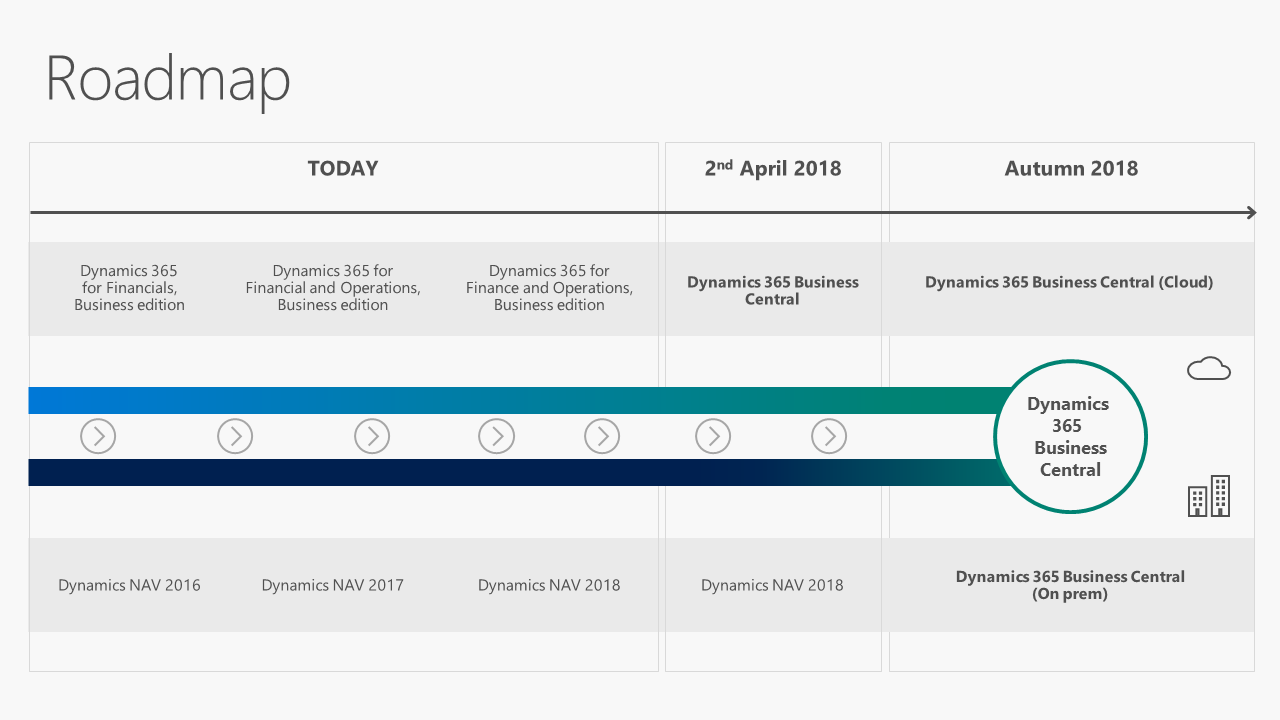
    This week Microsoft Dynamics 365 Business Central was leaked and later officially announced by Microsoft as the new name for Dynamics 365 for Finance and Operations Business Edition (Microsoft’s cloud version of Dynamics NAV). Business Central is offering the full Dynamics NAV functionality in the cloud, as apposed to Dynamics 365 for Finance and Operations Business Edition’s slimmed down functionality.

    Previously code named as Dynamics 365 Tenerife, many (myself included) were hoping that NAV would find some place in the new name. Alas , that was not to be, but the new name “Business Central” does make a lot more sense than the pseudo-acronym “NAV”… and at least it’s more catchy than “Dynamics 365 for Finance and Operations Business Edition”.

    We also learnt the release date of Dynamics 365 Business Central, which is planned for the 2nd April 2018. A Docker image preview of Business Central is available for partners to explore.

    Counter to earlier reports, we will not be seeing Dynamics NAV 2018 R2 released with Dynamics 365 Business Central. Instead, Microsoft will release the new re-branded version of Dynamics NAV as Dynamics 365 Business Central (Hosted / On-premise) in autumn 2018.. Cumulative updates for Dynamics NAV 2018 will be released as normal.

    Dynamics NAV / Dynamics 365 Business Central Roadmap
    Dynamics NAV / Dynamics 365 Business Central Roadmap

    Keep an eye on the Dynamics 365 Roadmap page for new and planned features.