
In one of my earlier blog posts I wrote how you can add a user in Business Central On-premises (formerly Dynamics NAV) using PowerShell. This blog post shows how to add a user in Business Central Cloud / SaaS.
The big difference between Business Central On-premises and Business Central Cloud (or SaaS) is that the Cloud version requires Azure Active Directory (AAD) authentication. As a consequence, to create a new user in Business Central Cloud you must first create a user in AAD and assign a Business Central licence to this user.
There are a number of ways to create an AAD user, for instance via the Office 365 Administration Center or from the Azure Portal. In this post we’ll add the AAD user though the office.com admin center.
Creating an AAD user through the Microsoft 365 Admin Center
As an Office 365 administrator, open office.com and you’ll have access to the Admin Center:
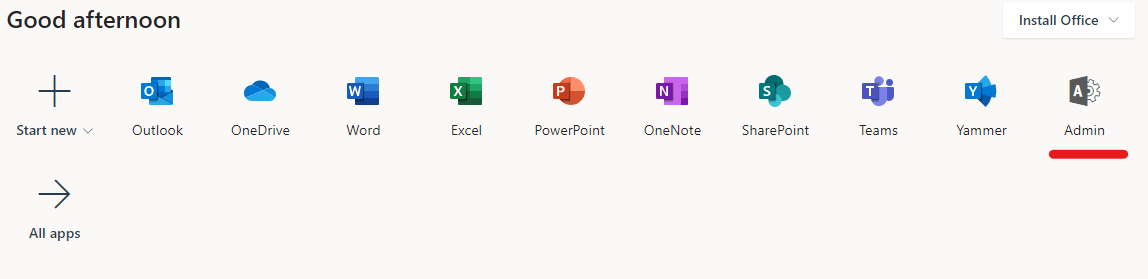
Note: If you can’t see the admin center icon above, try selecting ‘All apps’ and look through the list. If it’s still not there check your Microsoft 365 user permissions with an administrator.
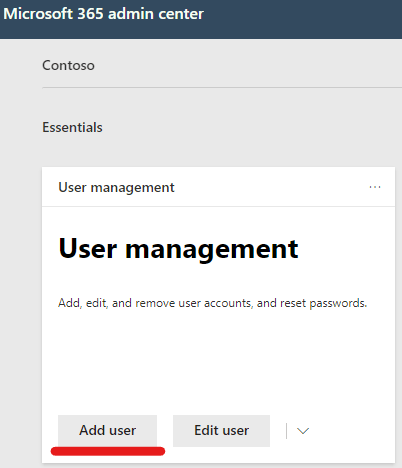
With the Microsoft 365 admin center open we can create a new user:
Fill in the basic user information:
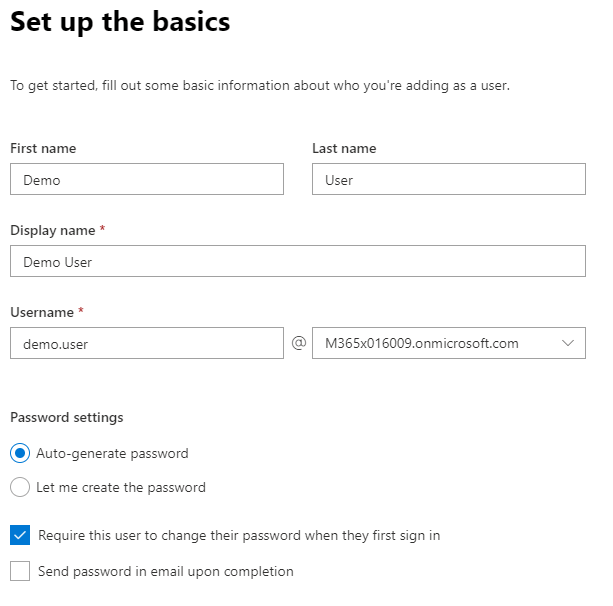 After selecting
  Next, assign the Business Central licence to the user (and any other licenses required):

Optionally add additional user rights, then finish:
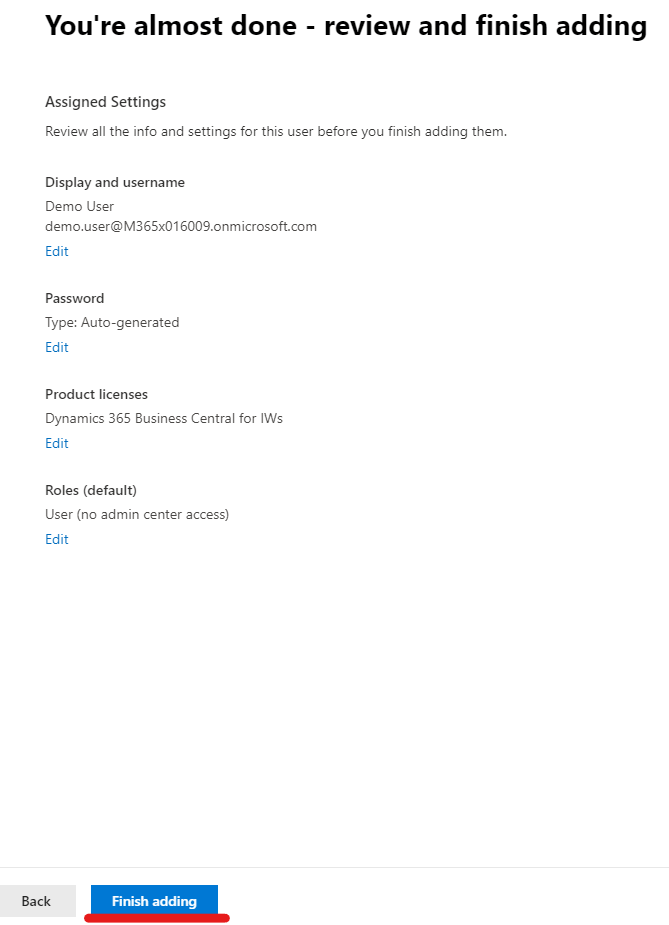
With the Microsoft 365 user created, we can now add the user to Business Central.
Add User in Dynamics 365 Business Central Cloud
Once the user has an Azure Active Directory account with a Business Central licence assigned, we can add the user to Dynamics 365 Business Central Cloud via the Users page:
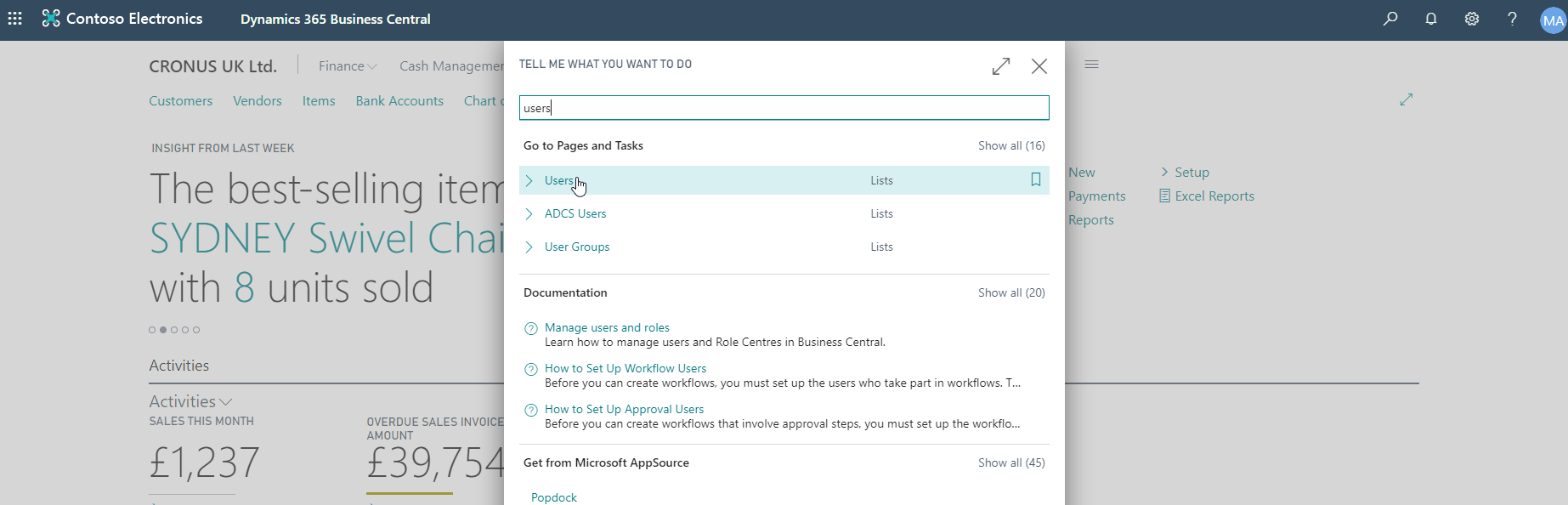
Find the Users page via the search function (Alt+Q):
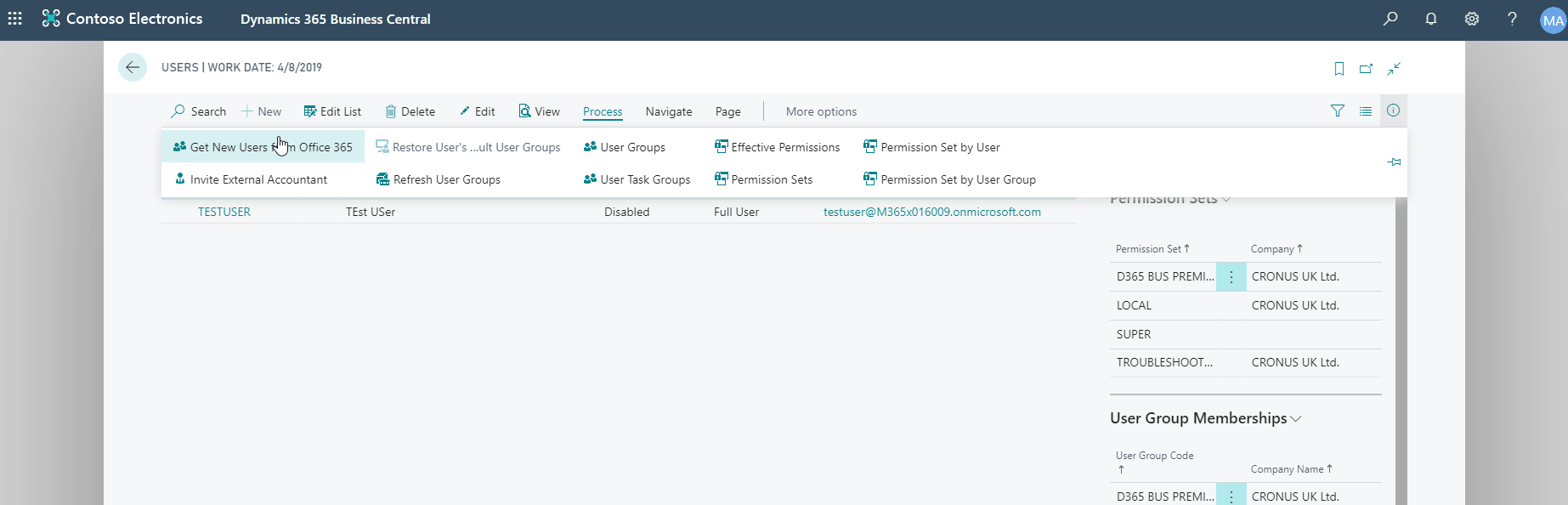
Open the Process menu:

Click Get New Users from Office 365:
Business Central will now query active directory and add any new users it finds with a Business Central licence assigned.
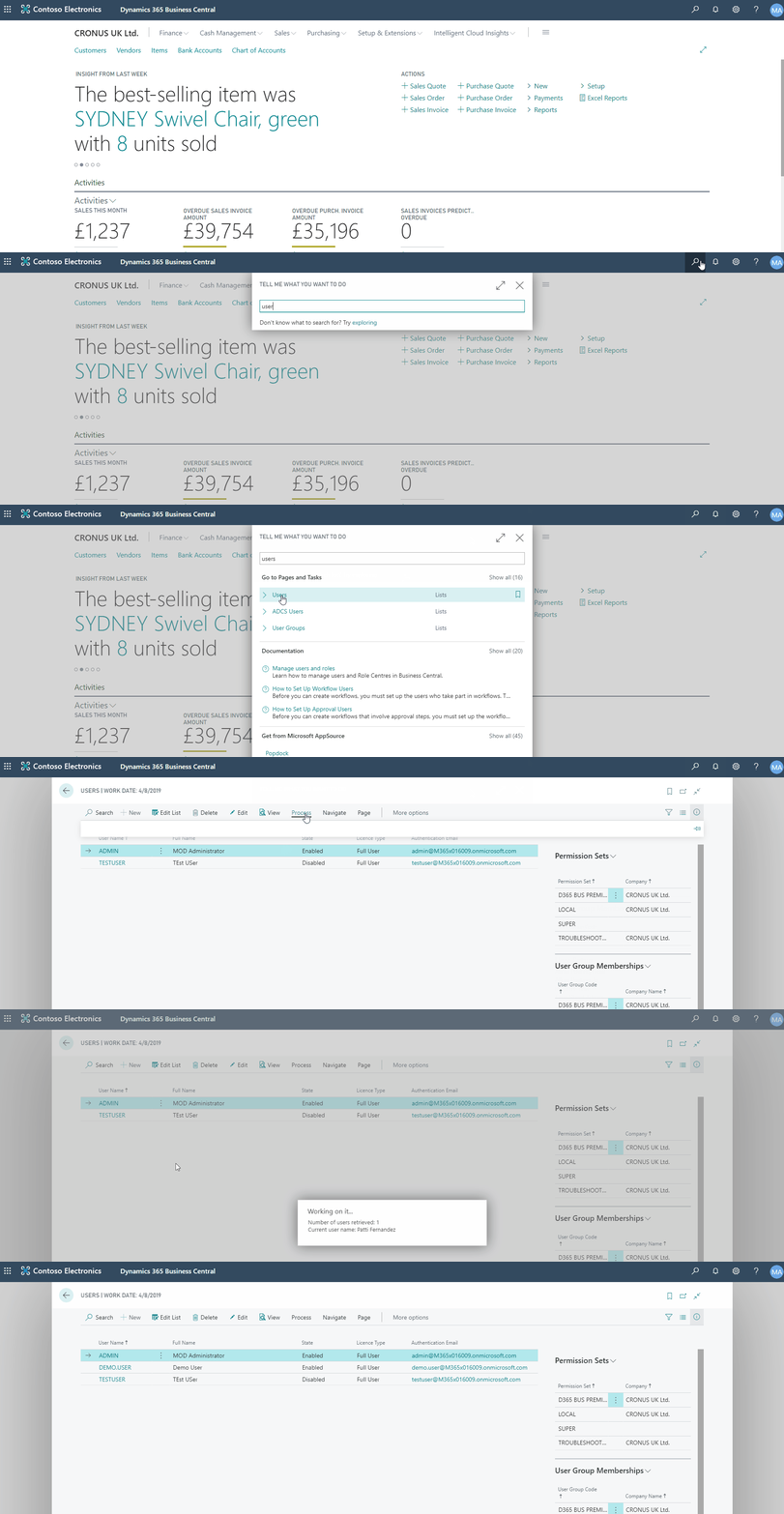
With the new Business Central user created, you can now continue the user setup by assigning User Groups and/or Permission Sets to the user record.
 Dan Kinsella's Blog