Tag: AL Development

  • Stop tracking files in Git with VS Code

    git

    Git provides a mechanism to ignore certain files in a repository, that’s the job of the .gitignore file. You can also stop tracking files in Git that have already been committed, but with a little bit more work.

    Simply create this file in the workspace root and list out all the files and directories that we don’t want Git to track.

    My .gitignore file will typically contain:

    .alpackages
    .vscode
    *.app

    A .gitignore file with the above contents will ignore both the .alpackages and .vscode folders, and any file with the extension .app.

    .alpackages – This contains the apps your app depends on and gets created when you download symbols.

    .vscode – This contains all your user specific workspace and environment settings such as launch.json, user workspace settings etc.. you don’t want to share this.

    *.app – this is you compiled app files and will be generated every time you compile.. this doesn’t belong in your repository.

    I’ll usually also have a scripts folder where I’ll put my PowerShell script to create my local Docker container, you may or may not want to share something like this in your repository. If not, add it to .gitignore.

    So far so good, but what if you or one of your team has already committed some files that shouldn’t be tracked? If Git is already tracking a file, adding it to .gitignore will do absolutely nothing.

    So how do we fix this?

    Simply deleting the files and committing wont resolve this as Git will continue to track the file. Once we put the file back (i.e. recreate the launch.json) Git will start tracking it again.

    We not only need to delete the files, we also need to remove the files from the Git index to stop tracking files in Git.

    The VS Code command pallet won’t help because the built in Git extension doesn’t have a command for this, so we’ll have to head over to our terminal and talk to Git directly.

    For an example, lets say no .gitignore file had been created for the initial commit and Git is now tracking every file in our repository. We want to create the .gitignore file shown above and stop tracking the directories and files specified in it.

    The command git rm can be used to remove tracked files from your repository index. To use this command on a directory, we need to add the recursive switch -r.

    From the VS Code terminal type the following commands:

    PS> git rm -r .alpackages
    PS> git rm -r .vscode
    PS> git rm *.app

    As we can see the command will accept the wildcard (*) and delete all .app files.

    At this point you can see that Git has staged all the file deletes:
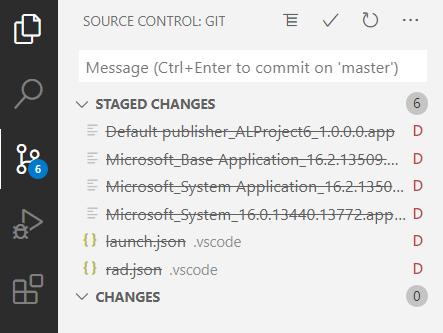
    stop tracking files in Git

    Next up, create a file named .gitignore and add entries for the lines you want to ignore:
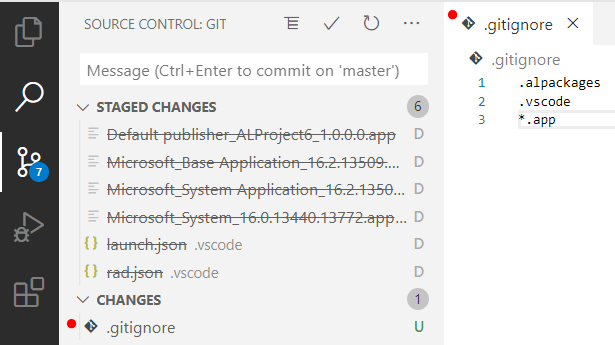
    gitignore

    Now stage the .gitignore file and commit your changes, before synchronizing with remote. The files will be removed from the remote, and any local repositories the next time they do a pull request. Of course, the files will still be visible in your git history if you ever need to recover anything.

    When you regenerate your launch.json (or paste is in from your backup) and download symbols, you’ll notice git is no longer tracking these files.

  • How-to: Create External POS Commands for LS Central

    POS Command

    In this blog post I show how-to create External POS Commands for LS Central, and introduce a snippet to make this task repeatable.

    External POS commands allow you to extend LS Central functionality by creating Codeunits that can be run via POS buttons or actions.

    Before you get started, you might want to find out how-to run LS Central in a Docker container.

    The high-level tasks are as follows:

    • Create a Codeunit to contain our new POS Command module.
    • Write the POS Command logic in a procedure.
    • Add code to register the module and POS command(s).
    • Register the new POS command module in LS Central.

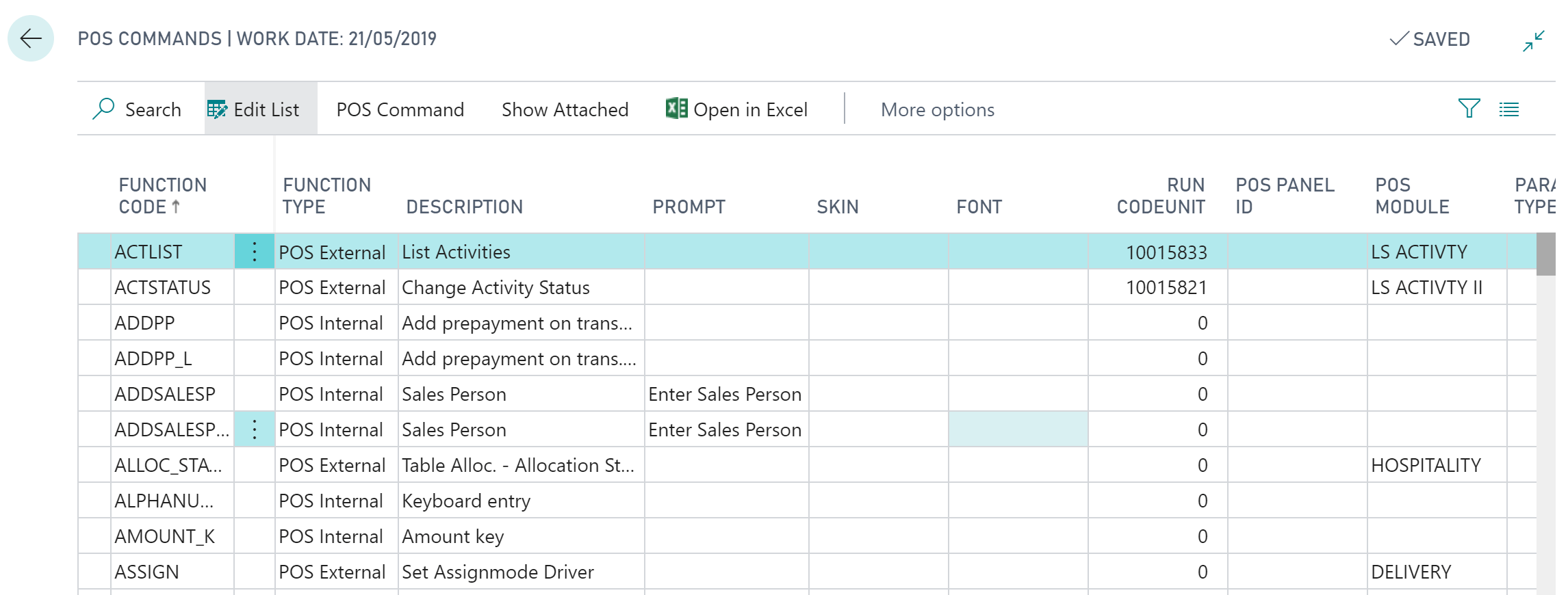
    To view the POS commands within Business Central, open the POS Commands list:

    POS Command

    As we can see above, POS commands have a Function Code which is used to call the command and a field Function Type which can be either:

    • POS Internal – Don’t specify a codeunit, these are used internally (hard-coded) within LS Central
    • POS External – Allow you to specify a Codeunit to extend LS Central functionality

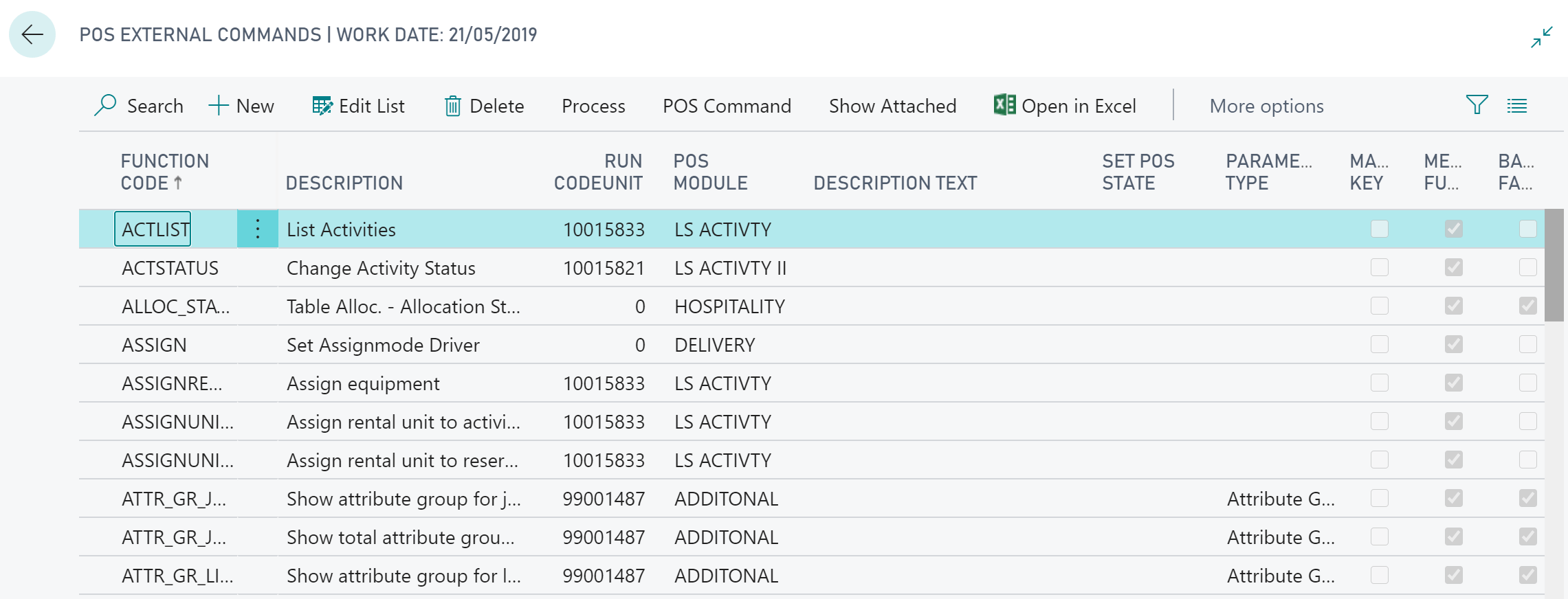
    We’re going to be focusing on External POS commands, which we can see from the filtered External POS Commands List:

    External POS Commands

    The listed POS Commands can be assigned to buttons on the POS, POS Actions or called directly in AL code.

    Create a POS Command Codeunit

    POS Command Codeunits follow a pattern:

    • Must have the TableNo property set to “POS Menu Line”.
    • OnRun() handles the registration event.
    • OnRun() handles command invocation with a case statement.

    The OnRun trigger of our Codeunit will need to handle one of two scenarios: either the Codeunit is being registered, or a command is being invoked:

    To register our new module and external POS command we need to make use of the “POS Command Registration” Codeunit, which contains two procedures we’ll need:

    • RegisterModule – used to store the module information:
      • Module – A code for your Codeunit Module (Code[20]).
      • Description – A description of the module (Text[50]).
      • Codeunit – The Codeunit Object Id being registered.
    • RegisterExtCommand – used to register each of the commands in our module:
      • FunctionCode – A code for the POS Command being registered (Code[20]).
      • Description – A description of the POS command (Text[50]).
      • Codeunit – The Object Id of the Codeunit containing the POS command.
      • ParameterType – The parameter data type, an option field on the POS Command table. 0 for no parameter.
      • Module – The code of the module the POS command belongs to.
      • BackGrFading – Boolean to fade the POS background when this command runs.

    When a POS command is being requested, the OnRun() trigger is invoked with the “POS Menu Line” record’s Command field holding the FunctionCode of our POS command. We use a case statement to determine which (if any) procedure within our Codeunit to run:

    As a personal preference, I like to encapsulate the FunctionCode for each POS command and the Module code value in procedures:

    It’s good practice not to enter literal text values into code generally, but I also find it useful to be able to retrieve these codes in certain circumstances. Note I’ve added the locked parameter to the Label constants, this is to stop the code value being translated. The code should stay the same for consistency, whatever the language used.

    Register the POS Command

    Before we can use our new POS command module we’ll need to register it within LS Central. This is done from the External POS Commands page:

    Register POS Command

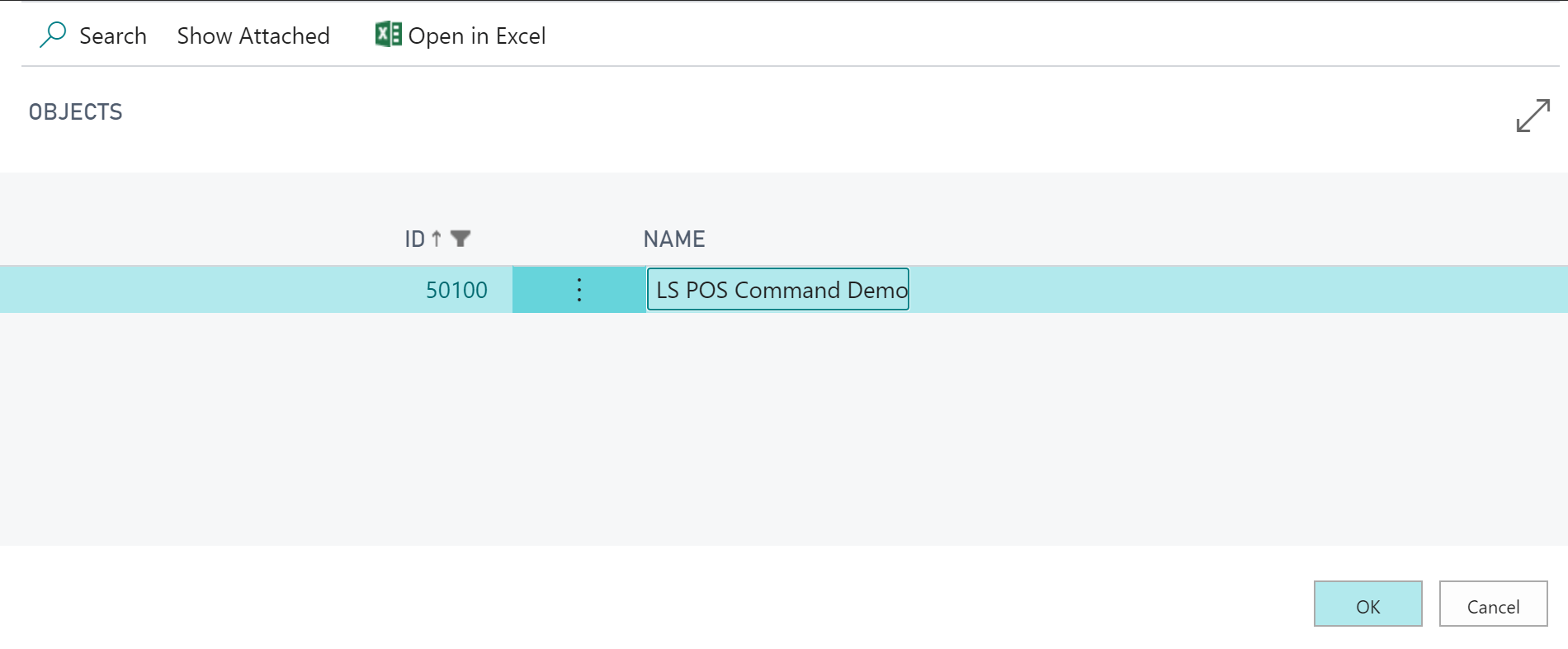
    Filter to our new Codeunit and hit OK:

    Select POS Command Codeunit

    Check our new POS command is registered:

    Registered POS command

    Note: Every time you add a new POS command to your module Codeunit you’ll need to re-register.

    Get the full demo Codeunit on GitHub.

    Get the Visual Studio Code snippet here.

  • AL Page: show integer or decimal as mandatory


    A quick tip, as it’s been a while since my last post..

    The ShowMandatory property for fields on a page object is helpful for drawing the user’s attention to required fields on a page.

    If a field is not populated on a page and the ShowMandatory property for that field is set to true, then a red asterisk (*) will appear:

    Mandatory Decimal

    The problem is, for number based fields which default to 0, this field is actually populated so the asterisk will not show up.

    Luckily there is an easy solution; to show integer or decimal fields as mandatory we can also set the field’s BlankZero field to true:

    pageextension 50000 "Item Card DK" extends "Item Card"
    {
        layout
        {
            modify("Net Weight")
            {
                BlankZero = true;
                ShowMandatory = true;
            }
    }
    If you have more complex (or fringe) requirements, such as numbers must be positive, there is also the BlankNumbers page field property. BlankNumbers can be set to the following values:
    Value Description
    DontBlank (default) Not clear any numbers
    BlankNeg Clear negative numbers
    BlankNegAndZero Clear negative numbers and zero
    BlankZero Clear numbers equal to zero
    BlankZeroAndPos Clear positive numbers and zero
    BlankPos Clear positive numbers

    Note: BlankNumbers is not available when modifying fields from a pageextension object, you can only use this property on a  field declaration.

  • Business Central: AL Compiler

    AL Compiler

    The Business Central AL Compiler

    When you start looking into build automation, one of the first things you’ll need to figure out is how to build an AL project without Visual Studio Code. This blog post serves as a brief introduction to finding the AL compiler and how to run it from the command line.

    Where to find the AL compiler

    The Business Central AL compiler is shipped inside the AL Language extension (vsix) file. The easiest way I find to get the correct compiler version is to create a docker container using the Business Central image version required and extract the VSIX file. The container will provide a HTTP download link to the AL Language extension, but I prefer to copy the VSIX file to the local file system from the containers C:\Run directory using the docker cp command.

    The VSIX file is essentially a zip archive, so with 7zip installed I can extract the contents of the AL Language vsix file as-is, but you can also change the file extension to zip so the built in Windows zip tool can recognise the file. Of course we’ll want to script all this for automation, so as an example the following PowerShell can be used:

    Copy-Item C:\Temp\*.vsix -Destination C:\Temp\alc.zip
    
    Expand-Archive C:\Temp\alc.zip -DesintationPath C:\Temp\alc -Force
    
    $CompilerPath = 'C:\Temp\alc\extension\bin\alc.exe'

    The Expand-Archive Cmdlet requires the zip extension, so I first copy the vsix file and give the new file the zip extension.

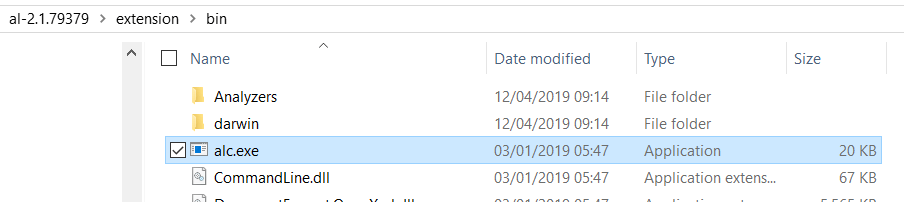
    Once the archive has been extracted you can find the AL compiler (alc.exe) in the \extension\bin directory:

    alc.exe
    AL compiler (alc.exe)

    Run the AL compiler from the command line

    If we run the alc.exe application with the /? parameter,  the parameters supported by the AL compiler are printed to the screen:

    Microsoft (R) AL Compiler version 2.1.1.13845
    Copyright (C) Microsoft Corporation. All rights reserved
    
    AL Compiler Options
    
    - PROJECT DIRECTORY -
    /project: Specify the project directory.
    
    - OUTPUT FILE -
    /out: Specify the output package file name (default: the name is generated from the project manifest as __.app).
    
    - ERRORS AND WARNINGS -
    /warnaserror[+|-] Report all warnings as errors.
    /nowarn: Turn off specific warning messages.
    /errorlog: Specify a file to log all compiler and analyzer diagnostics.
    /ruleset: Specify a ruleset file that alters severity of specific diagnostics.
    
    - SETTINGS -
    /packagecachepath: Specify the cache location for the symbols.
    /target: Specify the compilation target.
    /features: List of feature flags.
    
    - MISCELLANEOUS -
    /parallel[+|-] Concurrent build. (Short form /p[+|-])

    The minimum required parameters are:

    • /project – to specify the AL project workspace root.
    • /packagecachepath – to specify the location of the symbol files and any dependent app files.

    So for example we could run the following:

    > alc.exe /project:C:\Temp\AL\TestProject /packagecachepath:C:\Temp\AL\TestProject\symbols

    If successful the built app file will be placed in the workspace root folder. Error and warning messages will be displayed in the console output.

    How-to get the symbol app files?

    So far so good, but if you you want to introduce build automation you’ll need a way of getting the latest symbol files for the compiler to reference.

    When using Visual Studio Code to build projects, you’ve probably noticed that the symbol files are downloaded from the Business Central service’s developer end-point. We can achieve the same result programmatically using the PowerShell Cmdlet Invoke-WebRequest.

    The following script serves as an example (the credential code came from here):

    $user = 'admin'
    $password = 'admin'
    $containerName = 'BCLATEST'
    $versionText = '13.0.0.0'
    $symbolPath = 'C:\Temp\AL\TestApp\symbols'
    
    $pair = "$($user):$($password)"
    
    $encodedCreds = [System.Convert]::ToBase64String([System.Text.Encoding]::ASCII.GetBytes($pair))
    
    $basicAuthValue = "Basic $encodedCreds"
    
    $Headers = @{
    Authorization = $basicAuthValue
    }
    
    $SystemSymURL = 'http://{0}:7049/NAV/dev/packages?publisher=Microsoft&appName=System&versionText={1}' -f $containerName, $versionText
    $AppSymURL = 'http://{0}:7049/NAV/dev/packages?publisher=Microsoft&appName=Application&versionText={1}' -f $containerName, $versionText
    
    Invoke-WebRequest $SystemSymURL -OutFile "$symbolPath\system.app" -Headers $Headers
    
    Invoke-WebRequest $AppSymURL -OutFile "$symbolPath\application.app" -Headers $Headers

    As an aside, the version I’ve used above for the versionText parameter (13.0.0.0) is now outdated as the Business Central April release is versioned 14, however, using version 13.0.0.0 still currently appears to download the correct symbols even on the April ’19 release.

    Thanks for reading,

    Dan