
Yesterday I bumped into an intermittent issue on our Jenkins CI server where some Business Central containers where not getting removed after use. This led me to find a way of removing Business Central Docker containers with PowerShell, and a topic for a blog post. The issue seems to be with a process keeping the NavContainerHelper container folder open, which is stopping the script from removing it.. anyway, that’s not what this post is about.
As a temporary work-around while I get to the root cause of the issue, I decided to build the containers with a unique name and setup a nightly cleanup job to remove any surplus containers on the build server.
To do this, I first need a list of containers to remove. I used the docker ps command, formatting the result a a table to make it easier to use in PowerShell:
$containers = docker ps -a --filter "name=bc*" --format "{{.Names}}"
Filtering
I was using the prefix “bc” on my container names, so I’ve selected this as my filter “name=bc*”. You could also filter on the image using the ancestor filter. For example:
$containers = docker ps -a --filter "ancestor=mcr.microsoft.com/businesscentral/sandbox:gb-ltsc2019"
Unfortunately I couldn’t get the ancestor filter to work with a more generic image name (i.e. mcr.microsoft.com/businesscentral/sandbox) which limited it’s usefulness in my scenario.
There is also the label filter which is useful. The Business Central images come with a number of labels which we can retrieve by querying our containers. For example:
PS C:\WINDOWS\system32> docker ps -a --format "{{.Labels}}"
country=gb,tag=0.0.9.97,nav=,osversion=10.0.17763.914,platform=15.0.37865.39262,created=201912201932,cu=update31,eula=https://go.microsoft.com/fwlink/?linkid=86
1843,legal=http://go.microsoft.com/fwlink/?LinkId=837447,maintainer=Dynamics SMB,version=15.1.37881.39313
country=W1,legal=http://go.microsoft.com/fwlink/?LinkId=826604,maintainer=Dynamics SMB,nav=2018,tag=0.0.9.2,version=11.0.19394.0,created=201903101911,cu=rtm,eul
a=https://go.microsoft.com/fwlink/?linkid=861843,osversion=10.0.17763.316
cu=rtm,eula=https://go.microsoft.com/fwlink/?linkid=861843,legal=http://go.microsoft.com/fwlink/?LinkId=826604,maintainer=Dynamics SMB,nav=2018,country=gb,creat
ed=201903102009,osversion=10.0.17763.316,tag=0.0.9.2,version=11.0.19394.0
The above output shows a list of label key/value pairs being used by containers on my machine (I’ve only got Business Central and NAV containers). One label common to all my containers is “maintainer=Dynamics SMB”, which we could use in our filtering as follows:
docker ps -a --filter "label=maintainer=Dynamics SMB"
Formatting the output
After running the script (with –format “{{.Names}}”), $containers will look something like this:
bccontainer1
bccontainer2
bccontainer3
I only want the container name so I’m only requesting this one field in the format parameter. If I wanted more information I could simply list out the additional fields required. For example:
$containers = docker ps -a --format "{{.Names}} {{.ID}} {{.Image}}"
With my list of container names I can now loop through and invoke the Remove-NavContainer Cmdlet on each name:
$containers = docker ps -a --filter "name=c*" --format "table {{.Names}}"

foreach ($container in $containers) {
    Write-Host 'Removing ' $container
    try {
      Remove-NavContainer -containerName $container
    }
    catch {
      Write-Host 'Could not remove ' $container -f Red
    }
}
As I still had problems with the NavContainerHelper folder being locked, the script was still failing on some containers (Jenkins restart required) so I added a try-catch to make sure the script at least attempts to remove all containers.
That’s it, dirty hack temporary fix complete!

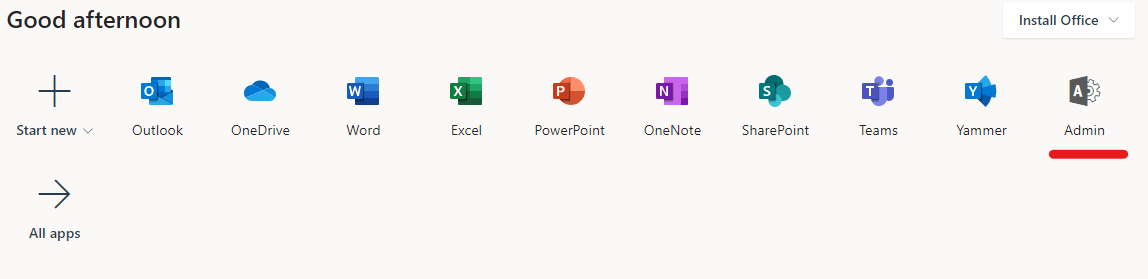
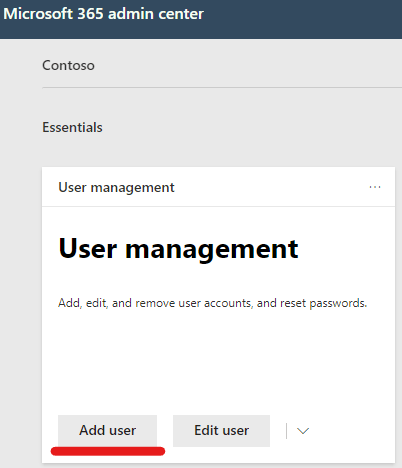
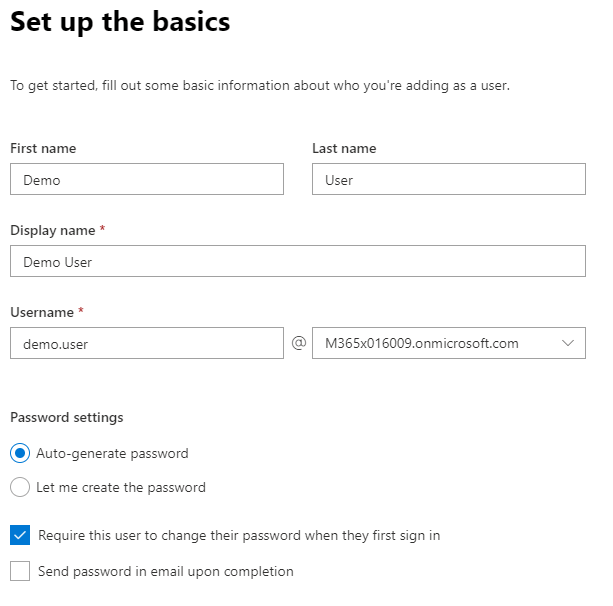 After selecting
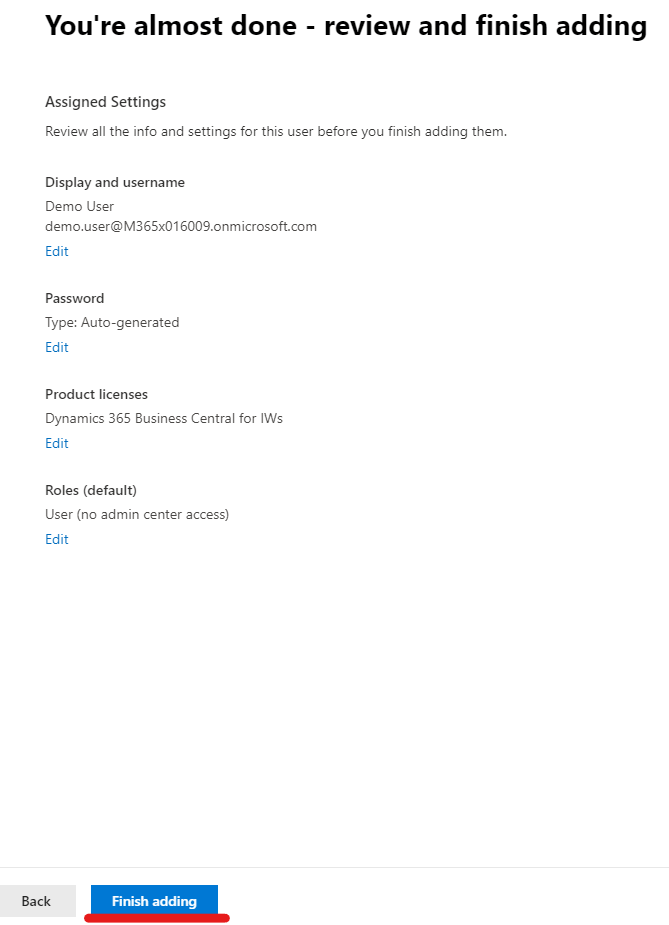
  Next, assign the Business Central licence to the user (and any other licenses required):

 Dan Kinsella's Blog