Tag: Debugging

  • Live monitor log files with PowerShell

    To aid setup and debug scenarios for applications that output data to files, you can live monitor log files with PowerShell.

    The Get-Content cmdlet is used to write the contents of a file to the terminal:

    PS C:\WINDOWS\system32> Get-Content "C:\Temp\debugtest.txt"
    Line 1
    Line 2
    Line 3
    Line 4
    Line 5
    Line 6
    Line 7
    Line 8
    Line 9
    Line 10

    The Get-Content cmdlet has a parameter called -Wait which will keep the file open and write out any lines that are added to the file. It will keep the file open until we either close the terminal or type Ctrl+C to manually terminate execution.

    To demonstrate this, lets first create a small script to output lines to a file, which we can then monitor:

    For ($i = 1; $i -le 100; $i++)
    {
      Add-Content -Path "C:\Temp\debugtest.txt" -Value ('Line {0}' -f $i)
      Start-Sleep -Seconds 1
    }

    The above script will write the string “Line ” plus the value of variable $i to a file called C:\Temp\debugtest.txt 100 times, pausing for 1 second after every write.

    With the above file creator script running, I’m going to open a new PowerShell terminal and run the following command:

    Get-Content "C:\Temp\debugtest.txt" -Wait

    This will write out the contents of the file and keep the file open, updating the terminal with the lines being added:
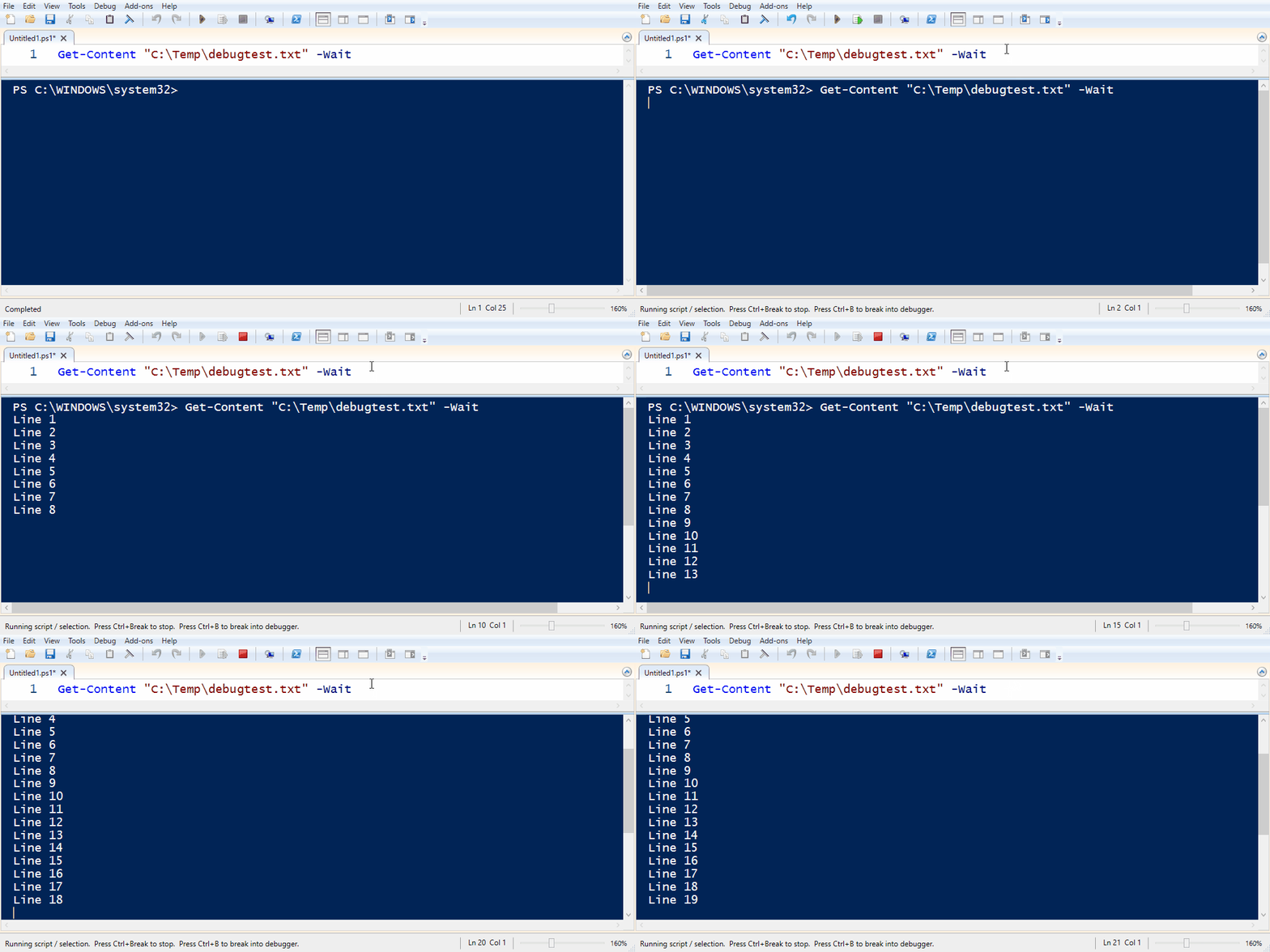
    Monitor logs with PowerShell

    As stated, Get-Command will output the entire contents of the file to the terminal by default. If we are only interested in lines being added since running the command we can use a parameter called -Tail. Tail (or its alias -Last) will output the last x number of lines in the file. You must specify at least 1 or an error will occur:

    Get-Content "C:\Temp\debugtest.txt" -Wait -Tail 1
     

  • Sorry, that didn’t work – Debugging AL from VS Code

    Sorry that didn't work
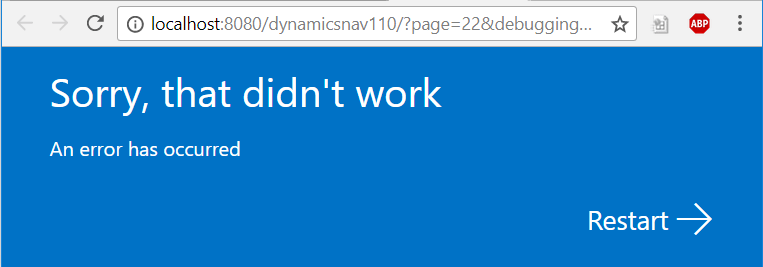
    So you’ve installed your NAV 2018 developer environment, fired up VS Code, pressed F5 (publish and debug), the Web Client starts to load and…

    Sorry, that didn’t work
    An error has occurred

    If you look in the Windows Event Viewer and find the message below, read on for the solution:

    Server instance: DynamicsNAV110
    Tenant ID:
    <ii>User: BLANKED\Dan.Kinsella
    Type: System.InvalidOperationException
    Message: <ii>Dynamic operations can only be performed in homogenous AppDomain.</ii>
    StackTrace:
    at System.Runtime.CompilerServices.CallSiteBinder.BindCore[T](CallSite`1 site, Object[] args)
    at System.Dynamic.UpdateDelegates.UpdateAndExecute2[T0,T1,TRet](CallSite site, T0 arg0, T1 arg1)
    at Microsoft.Dynamics.Nav.Service.Dev.Web.Controllers.DebuggerHub.OnDebuggeeConnected(Object sender, DebugSessionStartEventArgs eventArgs)
    at Microsoft.Dynamics.Nav.Runtime.Debugger.DebugRuntimeManager.OnDebuggingSessionStarted(DebugSessionStartEventArgs e)
    at Microsoft.Dynamics.Nav.Runtime.Debugger.DebugRuntimeManager.CreateRuntime(String debuggingContext, NavSession session, Boolean waitForDebugAdapterConfiguration)
    at Microsoft.Dynamics.Nav.Runtime.NavSession.StartDebuggingSession(String debuggingContext, Boolean waitForDebugAdapterConfiguration)
    at Microsoft.Dynamics.Nav.Service.NSService.OpenConnection(ConnectionRequest connectionRequest)
    at SyncInvokeOpenConnection(Object , Object[] , Object[] )
    at System.ServiceModel.Dispatcher.SyncMethodInvoker.Invoke(Object instance, Object[] inputs, Object[]& outputs)
    at Microsoft.Dynamics.Nav.Service.ServiceOperationInvoker.ErrorMappingCombinator(ServiceOperation innerOperation, NSServiceBase serviceInstance, MethodBase syncMethod, Object[] inputs, Object[]& outputs)
    Source: System.Core
    HResult: -2146233079
    </ii>

    The solution

    To enable AL debugging from VS Code we need to change the NetFx40_LegacySecurityPolicy setting in the Microsoft.Dynamics.Nav.Server.exe.config file to false.

    The Microsoft.Dynamics.Nav.Server.exe.config file is found in the Dynamics NAV service install directory, which (if you accepted the default) will be in the following location:

    C:\Program Files\Microsoft Dynamics NAV\110\Service\Microsoft.Dynamics.Nav.Server.exe.config

    Search the config file for the NetFx40_LegacySecurityPolicy setting, and change the enabled property to false:

    <NetFx40_LegacySecurityPolicy enabled="false"/>
    After restarting the service tier, try again and the Web Client should now open with a debug session.