Tag: Dynamics 365 Business Central

  • How-to: Create External POS Commands for LS Central

    POS Command

    In this blog post I show how-to create External POS Commands for LS Central, and introduce a snippet to make this task repeatable.

    External POS commands allow you to extend LS Central functionality by creating Codeunits that can be run via POS buttons or actions.

    Before you get started, you might want to find out how-to run LS Central in a Docker container.

    The high-level tasks are as follows:

    • Create a Codeunit to contain our new POS Command module.
    • Write the POS Command logic in a procedure.
    • Add code to register the module and POS command(s).
    • Register the new POS command module in LS Central.

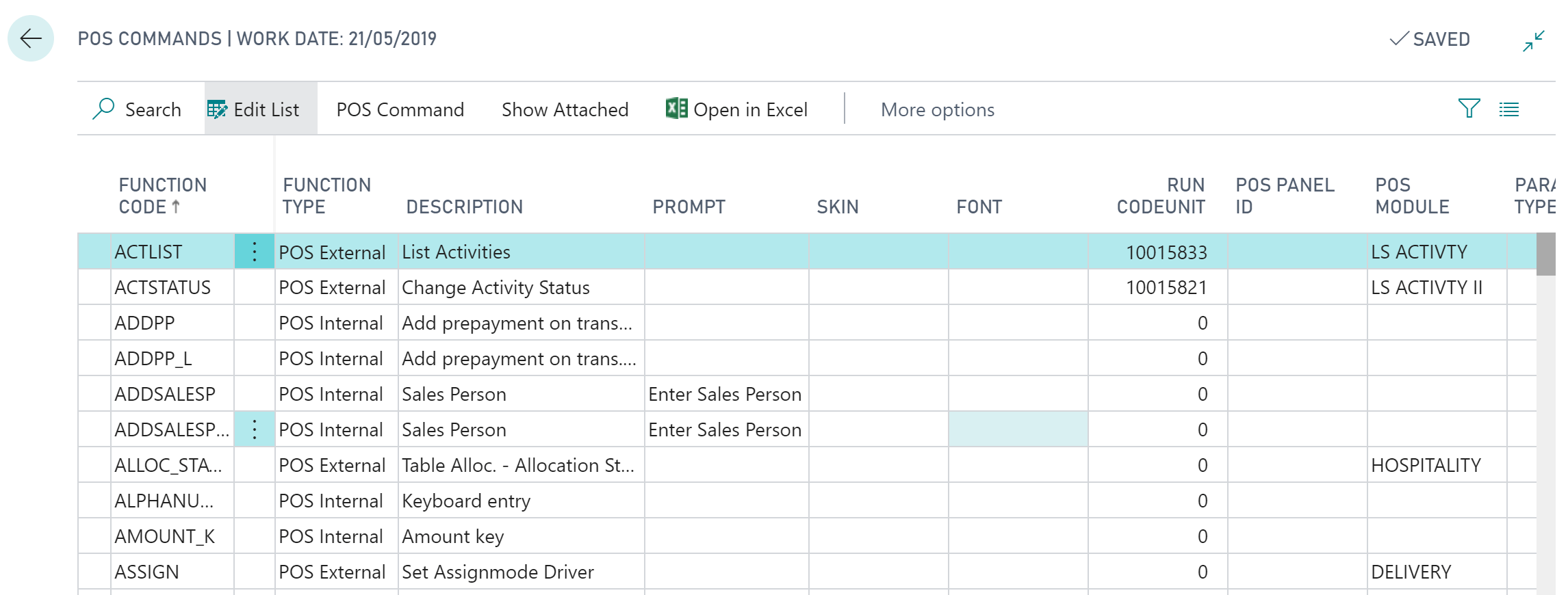
    To view the POS commands within Business Central, open the POS Commands list:
    POS Command

    As we can see above, POS commands have a Function Code which is used to call the command and a field Function Type which can be either:

    • POS Internal – Don’t specify a codeunit, these are used internally (hard-coded) within LS Central
    • POS External – Allow you to specify a Codeunit to extend LS Central functionality

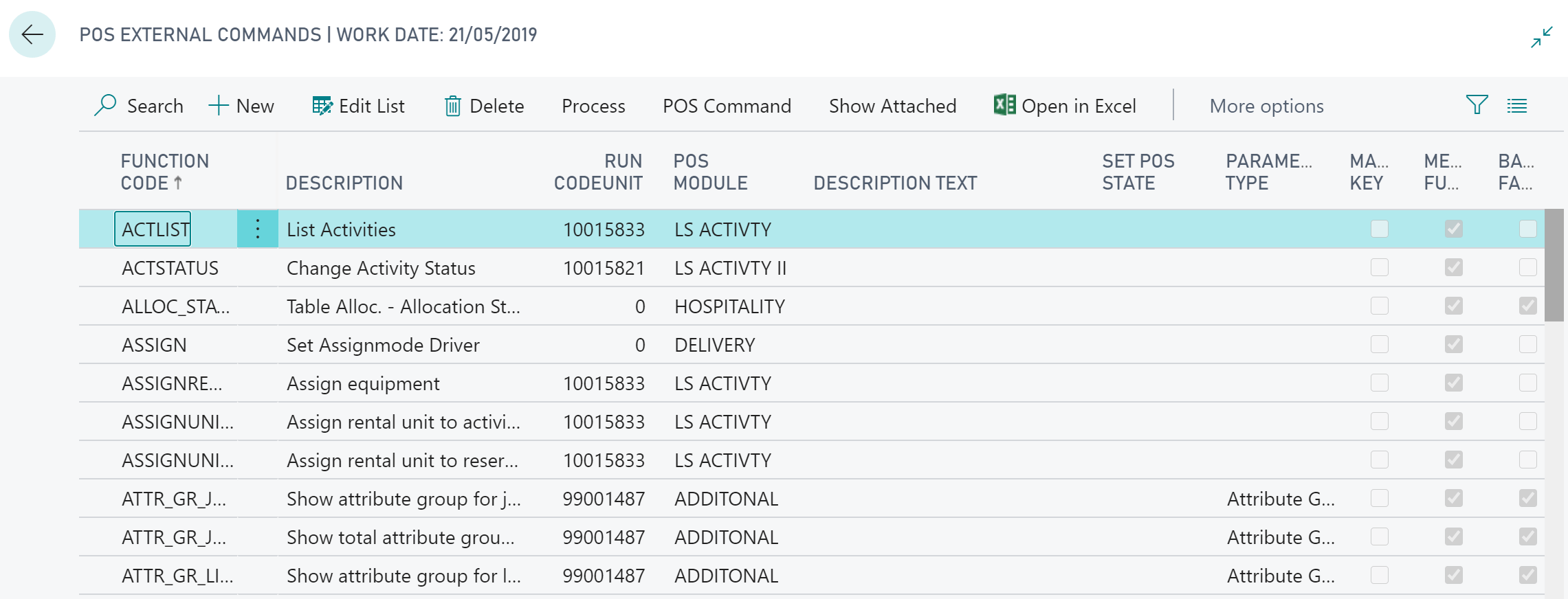
    We’re going to be focusing on External POS commands, which we can see from the filtered External POS Commands List:
    External POS Commands

    The listed POS Commands can be assigned to buttons on the POS, POS Actions or called directly in AL code.

    Create a POS Command Codeunit

    POS Command Codeunits follow a pattern:

    • Must have the TableNo property set to “POS Menu Line”.
    • OnRun() handles the registration event.
    • OnRun() handles command invocation with a case statement.

    The OnRun trigger of our Codeunit will need to handle one of two scenarios: either the Codeunit is being registered, or a command is being invoked:

    To register our new module and external POS command we need to make use of the “POS Command Registration” Codeunit, which contains two procedures we’ll need:

    • RegisterModule – used to store the module information:
      • Module – A code for your Codeunit Module (Code[20]).
      • Description – A description of the module (Text[50]).
      • Codeunit – The Codeunit Object Id being registered.
    • RegisterExtCommand – used to register each of the commands in our module:
      • FunctionCode – A code for the POS Command being registered (Code[20]).
      • Description – A description of the POS command (Text[50]).
      • Codeunit – The Object Id of the Codeunit containing the POS command.
      • ParameterType – The parameter data type, an option field on the POS Command table. 0 for no parameter.
      • Module – The code of the module the POS command belongs to.
      • BackGrFading – Boolean to fade the POS background when this command runs.

    When a POS command is being requested, the OnRun() trigger is invoked with the “POS Menu Line” record’s Command field holding the FunctionCode of our POS command. We use a case statement to determine which (if any) procedure within our Codeunit to run:

    As a personal preference, I like to encapsulate the FunctionCode for each POS command and the Module code value in procedures:

    It’s good practice not to enter literal text values into code generally, but I also find it useful to be able to retrieve these codes in certain circumstances. Note I’ve added the locked parameter to the Label constants, this is to stop the code value being translated. The code should stay the same for consistency, whatever the language used.

    Register the POS Command

    Before we can use our new POS command module we’ll need to register it within LS Central. This is done from the External POS Commands page:

    Register POS Command

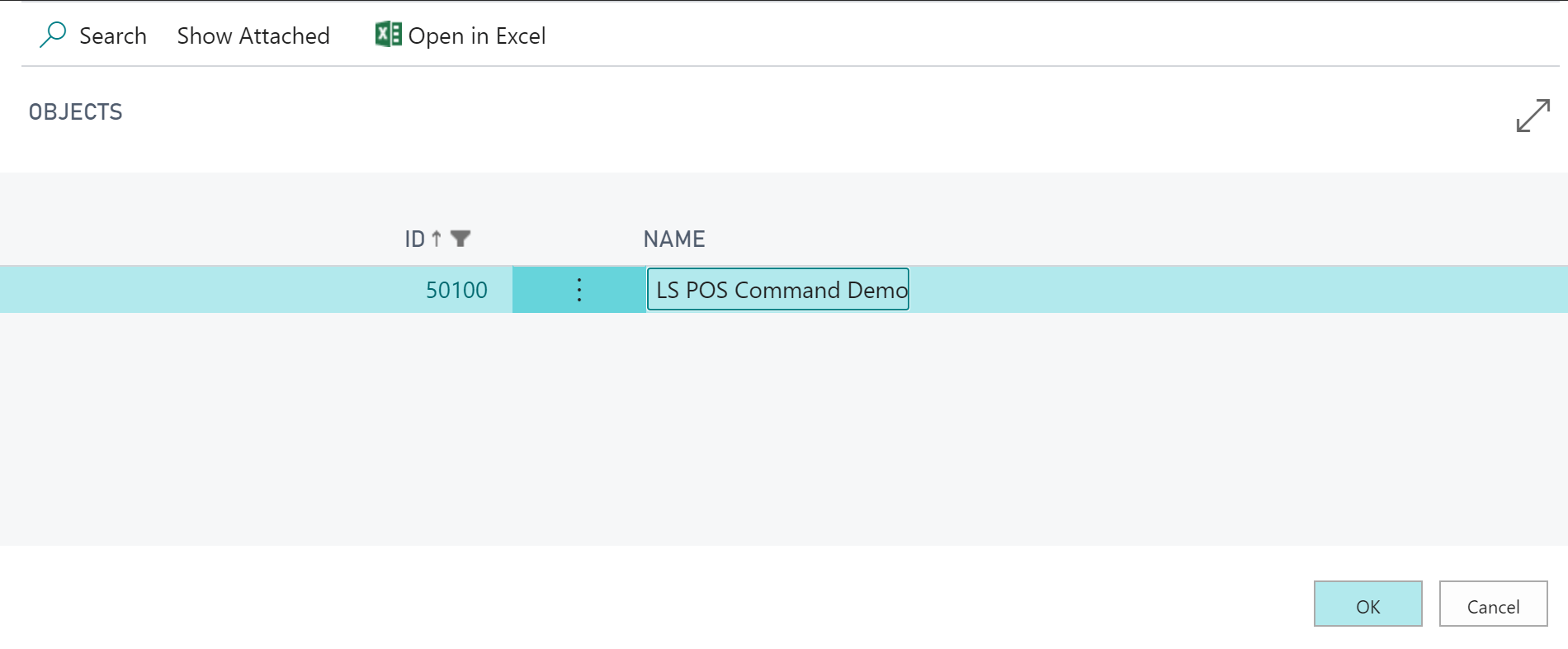
    Filter to our new Codeunit and hit OK:
    Select POS Command Codeunit

    Check our new POS command is registered:

    Registered POS command

    Note: Every time you add a new POS command to your module Codeunit you’ll need to re-register.

    Get the full demo Codeunit on GitHub.

    Get the Visual Studio Code snippet here.

  • Add User in Dynamics 365 Business Central Cloud

    Business Central Cloud User

    In one of my earlier blog posts I wrote how you can add a user in Business Central On-premises (formerly Dynamics NAV) using PowerShell. This blog post shows how to add a user in Business Central Cloud / SaaS.

    The big difference between Business Central On-premises and Business Central Cloud (or SaaS) is that the Cloud version requires Azure Active Directory (AAD) authentication. As a consequence, to create a new user in Business Central Cloud you must first create a user in AAD and assign a Business Central licence to this user.

    There are a number of ways to create an AAD user, for instance via the Office 365 Administration Center or from the Azure Portal. In this post we’ll add the AAD user though the office.com admin center.

    Creating an AAD user through the Microsoft 365 Admin Center

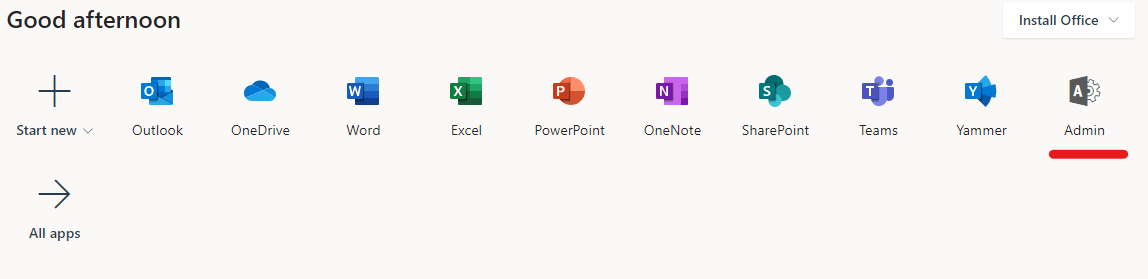
    As an Office 365 administrator, open office.com and you’ll have access to the Admin Center:

    Office 365 Administration
    Office 365 Administration

    Note: If you can’t see the admin center icon above, try selecting ‘All apps’ and look through the list. If it’s still not there check your Microsoft 365 user permissions with an administrator.

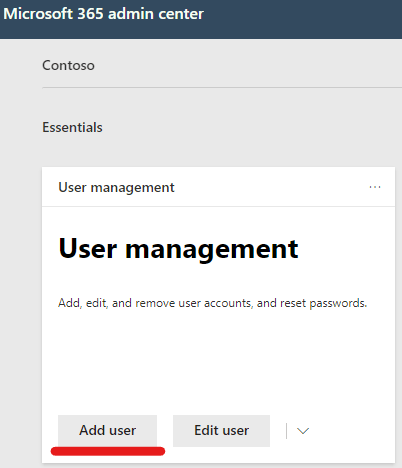
    With the Microsoft 365 admin center open we can create a new user:

    Add Office 365 user

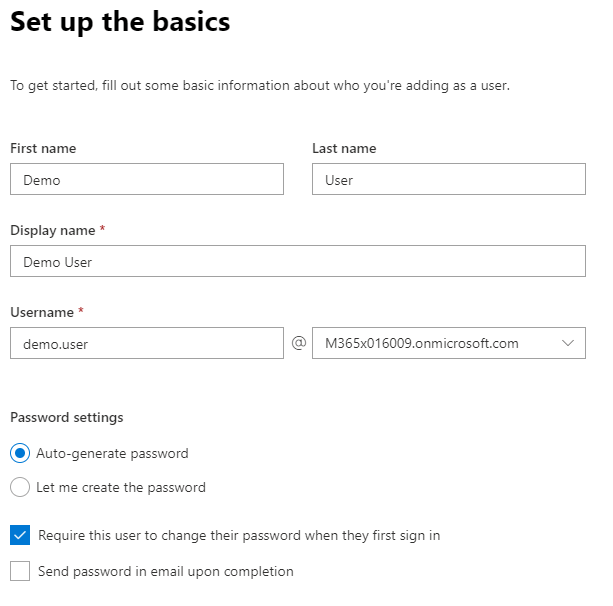
    Fill in the basic user information:

    Add Microsoft 365 userAfter selecting Next, assign the Business Central licence to the user (and any other licenses required):
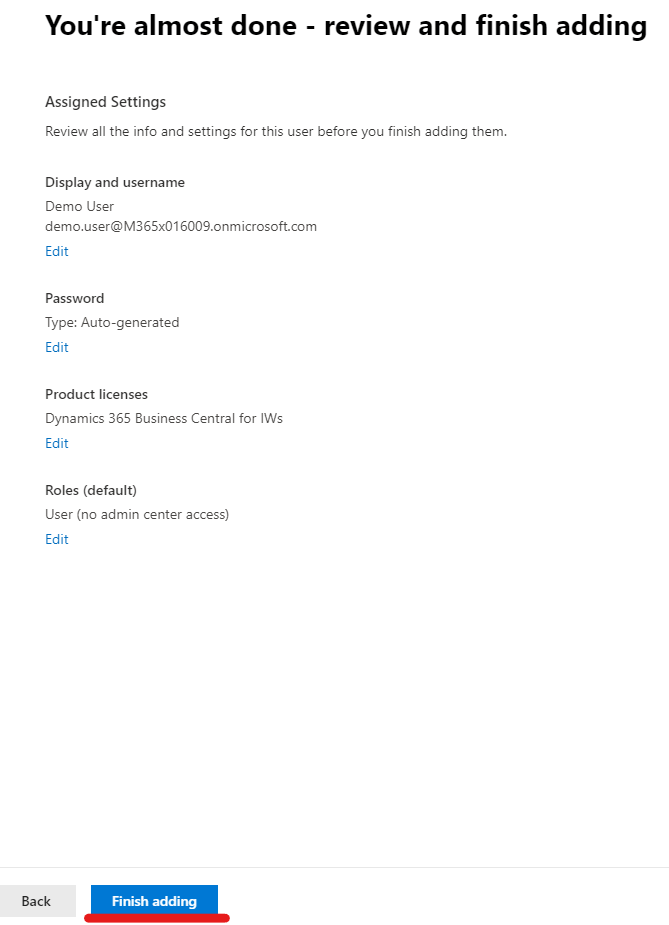
    Assign user licences

    Optionally add additional user rights, then finish:

    Finish adding Microsoft 365 user

    With the Microsoft 365 user created, we can now add the user to Business Central.

    Add User in Dynamics 365 Business Central Cloud

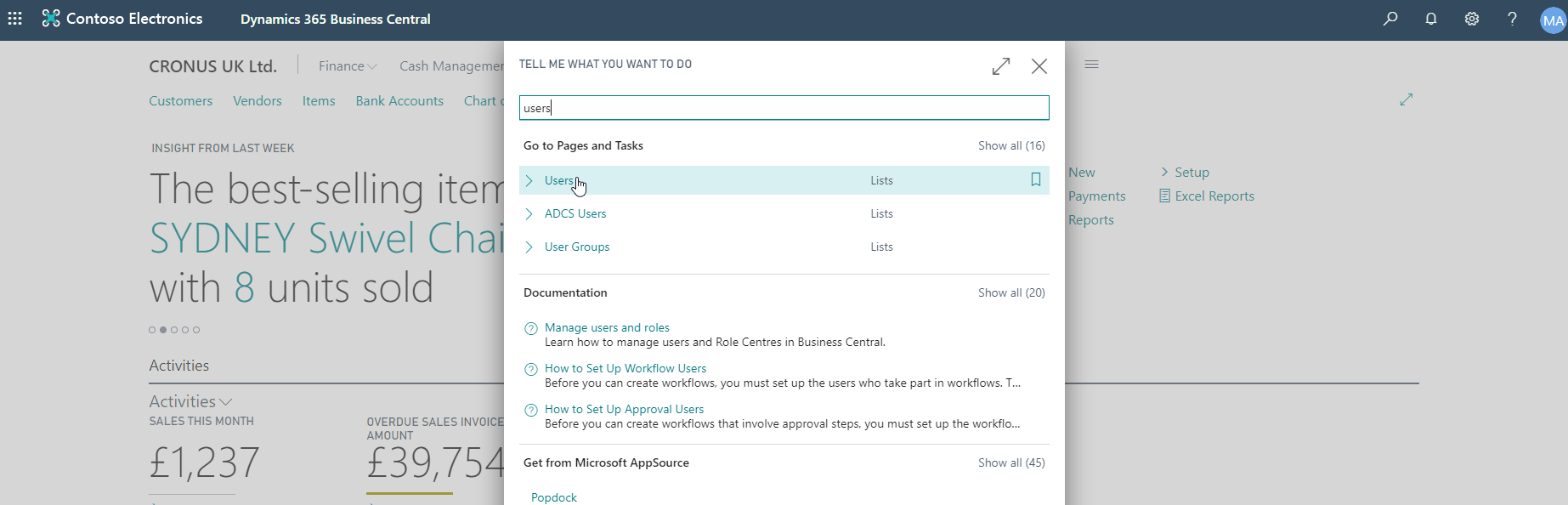
    Once the user has an Azure Active Directory account with a Business Central licence assigned, we can add the user to Dynamics 365 Business Central Cloud via the Users page:

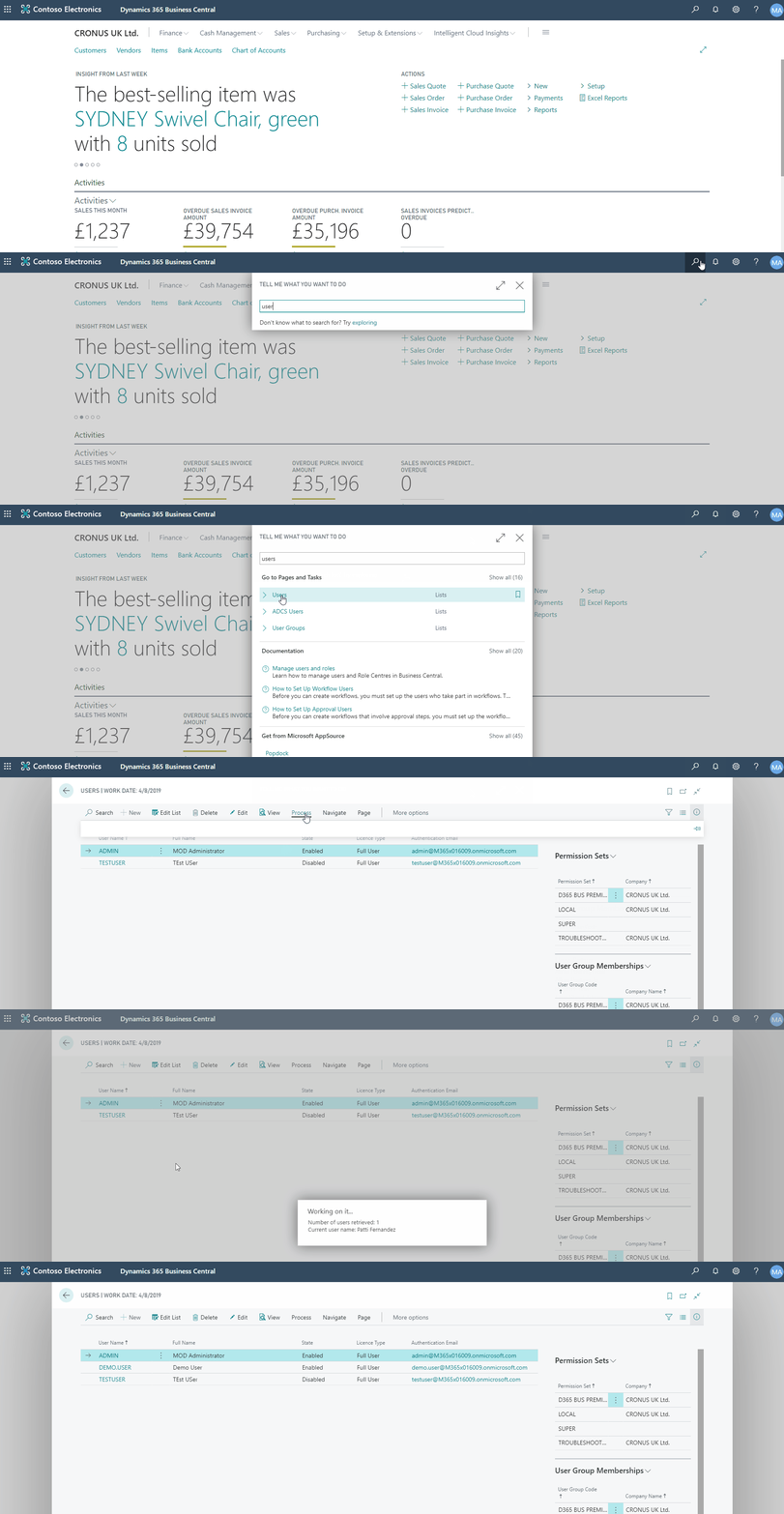
    Find the Users page via the search function (Alt+Q):

    Find Business Central Users page

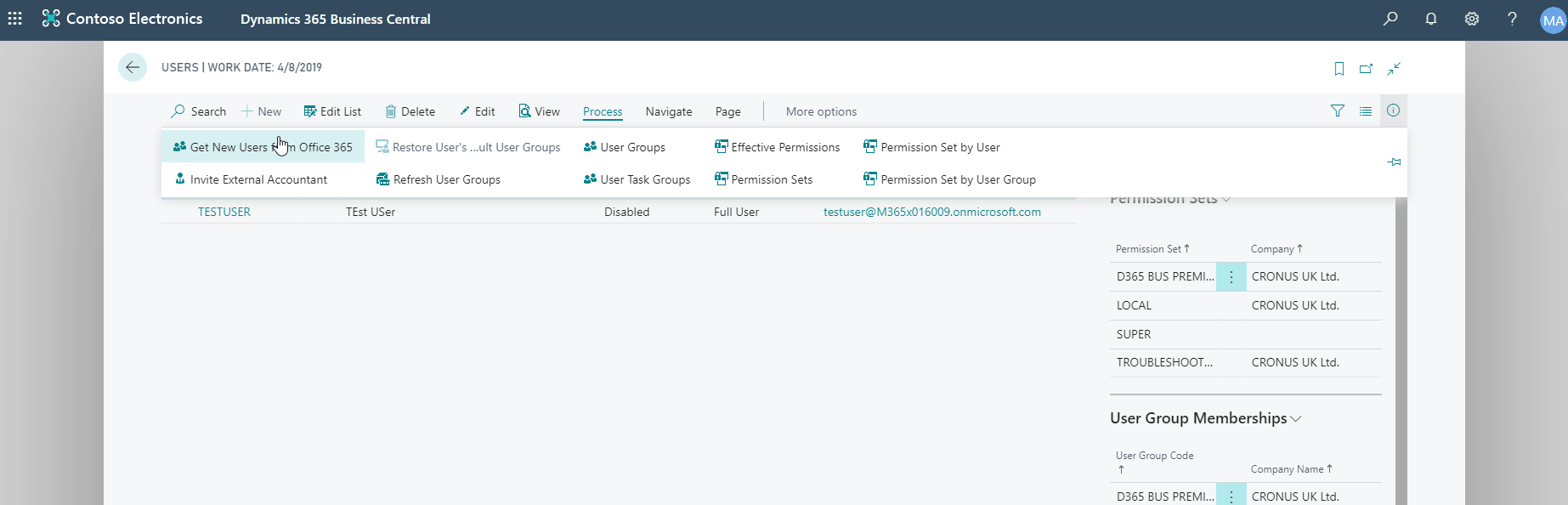
    Open the Process menu:

    Business Central Add User

    Click Get New Users from Office 365:

    Get New Users from Office 365

    Business Central will now query active directory and add any new users it finds with a Business Central licence assigned.

    Add User in Dynamics 365 Business Central Cloud

    With the new Business Central user created, you can now continue the user setup by assigning User Groups and/or Permission Sets to the user record.

  • How-to: Run LS Central in a Docker container – Part 2

    Docker containers

    In my previous blog post How-to: Run LS Central in a Docker container I showed how you can run LS Central on Docker with some manual steps to get the client and server components installed.

    For this blog post I’m going to show a more reusable solution where you can install the client components via a script passed into the container.

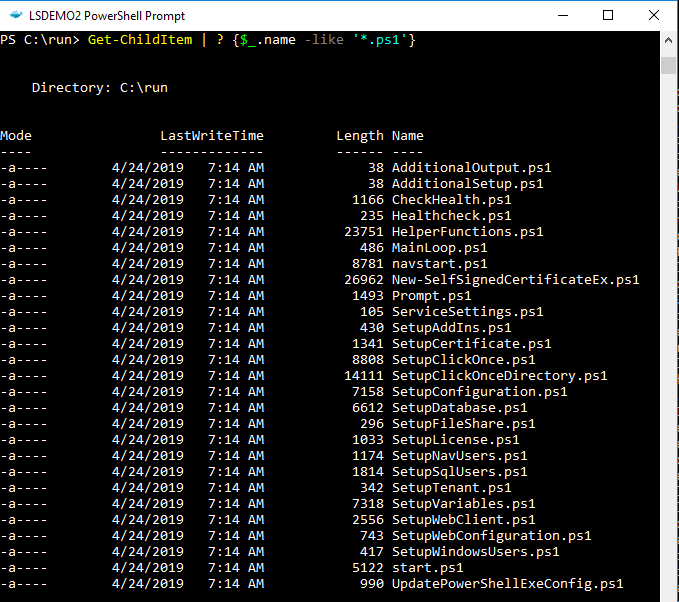
    To make the Business Central Docker images configurable, the designers decided to incorporate a set of Powershell script files which can be substituted at build time to override the standard setup process. The standard scripts are found in the containers C:\Run directory:

    Business Central container run contents
    The AdditionalSetup.ps1 script file, which is empty by default, when overwritten will execute after the main setup has completed. This is where we can provide code to install additional components such as client and service add-ins.

    When you place a script with the same name into the containers C:\Run\my directory, Docker will use this version of the file instead of the standard version. As we saw in my previous blog post the New-NavContainer Cmdlet’s -myScripts parameter is used to copy files from the Docker host into the containers C:\Run\my directory.

    I’ve created an AdditionalSetup.ps1 file with the following content:

    Write-Host "Installing LS Client Components.."
    
    & "C:\Run\my\LS Central 13.04.00.852 Client Components.exe" /silent
    
    Write-Host "Installing LS Service Components.."
    
    & "C:\Run\my\LS Central 13.04.00.852 Service Components.exe" /silent
    
    Write-Host "Remove database backup.."
    
    Remove-Item -Path 'C:\Run\my\*' -Include *.bak

    Note: The reason I’m not cleaning up the installer files is because I was getting an access denied error. If anyone knows why I can delete the database backup but not the .exe files please let me know in the comments!

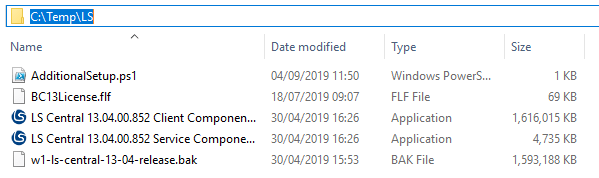
    For this example I’ve created a folder on the Docker host machine with the following content:

    LS Central install files


    Now I can run a script to build the container, using my setup files and additional setup script:

    $imageName = "mcr.microsoft.com/businesscentral/onprem:1810-cu3"
    $navcredential = New-Object System.Management.Automation.PSCredential -argumentList "admin", (ConvertTo-SecureString -String "admin" -AsPlainText -Force)
    New-NavContainer -accept_eula `
                        -containerName "LSDEMO2" `
                        -Auth NavUserPassword `
                        -imageName $imageName `
                        -Credential $navcredential `
                        -licenseFile "C:\Temp\LS\BC13License.flf" `
                        -updateHosts `
                        -alwaysPull `
                        -additionalParameters @('--env bakfile="c:\run\my\w1-ls-central-13-04-release.bak"') `
                        -myScripts @(`
                                    "C:\Temp\LS\w1-ls-central-13-04-release.bak", `
                                    "C:\Temp\LS\LS Central 13.04.00.852 Client Components.exe", `
                                    "C:\Temp\LS\LS Central 13.04.00.852 Service Components.exe", `
                                    "C:\Temp\LS\AdditionalSetup.ps1"`
                                    ) `
                        -memoryLimit 8GB `
                        -accept_outdated `
                        -doNotExportObjectsToText
  • How-to: Run LS Central in a Docker container

    Microsoft have been releasing Business Central (formerly Dynamics NAV) as Docker images for a few years now. These have been great for testing and learning the new developer tools and trying out new functionality, but in real life many of us don’t use vanilla Business Central. You, like me, probably need an ISV solution and it’s demo data before Docker is useful on customer projects and demos.

    This blog post shows one way you can get LS Central by LS Retail running in a Docker container.

    LS Central releases contain a demo .bak file which we’ll use to replace the default .bak file that comes with Business Central. We’ll also need the client and server add-in files to deploy to the container.

    Note it’s important that any installer packages can run in unattended/silent mode as Windows Server Core based containers do not have a GUI to handle any user interaction. One way to check this is to run the .exe with the /? parameter and see if it prints out any information. LS Central installers use the /silent parameter:

    PS C:\Temp\LS> & '.\LS Central 13.04.00.852 Client Components.exe' /?
    
    ---------------------------
    Setup
    ---------------------------
    The Setup program accepts optional command line parameters.
    
    
    /HELP, /?
    
    Shows this information.
    
    /SP-
    
    Disables the This will install... Do you wish to continue? prompt at the beginning of Setup.
    
    /SILENT, /VERYSILENT
    
    Instructs Setup to be silent or very silent.
    
    /SUPPRESSMSGBOXES
    
    Instructs Setup to suppress message boxes.
    
    /LOG
    
    Causes Setup to create a log file in the user's TEMP directory.
    
    /LOG="filename"
    
    Same as /LOG, except it allows you to specify a fixed path/filename to use for the log file.
    
    /NOCANCEL
    
    Prevents the user from cancelling during the installation process.
    
    /NORESTART
    
    Prevents Setup from restarting the system following a successful installation, or after a Preparing to Install failure that requests a restart.
    
    /RESTARTEXITCODE=exit code
    
    Specifies a custom exit code that Setup is to return when the system needs to be restarted.
    
    /CLOSEAPPLICATIONS
    
    Instructs Setup to close applications using files that need to be updated.
    
    /NOCLOSEAPPLICATIONS
    
    Prevents Setup from closing applications using files that need to be updated.
    
    /RESTARTAPPLICATIONS
    
    Instructs Setup to restart applications.
    
    /NORESTARTAPPLICATIONS
    
    Prevents Setup from restarting applications.
    
    /LOADINF="filename"
    
    Instructs Setup to load the settings from the specified file after having checked the command line.
    
    /SAVEINF="filename"
    
    Instructs Setup to save installation settings to the specified file.
    
    /LANG=language
    
    Specifies the internal name of the language to use.
    
    /DIR="x:\dirname"
    
    Overrides the default directory name.
    
    /GROUP="folder name"
    
    Overrides the default folder name.
    
    /NOICONS
    
    Instructs Setup to initially check the Don't create a Start Menu folder check box.
    
    /TYPE=type name
    
    Overrides the default setup type.
    
    /COMPONENTS="comma separated list of component names"
    
    Overrides the default component settings.
    
    /TASKS="comma separated list of task names"
    
    Specifies a list of tasks that should be initially selected.
    
    /MERGETASKS="comma separated list of task names"
    
    Like the /TASKS parameter, except the specified tasks will be merged with the set of tasks that would have otherwise been selected by default.
    
    /PASSWORD=password
    
    Specifies the password to use.
    
    
    For more detailed information, please visit http://www.jrsoftware.org/ishelp/index.php?topic=setupcmdline
    ---------------------------
    OK   
    ---------------------------


    Of course if the installer is only adding DLLs to the add-ins folder then you could also get these files from another machine and copy them into the container. Have a look at the docker cp command documentation to see how to copy files into a container.

    We’re going to use the Create-NavContainer Cmdlet from the NavContainerHelper PowerShell module to build the container and use the LS demo database. We can use the -myScripts parameter to copy the LS components into the container, and then install them individually using the shell desktop shortcut the NavContainerHelper module creates.

    I used a script from Freddy’s Blog and adapted to suit. The steps look like this, adjust as required:

    $imageName = "mcr.microsoft.com/businesscentral/onprem:cu3"
    $navcredential = New-Object System.Management.Automation.PSCredential -argumentList "admin", (ConvertTo-SecureString -String "admin" -AsPlainText -Force)
    New-NavContainer -accept_eula `
    -containerName "LSDEMO" `
    -Auth NavUserPassword `
    -imageName $imageName `
    -Credential $navcredential `
    -licenseFile "https://www.dropbox.com/<blanked out>/Licence.flf?dl=1" `
    -myScripts @("C:\Temp\LS\w1-ls-central-13-04-release.bak", "C:\Temp\LS\LS Central 13.04.00.852 Client Components.exe", "C:\Temp\LS\LS Central 13.04.00.852 Service Components.exe") `
    -additionalParameters @('--env bakfile="c:\run\my\w1-ls-central-13-04-release.bak"') `
    -useBestContainerOS `
    -includeCSide `
    -updateHosts `
    -enableSymbolLoading
    

    In the above PowerShell script which I ran from PowerShell ISE, I copy the demo database and LS component installers into the containers C:\run\my directory using the -myScripts parameter, and then replace the database used during installation using the -additionalParameters parameter.

    Note: you must match the correct Business Central image for your demo database. LS Central 13.04 is based on Business Central On-prem CU3, check the release notes for the version you need and adjust he image name in the script above.

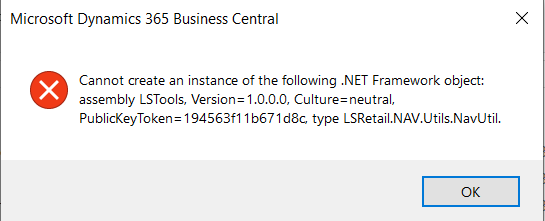
    So far so good, we have a running container but if we try and use the system we’ll quickly bump into a missing component error. Next we’ll need to install the LS components.

    The NavContainerHelper Module has conveniently left a command line shortcut on my desktop:

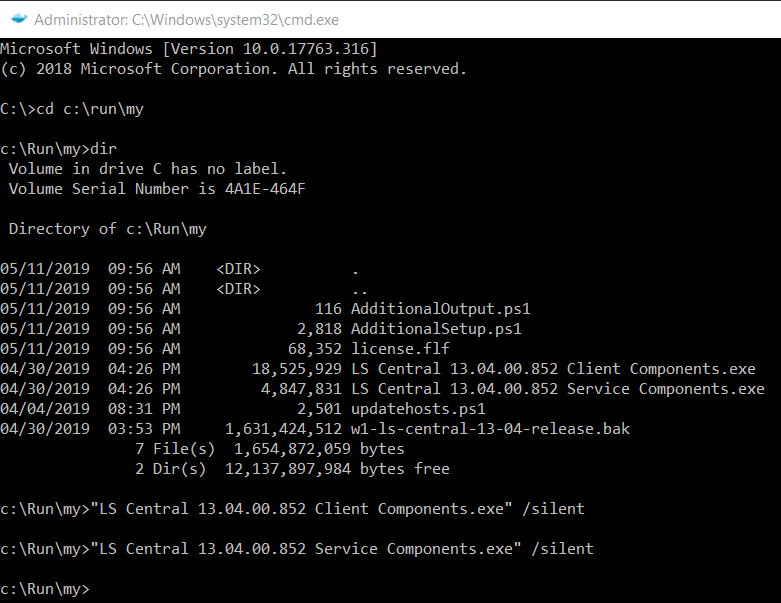
    We can use this to install our LS components which we loaded into the container c:\Run\my directory earlier:

    We now have LS Central running in our Docker container.

    If you want to use the LS Windows Client POS you’ll also need to copy the LS client components into local RTC add-ins folder created by NavContainerHelper. Assuming the container name is LSDEMO, the local add-in folder can be found on the Docker host machine here:

    C:\ProgramData\NavContainerHelper\Extensions\LSDEMO\Program Files\130\RoleTailored Client\Add-ins

    Enjoy!

    See Part 2 to automate creation further:

    How-to: Run LS Central in a Docker container – Part 2


  • Add User in Dynamics NAV and Business Central On-premise with Powershell

    If you have access to an account with local administrator privileges to a Windows box hosting the Dynamics NAV or Business Central service, you can add your own user very easily with Powershell.

    Note: This post is about the on-premise version of Business Central (formerly Dynamics NAV), to add a user to Business Central Cloud/SaaS see here: Add User in Business Central Cloud / SaaS

    This functionality has been available for quite sometime in Dynamics NAV and continues to be applicable to Business Central On-premise… so it surprises me how often I get asked for a NAV user by technical staff. I’ll now be forwarding this blog post when asked!

    Another use for this of course (amongst other things) is when you need to restore a database which doesn’t contain a login you have access to. In the past we had to clear out the User related tables in SQL so NAV would give us access on first log on.

    There are two Cmdlets we need:

    New-NAVServerUser – Used to create the NAV user

    New-NAVServerUserPermissionSet – Used to assign a Permission Set to the user.

    As of Business Central CU03, the Cmdlets still have “NAV” in their name.

    So for example, using the Business Central or Dynamics NAV Administration Shell (run as administrator) we can add a new Windows user to NAV/BC and assign the SUPER Permission Set as follows:

    
    > New-NAVServerUser ServiceInstanceName -WindowsAccount DOMAIN\User.Name
    > New-NAVServerUserPermissionSet 
    ServiceInstanceName -WindowsAccount DOMAIN\User.Name -PermissionSetId SUPER

    If you want to add your currently logged on Windows user you can use the whoami command:

    
    > New-NAVServerUser ServiceInstanceName -WindowsAccount $(whoami)
    > New-NAVServerUserPermissionSet 
    ServiceInstanceName -WindowsAccount $(whoami) -PermissionSetId SUPER
  • Dynamics 365 “Tenerife” becomes Dynamics 365 Business Central

    This week Microsoft Dynamics 365 Business Central was leaked and later officially announced by Microsoft as the new name for Dynamics 365 for Finance and Operations Business Edition (Microsoft’s cloud version of Dynamics NAV). Business Central is offering the full Dynamics NAV functionality in the cloud, as apposed to Dynamics 365 for Finance and Operations Business Edition’s slimmed down functionality.

    Previously code named as Dynamics 365 Tenerife, many (myself included) were hoping that NAV would find some place in the new name. Alas , that was not to be, but the new name “Business Central” does make a lot more sense than the pseudo-acronym “NAV”… and at least it’s more catchy than “Dynamics 365 for Finance and Operations Business Edition”.

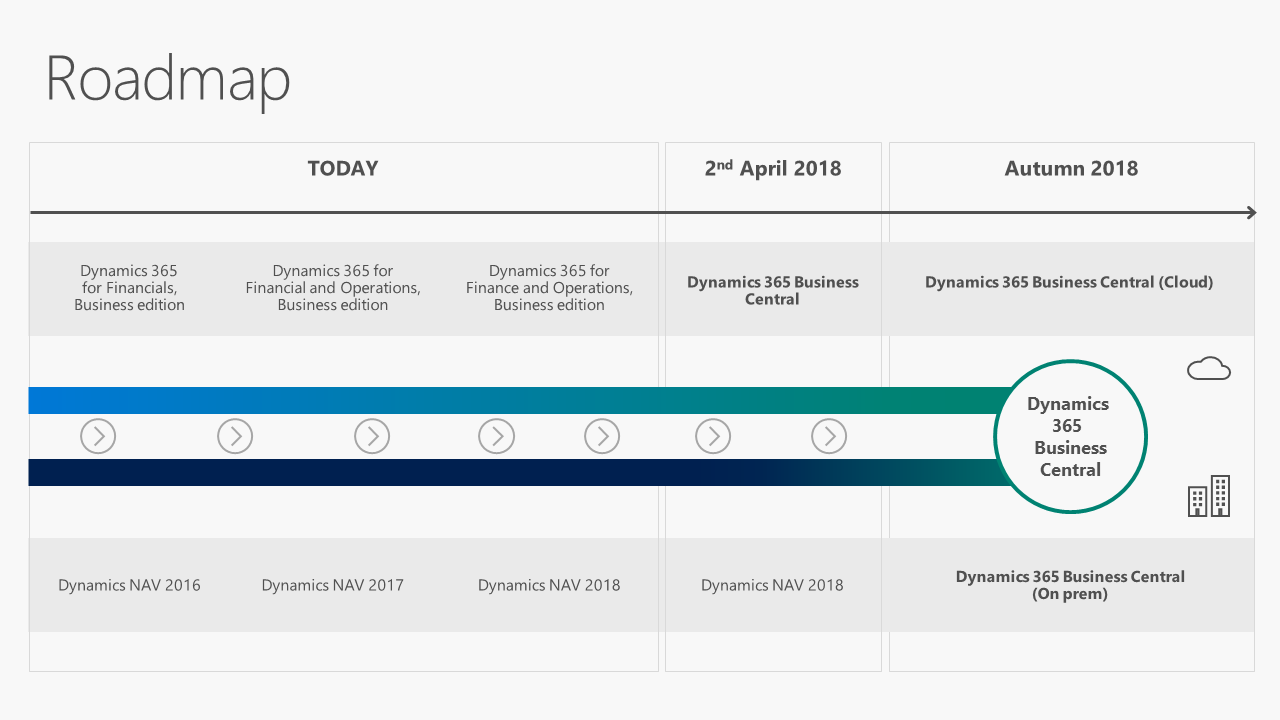
    We also learnt the release date of Dynamics 365 Business Central, which is planned for the 2nd April 2018. A Docker image preview of Business Central is available for partners to explore.

    Counter to earlier reports, we will not be seeing Dynamics NAV 2018 R2 released with Dynamics 365 Business Central. Instead, Microsoft will release the new re-branded version of Dynamics NAV as Dynamics 365 Business Central (Hosted / On-premise) in autumn 2018.. Cumulative updates for Dynamics NAV 2018 will be released as normal.

    Dynamics NAV / Dynamics 365 Business Central Roadmap
    Dynamics NAV / Dynamics 365 Business Central Roadmap

    Keep an eye on the Dynamics 365 Roadmap page for new and planned features.