Tag: Dynamics NAV 2018

  • Dynamics 365 “Tenerife” becomes Dynamics 365 Business Central

    This week Microsoft Dynamics 365 Business Central was leaked and later officially announced by Microsoft as the new name for Dynamics 365 for Finance and Operations Business Edition (Microsoft’s cloud version of Dynamics NAV). Business Central is offering the full Dynamics NAV functionality in the cloud, as apposed to Dynamics 365 for Finance and Operations Business Edition’s slimmed down functionality.

    Previously code named as Dynamics 365 Tenerife, many (myself included) were hoping that NAV would find some place in the new name. Alas , that was not to be, but the new name “Business Central” does make a lot more sense than the pseudo-acronym “NAV”… and at least it’s more catchy than “Dynamics 365 for Finance and Operations Business Edition”.

    We also learnt the release date of Dynamics 365 Business Central, which is planned for the 2nd April 2018. A Docker image preview of Business Central is available for partners to explore.

    Counter to earlier reports, we will not be seeing Dynamics NAV 2018 R2 released with Dynamics 365 Business Central. Instead, Microsoft will release the new re-branded version of Dynamics NAV as Dynamics 365 Business Central (Hosted / On-premise) in autumn 2018.. Cumulative updates for Dynamics NAV 2018 will be released as normal.

    Dynamics NAV / Dynamics 365 Business Central Roadmap
    Dynamics NAV / Dynamics 365 Business Central Roadmap

    Keep an eye on the Dynamics 365 Roadmap page for new and planned features.
     

  • Sorry, that didn’t work – Debugging AL from VS Code

    Sorry that didn't work
    So you’ve installed your NAV 2018 developer environment, fired up VS Code, pressed F5 (publish and debug), the Web Client starts to load and…

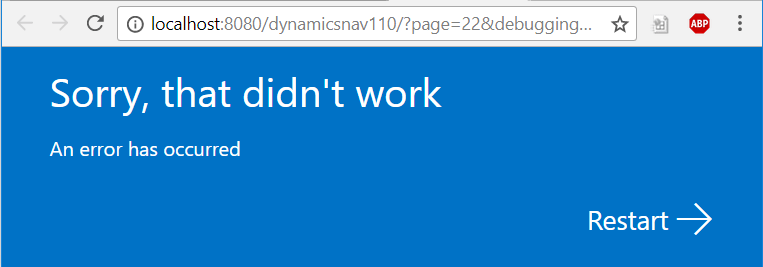
    Sorry, that didn’t work
    An error has occurred

    If you look in the Windows Event Viewer and find the message below, read on for the solution:

    Server instance: DynamicsNAV110
    Tenant ID:
    <ii>User: BLANKED\Dan.Kinsella
    Type: System.InvalidOperationException
    Message: <ii>Dynamic operations can only be performed in homogenous AppDomain.</ii>
    StackTrace:
    at System.Runtime.CompilerServices.CallSiteBinder.BindCore[T](CallSite`1 site, Object[] args)
    at System.Dynamic.UpdateDelegates.UpdateAndExecute2[T0,T1,TRet](CallSite site, T0 arg0, T1 arg1)
    at Microsoft.Dynamics.Nav.Service.Dev.Web.Controllers.DebuggerHub.OnDebuggeeConnected(Object sender, DebugSessionStartEventArgs eventArgs)
    at Microsoft.Dynamics.Nav.Runtime.Debugger.DebugRuntimeManager.OnDebuggingSessionStarted(DebugSessionStartEventArgs e)
    at Microsoft.Dynamics.Nav.Runtime.Debugger.DebugRuntimeManager.CreateRuntime(String debuggingContext, NavSession session, Boolean waitForDebugAdapterConfiguration)
    at Microsoft.Dynamics.Nav.Runtime.NavSession.StartDebuggingSession(String debuggingContext, Boolean waitForDebugAdapterConfiguration)
    at Microsoft.Dynamics.Nav.Service.NSService.OpenConnection(ConnectionRequest connectionRequest)
    at SyncInvokeOpenConnection(Object , Object[] , Object[] )
    at System.ServiceModel.Dispatcher.SyncMethodInvoker.Invoke(Object instance, Object[] inputs, Object[]& outputs)
    at Microsoft.Dynamics.Nav.Service.ServiceOperationInvoker.ErrorMappingCombinator(ServiceOperation innerOperation, NSServiceBase serviceInstance, MethodBase syncMethod, Object[] inputs, Object[]& outputs)
    Source: System.Core
    HResult: -2146233079
    </ii>

    The solution

    To enable AL debugging from VS Code we need to change the NetFx40_LegacySecurityPolicy setting in the Microsoft.Dynamics.Nav.Server.exe.config file to false.

    The Microsoft.Dynamics.Nav.Server.exe.config file is found in the Dynamics NAV service install directory, which (if you accepted the default) will be in the following location:

    C:\Program Files\Microsoft Dynamics NAV\110\Service\Microsoft.Dynamics.Nav.Server.exe.config

    Search the config file for the NetFx40_LegacySecurityPolicy setting, and change the enabled property to false:

    <NetFx40_LegacySecurityPolicy enabled="false"/>
    After restarting the service tier, try again and the Web Client should now open with a debug session.