Tag: Extensions V2

  • Managing AL Language extensions per workspace

    When working on multiple different versions of Business Central, you may have got in the habit of managing AL Language extensions by installing and uninstalling / disabling different versions of the AL language extension as you move between projects.

    Microsoft have made this management easier in recent versions of the AL language extension found on the Visual Studio Code marketplace place by providing multi-version support. This allows the developer to select the target platform version when creating a project workspace:
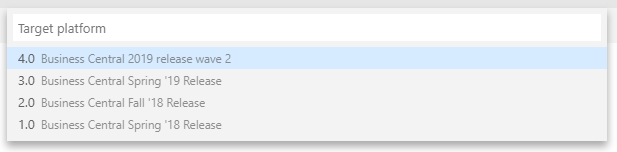
    Select Business Central platform


    But, what if you want to develop for a specific on-premise build of Business Central / Dynamics NAV 2018 or a currently unsupported version such as an insider build from the Collaborate programme? You’ll still need to import the VSIX file that ships with this version.

    Managing AL Language extensions

    Visual Studio Code provides functionality to enable / disable extensions on a per workspace basis.

    So to use this in practise lets say you want your default AL language extension in Visual studio code to be the version that comes from the Visual Studio Code Marketplace. If we leave this version alone after install, it will be enabled globally (i.e. available for all projects):
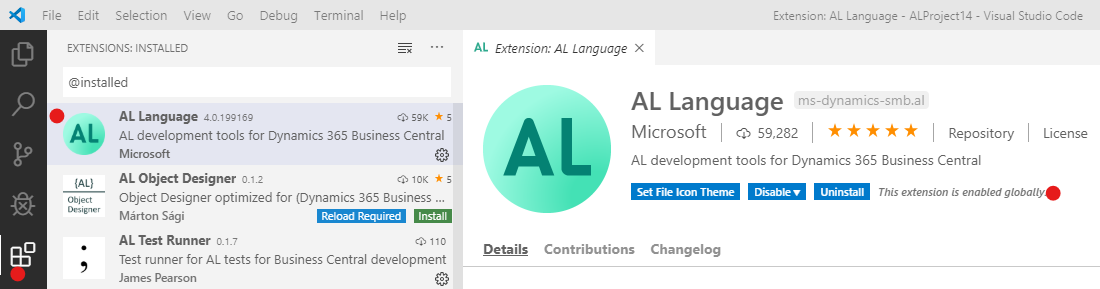
    Gloabbly available VS Code extension


    Now lets create a new project where we want to use a specific AL language extension shipped with the Business Central version we’re developing for.

    There are a few steps we’ll need to complete as follows:

    1. Obtain the VSIX file for the target AL language extension (found on the product DVD, or output in the terminal if using containers).
    2. Create a new workspace in Visual Studio Code by opening a folder.
    3. Import the VSIX file.
    4. Disable the new AL language extension. Then select Enable (Workspace)
    5. Identify the global AL Language extension and select Disable (Workspace)
    Obtain target VSIX file

    VSIX is the file format for Visual Studio Code extension packages. Each version of Business Central on-premise (and Dynamics NAV 2018) ships with a VSIX file in the product DVD.

    In the Business Central 2019 Wave 2 “DVD” the VSIX package is in the following location (assuming you’ve unzipped to C:\Temp):

    C:\Temp\Dynamics 365 Business Central 2019 Release Wave 2.GB.36649\ModernDev\program files\Microsoft Dynamics NAV\150\AL Development Environment\ALLanguage.vsix

    When using NAV/BC Docker containers a link to download the VSIX package is printed to the console when creating the container. If you’ve closed your console since creating the container you can use the docker logs command to display this information for any given container:

    PS C:\WINDOWS\system32> docker logs ALDEMO
    Initializing...
    Starting Container
    Hostname is ALDEMO
    PublicDnsName is ALDEMO
    Using NavUserPassword Authentication
    Starting Local SQL Server
    Starting Internet Information Server
    Creating Self Signed Certificate
    Self Signed Certificate Thumbprint B4342A2900B851600763A08FD1C8B03CC8B28622
    Modifying Service Tier Config File with Instance Specific Settings
    Starting Service Tier
    Registering event sources
    Creating DotNetCore Web Server Instance
    Enabling Financials User Experience
    Creating http download site
    Setting SA Password and enabling SA
    Creating dank as SQL User and add to sysadmin
    Creating SUPER user
    WARNING: The password that you entered does not meet the minimum requirements. 
    It should be at least 8 characters long and contain at least one uppercase 
    letter, one lowercase letter, and one number.
    Container IP Address: 172.30.134.252
    Container Hostname : ALDEMO
    Container Dns Name : ALDEMO
    Web Client : http://ALDEMO/BC/
    Dev. Server : http://ALDEMO
    Dev. ServerInstance : BC
    
    Files:
    http://ALDEMO:8080/al-4.0.192371.vsix

    Just copy the VSIX file URL into your browser to download.

    Create a new workspace in Visual Studio Code

    So you could change the target AL Language extension on an existing project, but you may need to change some of the parameters in the launch.json and/or app.json files that get generated by the AL language extension due to differences between versions.

    To keep things simple I’m going to create a new project to use by creating a new folder and opening that in VS Code. Once I’ve activated the AL Language version I require, I’ll use that to generate the app.json and launch.json files.

    1. Hit F1 to open the command palette.
    2. Search for and execute Open Folder.
    3. In Open Folder Dialog create new folder and open.
    Import the VSIX file into Visual Studio Code

    The AL language VSIX file can now be imported into Visual Studio Code:
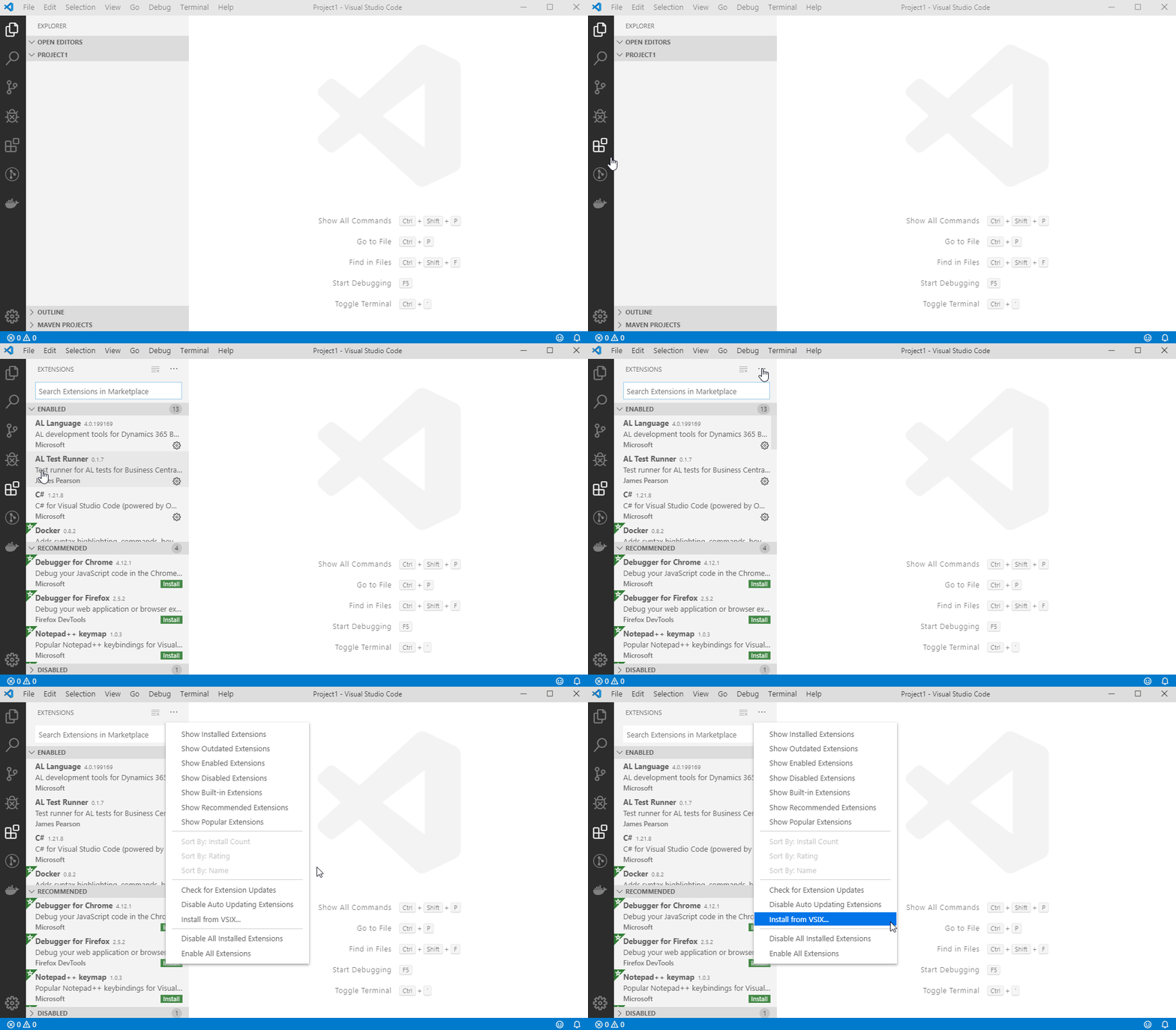
    Import VSIX - VS Code

    Enable new AL Language extension version for current workspace only

    With our new extension installed, we’ll first need identify it based on the version number, disable it, and then enable it for the current workspace only:
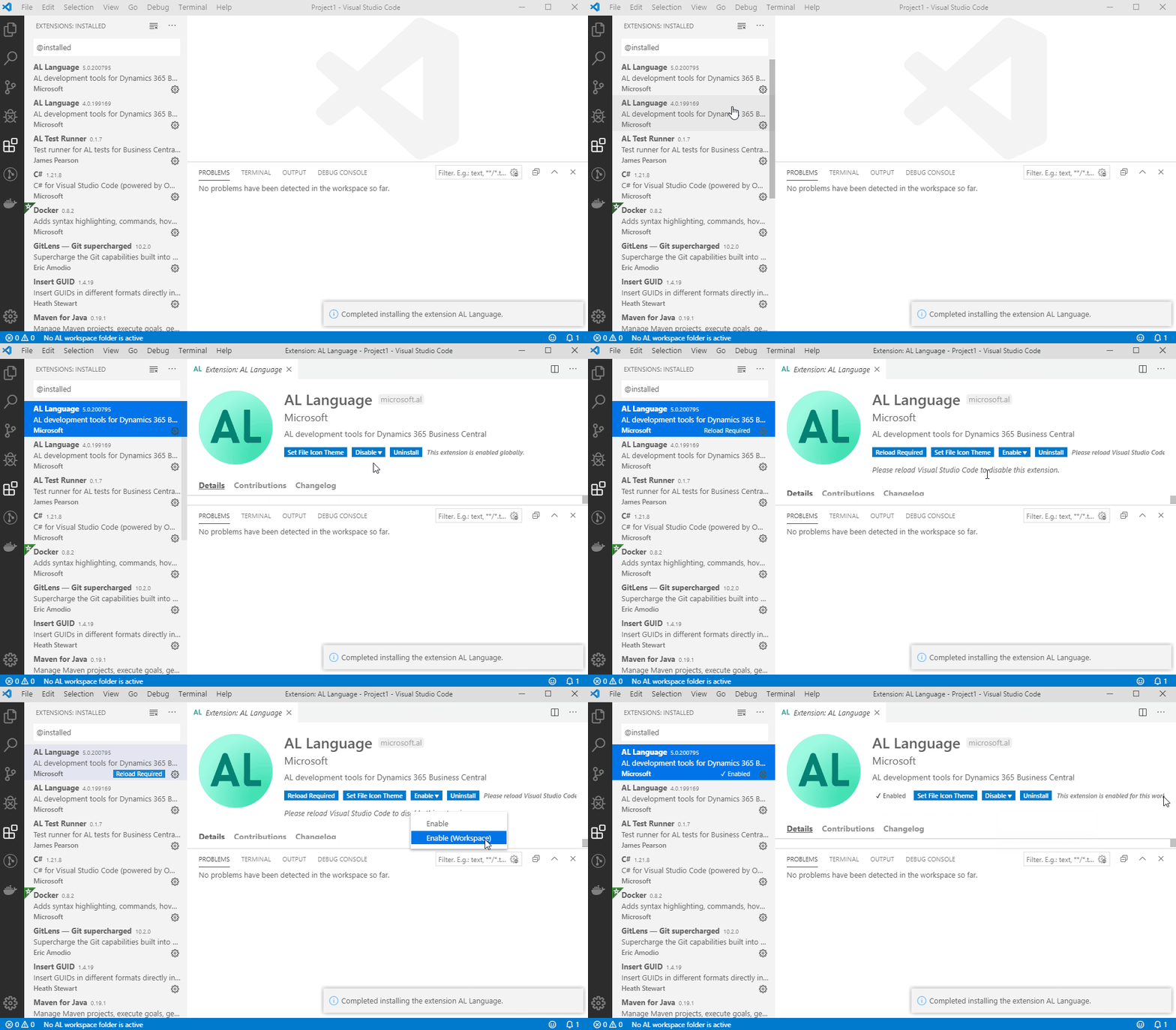
    Enable Visual Studio Code extension for workspace

    Disable the global AL Language extension for the current workspace

    Next we need to disable our default AL Language extension for the currently opened workspace.

    Disable VS Code extension for current workspace


    Now we can complete the project setup by creating a new .al file in the workspace which will prompt us to generate a manifest file (app.json). The launch.json file will get created automatically if one doesn’t already exist in the workspace when you try to download symbols.

  • Business Central AL Interface type

    The AL Interface Type

    Unfortunately I’m not able to attend NAVTech Days this year, but I am paying attention from a far and saw some very interesting posts on Twitter about a new type available in the forthcoming Business Central 16.x release. The AL interface type.

    The concept of interfaces won’t be new to any one from the object orientated world of programming languages. I first used them with Java and it’s great to see Microsoft expanding the AL language to give us more features that open up a whole new world of software design.

    The AL interface type give us the ability to use the techniques of abstraction and loose coupling in AL. To explain this lets look at an interface declaration:

    interface IErrorHandler
    {
        procedure HandleError(ErrorCode : Code[10]; ErrorMessage : Text[1024]);
    }

    As we can see, the interface IErrorHandler declares a procedure but does not have a procedure body. The procedure is not implemented in the interface.

    A codeunit must be created to implement the interface and provide the behaviour. Implementing codeunits must implement every procedure declared by any interface it implements. An important point to remember when designing interfaces.

    To implement an interface, we use the implements keyword followed by the interface name after the codeunit declaration:

    codeunit 50104 "Throw Error" implements IErrorHandler
    {
        procedure HandleError(ErrorCode: Code[10]; ErrorMessage: Text[1024])
        var
            Errortext: Label 'Error Code: %1\Error Message: %2';
        begin
            Error(ErrorText, ErrorCode, ErrorMessage);
        end;
    }

    An interface can be implemented by many different codeunits, all providing their own behaviour. Lets create another implementation of IErrorHandler:

    codeunit 50105 "Log Errors in Database" implements IErrorHandler
    {
        procedure HandleError(ErrorCode: Code[10]; ErrorMessage: Text[1024])
        var
            ErrorLog : Record "Error Log";
        begin
            ErrorLog.Validate(Code, ErrorCode);
            ErrorLog.Validate(Description, ErrorMessage);
            ErrorLog.Validate("Logged On", CurrentDateTime);
            ErrorLog.Insert();
        end;
    }

    So now we have two codeunits which both implement IErrorHandler in their own way. The compiler knows that any codeunit that implements IErrorHandler must implement the HandleError function, which means we can write generic, loosely coupled code to handle the processing of errors and pass in the implementing codeunit as required:

    codeunit 50103 "Error Creator"
    {
        procedure ProcessError(ErrorHandler : Interface IErrorHandler)
        begin
            ErrorHandler.HandleError('Error1', 'This is an error message!');
        end;
    
        procedure CallErrorHandler(PersistErrors : Boolean)
        var
            ErrorLogCU : Codeunit "Log Errors in Database";
            ThrowErrorCU : Codeunit "Throw Error";
        begin
            If PersistErrors then
                ProcessError(ErrorLogCU)
            else
                ProcessError(ThrowErrorCU);
        end;
    }

    The ProcessError() method above takes a parameter of type Interface IErrorHandler, this means we can pass in any codeunit that implements IErrorHandler as seen in the CallErrorHandler() method.

    A codeunit can implement multiple interfaces using comma separation:

    codeunit 50105 "Log Errors in Database" implements IErrorHandler, ISomeOther, ISomeOther2
    {
       // implementation here...
    }

    Note: The I prefix on the interface name is not mandatory but is a common convention used in C#.

    The interface type was revealed during the NAVTechDays 2019 opening keynote, which is now available on YouTube here (1:17:30).

  • Sorry, that didn’t work – Debugging AL from VS Code

    Sorry that didn't work
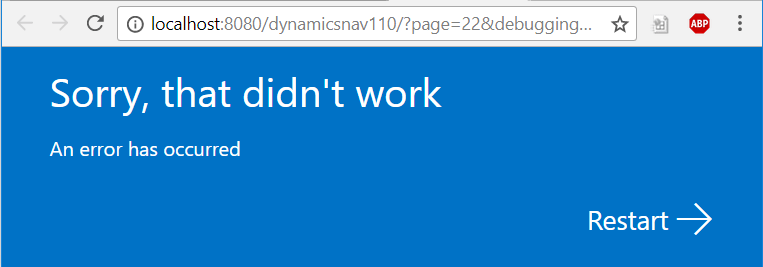
    So you’ve installed your NAV 2018 developer environment, fired up VS Code, pressed F5 (publish and debug), the Web Client starts to load and…

    Sorry, that didn’t work
    An error has occurred

    If you look in the Windows Event Viewer and find the message below, read on for the solution:

    Server instance: DynamicsNAV110
    Tenant ID:
    <ii>User: BLANKED\Dan.Kinsella
    Type: System.InvalidOperationException
    Message: <ii>Dynamic operations can only be performed in homogenous AppDomain.</ii>
    StackTrace:
    at System.Runtime.CompilerServices.CallSiteBinder.BindCore[T](CallSite`1 site, Object[] args)
    at System.Dynamic.UpdateDelegates.UpdateAndExecute2[T0,T1,TRet](CallSite site, T0 arg0, T1 arg1)
    at Microsoft.Dynamics.Nav.Service.Dev.Web.Controllers.DebuggerHub.OnDebuggeeConnected(Object sender, DebugSessionStartEventArgs eventArgs)
    at Microsoft.Dynamics.Nav.Runtime.Debugger.DebugRuntimeManager.OnDebuggingSessionStarted(DebugSessionStartEventArgs e)
    at Microsoft.Dynamics.Nav.Runtime.Debugger.DebugRuntimeManager.CreateRuntime(String debuggingContext, NavSession session, Boolean waitForDebugAdapterConfiguration)
    at Microsoft.Dynamics.Nav.Runtime.NavSession.StartDebuggingSession(String debuggingContext, Boolean waitForDebugAdapterConfiguration)
    at Microsoft.Dynamics.Nav.Service.NSService.OpenConnection(ConnectionRequest connectionRequest)
    at SyncInvokeOpenConnection(Object , Object[] , Object[] )
    at System.ServiceModel.Dispatcher.SyncMethodInvoker.Invoke(Object instance, Object[] inputs, Object[]& outputs)
    at Microsoft.Dynamics.Nav.Service.ServiceOperationInvoker.ErrorMappingCombinator(ServiceOperation innerOperation, NSServiceBase serviceInstance, MethodBase syncMethod, Object[] inputs, Object[]& outputs)
    Source: System.Core
    HResult: -2146233079
    </ii>

    The solution

    To enable AL debugging from VS Code we need to change the NetFx40_LegacySecurityPolicy setting in the Microsoft.Dynamics.Nav.Server.exe.config file to false.

    The Microsoft.Dynamics.Nav.Server.exe.config file is found in the Dynamics NAV service install directory, which (if you accepted the default) will be in the following location:

    C:\Program Files\Microsoft Dynamics NAV\110\Service\Microsoft.Dynamics.Nav.Server.exe.config

    Search the config file for the NetFx40_LegacySecurityPolicy setting, and change the enabled property to false:

    <NetFx40_LegacySecurityPolicy enabled="false"/>
    After restarting the service tier, try again and the Web Client should now open with a debug session.