When attempting to access the Dynamics NAV Web Client the following error is displayed in the browser:
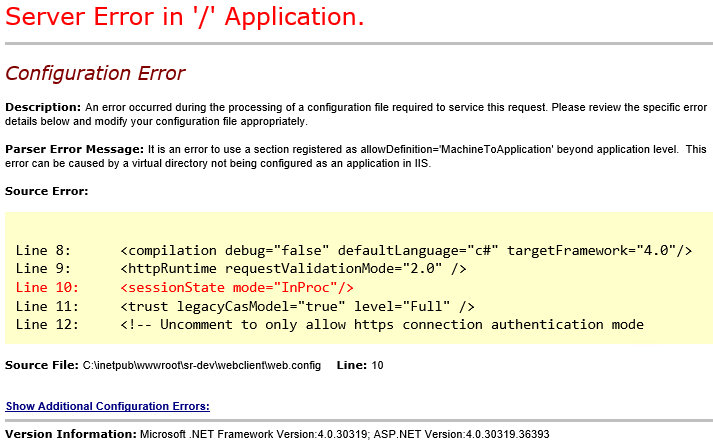
Server Error in '/' Application.

Configuration Error
 Description: An error occurred during the processing of a configuration file required to service this request. Please review the specific error details below and modify your configuration file appropriately.

Parser Error Message: It is an error to use a section registered as allowDefinition='MachineToApplication' beyond application level. This error can be caused by a virtual directory not being configured as an application in IIS.

Source Error:

Line 8:      <compilation debug="false" defaultLanguage="c#" targetFramework="4.0"/>
Line 9:      <httpRuntime requestValidationMode="2.0" />
Line 10:     <sessionState mode="InProc"/>
Line 11:     <trust legacyCasModel="true" level="Full" />
Line 12:     <!-- Uncomment to only allow https connection authentication mode

Source File: C:\inetpub\wwwroot\sr-dev\webclient\web.config Line: 10
As the parser error message states above “This error can be caused by a virtual directory not being configured as an application in IIS.”, we need to check that the Web Client directory in IIS has been set as an application. To do this:
- Open IIS Manager (hit the Windows key and type IIS) on the server hosting the Web Client components.
- Look for the Web Client directory, usually under Sites/Default Web Site.
- Expand to show the directory called WebClient, right click on this directory and select Convert to Application:
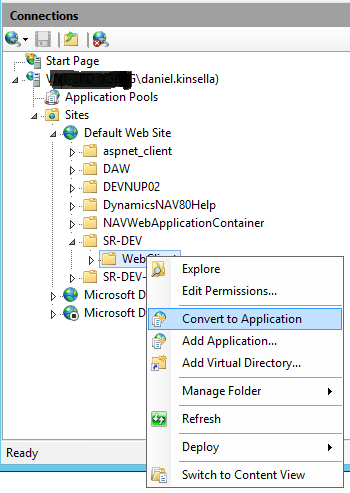
After clicking Convert to Application a dialog box will pop up, click OK. You should notice the icon on the WebClient directory has changed.
Try to open the Web Client again and hopefully the issue is fixed!
Bonus points if anyone can tell me why it broke in the first place…
 Dan Kinsella's Blog