If you have more complex (or fringe) requirements, such as numbers must be positive, there is also the BlankNumbers page field property. BlankNumbers can be set to the following values:
Value
Description
DontBlank (default)
Not clear any numbers
BlankNeg
Clear negative numbers
BlankNegAndZero
Clear negative numbers and zero
BlankZero
Clear numbers equal to zero
BlankZeroAndPos
Clear positive numbers and zero
BlankPos
Clear positive numbers
Note: BlankNumbers is not available when modifying fields from a pageextension object, you can only use this property on a field declaration.
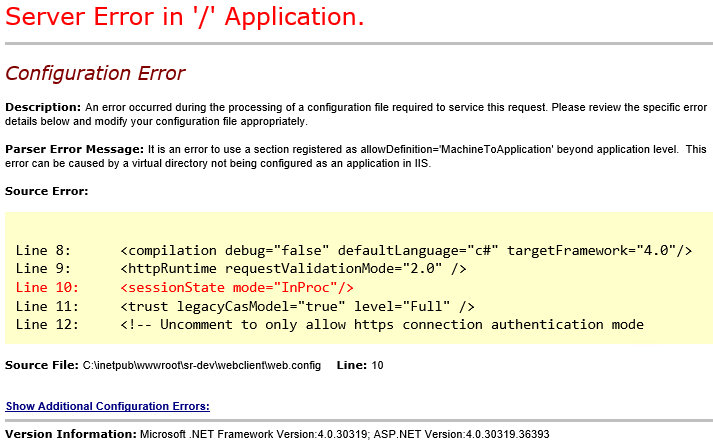
When attempting to access the Dynamics NAV Web Client the following error is displayed in the browser:
Dynamics NAV Web Client – Server Error in Application
Server Error in '/' Application.

Configuration Error
 Description: An error occurred during the processing of a configuration file required to service this request. Please review the specific error details below and modify your configuration file appropriately.

Parser Error Message: It is an error to use a section registered as allowDefinition='MachineToApplication' beyond application level. This error can be caused by a virtual directory not being configured as an application in IIS.

Source Error:

Line 8:      <compilation debug="false" defaultLanguage="c#" targetFramework="4.0"/>
Line 9:      <httpRuntime requestValidationMode="2.0" />
Line 10:     <sessionState mode="InProc"/>
Line 11:     <trust legacyCasModel="true" level="Full" />
Line 12:     <!-- Uncomment to only allow https connection authentication mode

Source File: C:\inetpub\wwwroot\sr-dev\webclient\web.config Line: 10
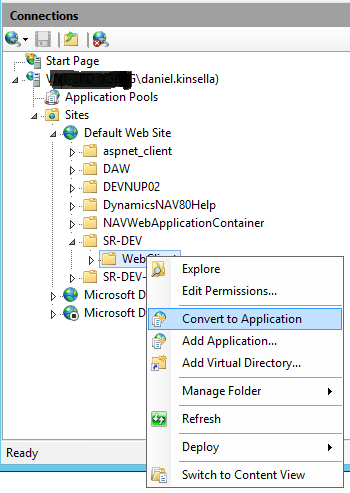
As the parser error message states above “This error can be caused by a virtual directory not being configured as an application in IIS.”, we need to check that the Web Client directory in IIS has been set as an application. To do this:
Open IIS Manager (hit the Windows key and type IIS) on the server hosting the Web Client components.
Look for the Web Client directory, usually under Sites/Default Web Site.
Expand to show the directory called WebClient, right click on this directory and select Convert to Application:
Web Client Components – Convert to Application
After clicking Convert to Application a dialog box will pop up, click OK. You should notice the icon on the WebClient directory has changed.
Try to open the Web Client again and hopefully the issue is fixed!
Bonus points if anyone can tell me why it broke in the first place…
To update Dynamics NAV licenses of multiple databases used to be a bit of a headache. We have customers running independent NAV instances in the hundreds using LS Retail POS. Imagine having to log into each machine manually:
Connect to the remote host.
Upload the Dynamics NAV license file to the remote host.
Import the license file.
Restart the Dynamics NAV Service Tiers.
Maybe you have multiple development / test machines which need a yearly license update?
In this blog post I demonstrate how you can update NAV licenses on multiple remote hosts all from the comfort of your own PowerShell prompt. Hopefully, along the way you’ll pick up some PowerShell tricks to make your life easier!
Update Dynamics NAV License Centrally on Multiple NAV Servers
Before we get started there are a few prerequisites to this technique:
The remote hosts are on the same domain.
The user account running the PowerShell script has local admin on the host.
Connecting to a remote host with PowerShell
PowerShell comes with a utility called PowerShell Remoting. This allows us to connect to remote servers which have PowerShell Remoting enabled. Windows Server 2012 R2 and above have PowerShell Remoting enabled by default, but if we need to enable this manually we can run the following command on the host:
> Enable-PSRemoting -force
If the -force option is not used a prompt asking if we want to continue will occur.
A password prompt will appear if we specify a user account.
The Enter-PSSession cmdlet is handy when we want to enter into an interactive session with a remote host, but it will come up short when we want to start automating our scripts.
New-PSSession is used to create a PowerShell session. This session can be a remote session and we can assign this session to a variable. This session variable can be used with the Invoke-Command cmdlet.
For example, we could create a remote session and get a list of services on the remote host with:
In a scenario where we have a list of remote hosts to process, we will likely want to keep a note of any hosts that fail to respond. A simple method is to write any failures out to a text file. We can catch these failures in a try / catch block:
The Add-Content cmdlet will append values to the end of the file specified, creating the file if it doesn’t exist.
Send the local NAV license file to the host machine
I thought about a few options for getting the license file on the host machine:
Put the license file on a web server or fileshare and download from the host.
Copy the file through the Copy-Item Cmdlet using the -FromSession parameter.
But the most convenient in this scenario is to put the license data in a byte array and pass it into the Import-NAVServerLicense Cmdlet using the -LicenseData parameter.
To create a byte array from the NAV license file we can use the following code:
$LicenseData now contains the new NAV license, but we’ve created this variable in our local PowerShell session. Once we’ve created the remote session we will need to pass this variable in to the script block we are going to execute in the remote session. To do this, we can utilise script block parameters:
You may have noticed the -ArgumentList value looks a bit weird: (,$LicenseData). This is because the -ArgumentList parameter expects an array value, and will pass our byte array through as individual elements. That said, I’ve no idea why this syntax works… Stack Overflow to the rescue!
If you don’t use the (,$ArrayVar) syntax, expect an error message like this:
So far we can create a remote session, move the license data to the remote host and execute script block on the remote host. Next we need to import the license into the remote Dynamics NAV instance. This is done using the Import-NAVServerLicense cmdlet:
> Import-NAVServerLicense <NAV Service Instance> -LicenseData <License Data>
The minimum parameters we need are the Dynamics NAV service instance name and the license data. We’ve already got the license data in the $LicenseData byte array, so lets look at getting a service to use.
To make this simple, I’m going to apply the license to any running services on the host. I’ve blogged about getting running services previously, here’s some PowerShell to return the service names of any running NAV services:
The following script will get a list of running Dynamics NAV services, apply the license using the first service found and then restart all Dynamics NAV services:
# Put license data in Byte array
[Byte[]]$LicenseData = Get-Content -Path "C:\Temp\License.flf" -Encoding Byte

# Get list of running NAV services
$NAVServices = Get-NAVServerInstance | Where-Object {$_.State -eq 'running'} | Select-Object -ExpandProperty "ServerInstance"

# If variable is an array get the first index
If ($NAVServices -is [array]) {
 $NAVService = $NAVServices[0]
} else {
 $NAVService = $NAVServices
}

# Check we have a NAV service before we try to import a license
if (-Not [string]::IsNullOrEmpty($NAVService)) {
 Import-NAVServerLicense $NAVService -LicenseData $LicenseData
}

# Restart the service(s)
Restart-Service -Name $NAVServices
Putting it all together: Update Dynamics NAV Licenses on remote machines
OK, we’ve run through all the parts. Lets put this all in to one script:
# Array of host machines
$RemoteHosts = "NAVSERV01", "NAVSERV02", "NAVSERV03"

# Text file with list of host machines
# $RemoteHosts = Get-Content -Path "C:\Temp\NAVHostsList.txt"

[Byte[]]$LicenseData = Get-Content -Path "C:\Temp\License.flf" -Encoding Byte

$ScriptBlock = {
 param ($LicenseData)

 Import-Module 'C:\Program Files\Microsoft Dynamics NAV\110\Service\NAVAdminTool.ps1'

 $NAVServices = Get-NAVServerInstance | Where-Object {$_.state -eq 'running'} | Select-Object -ExpandProperty "ServerInstance"

 # If variable is an array get the first index
 If ($NAVServices -is [array]) {
   $NAVService = $NAVServices[0]
 } else {
   $NAVService = $NAVServices
 }

# Check we have a NAV service before we try to import a license
 if (-Not [string]::IsNullOrEmpty($NAVService)) {
   Import-NAVServerLicense $NAVService -LicenseData $LicenseData

  # Restart the service(s)
   Restart-Service -Name $NAVServices
 }
}
foreach ($RemoteHost in $RemoteHosts) {
 try {
   $session = New-PSSession -Computer $RemoteHost

   Invoke-Command -Session $session -ScriptBlock $ScriptBlock -ArgumentList (,$LicenseData)

 } catch {
   Add-Content -Path "C:\Temp\ErrorLog.txt" -Value ("Error updating license on: " + $RemoteHost)
 }
}
Whilst this does the job, there is plenty of room for improvement. Error handling is very lightweight for a start. Issues connecting to a remote host will be logged in the ErrorLog file, but if any errors occur in the remote session you’ll only be able to view them from the console output. Also, this script only allows for a single version of NAV and assumes all services on a remote host are connected to the same database.
So, feel free to use and adapt this script.. but do so at your own risk.
Occasionally when working with Lanham Pack Line Scanning for Dynamics NAV a single item needs to be shipped in two (or more) separate packages. In this blog post I’ll offer two solutions to this issue.
Solution 1 – Empty Package
This can be achieved using the create extra package command (//CEP) which will create an “empty” Package record. For example:
Open order
Scan item
Close package
Create empty package (//CEP)
Close package
Close order
A drawback of solution 1 is that the empty package won’t have any package lines and won’t be associated with any items.
Solution 2 – Part Quantities
Another solution is to manipulate the item quantity on the package to only assign part of the item. For example packing a single NAV item in two packages could be done with a quantity of 0.5 in each package:
Open order
Scan item
Open Package Card
Change quantity to 0.5
Close package
Scan item again (This will display over pack warning)
Open Package Card
Change quantity to 0.5
Close package
Close order
This solution has a few more steps, but will result in the package being associated with an item.
A handy tip for when you want to export all the NAV Objects you can in text format but you keep getting licence permission errors when hitting objects out of your licence range (third-party add-ins for instance).
The Lock function in the NAV Development Environment allows you to lock an object to stop other developers modifying objects you’re currently working on. Why am I telling you this? Well, a nice little feature of Lock is it will only lock Objects in the current licence range… Thus, If you select all objects from the Object Designer and invoke the Lock function (File->Lock or Ctrl+Alt+L) you can now filter on all locked objects.
Finding Unlicensed Objects
Tip #2: You want to test a NAV licence against the Objects in a database. In the NAV Development Environment change the licence to the one you wish to test and attempt to lock all objects (as described above). Filtering on the Objects where locked = No will give you a list of all unlicensed Objects.



 Dan Kinsella's Blog