
Git provides a mechanism to ignore certain files in a repository, that’s the job of the .gitignore file. You can also stop tracking files in Git that have already been committed, but with a little bit more work.
Simply create this file in the workspace root and list out all the files and directories that we don’t want Git to track.
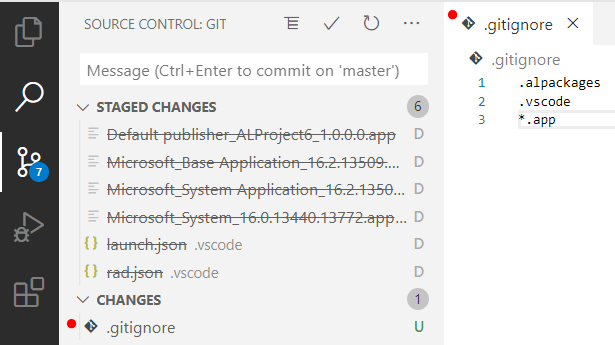
My .gitignore file will typically contain:
.alpackages
.vscode
*.app
A .gitignore file with the above contents will ignore both the .alpackages and .vscode folders, and any file with the extension .app.
.alpackages – This contains the apps your app depends on and gets created when you download symbols.
.vscode – This contains all your user specific workspace and environment settings such as launch.json, user workspace settings etc.. you don’t want to share this.
*.app – this is you compiled app files and will be generated every time you compile.. this doesn’t belong in your repository.
I’ll usually also have a scripts folder where I’ll put my PowerShell script to create my local Docker container, you may or may not want to share something like this in your repository. If not, add it to .gitignore.
So far so good, but what if you or one of your team has already committed some files that shouldn’t be tracked? If Git is already tracking a file, adding it to .gitignore will do absolutely nothing.
So how do we fix this?
Simply deleting the files and committing wont resolve this as Git will continue to track the file. Once we put the file back (i.e. recreate the launch.json) Git will start tracking it again.
We not only need to delete the files, we also need to remove the files from the Git index to stop tracking files in Git.
The VS Code command pallet won’t help because the built in Git extension doesn’t have a command for this, so we’ll have to head over to our terminal and talk to Git directly.
For an example, lets say no .gitignore file had been created for the initial commit and Git is now tracking every file in our repository. We want to create the .gitignore file shown above and stop tracking the directories and files specified in it.
The command git rm can be used to remove tracked files from your repository index. To use this command on a directory, we need to add the recursive switch -r.
From the VS Code terminal type the following commands:
PS> git rm -r .alpackages
PS> git rm -r .vscode
PS> git rm *.app
As we can see the command will accept the wildcard (*) and delete all .app files.
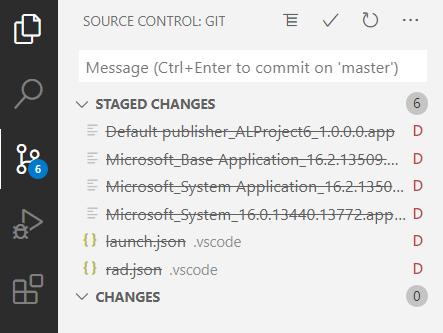
At this point you can see that Git has staged all the file deletes:
Next up, create a file named .gitignore and add entries for the lines you want to ignore:
Now stage the .gitignore file and commit your changes, before synchronizing with remote. The files will be removed from the remote, and any local repositories the next time they do a pull request. Of course, the files will still be visible in your git history if you ever need to recover anything.
When you regenerate your launch.json (or paste is in from your backup) and download symbols, you’ll notice git is no longer tracking these files.
 Dan Kinsella's Blog